Persistent Shopping Cart allow retention of unpurchased items that are left in the cart and saves them for a time period that is configured in Persistence Lifetime (By Default 31536000 Seconds, 8760 Hours, 1 Year)
If customers want to take advantages of Persistent Shopping Cart below things must done.
For Registered customers must be logged in, if Guest customers want to advantage of Persistent Shopping Cart, must be create account & logged in
For Persistent Shopping Cart, Customer’s Browser’s Cookies must be enabled
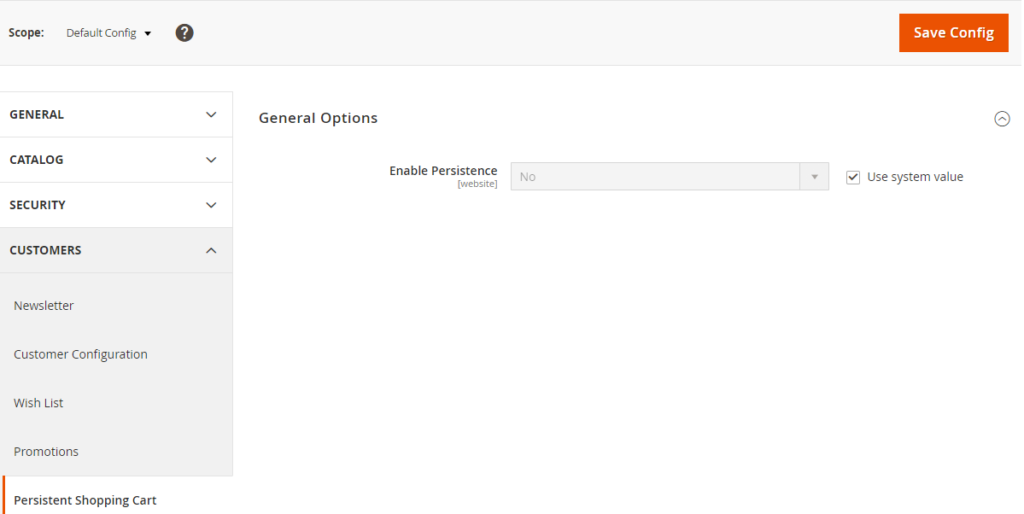
By default, Magento 2 Persistent Shopping Cart disabled
Magento 2 Enabled Persistent Shopping Cart
There are following below steps need to follow to enable Persistent Shopping Cart in Magento 2 Admin
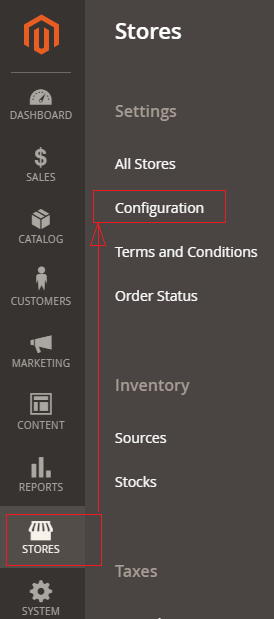
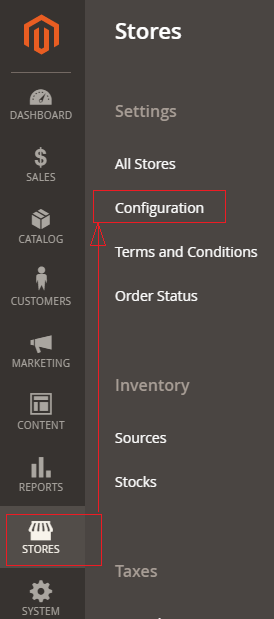
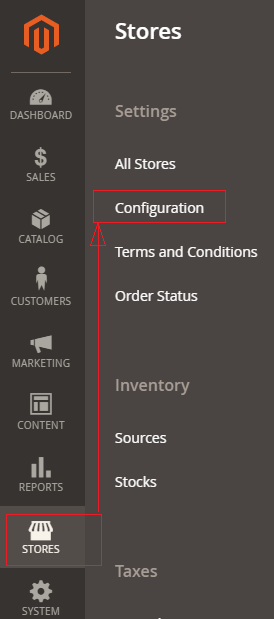
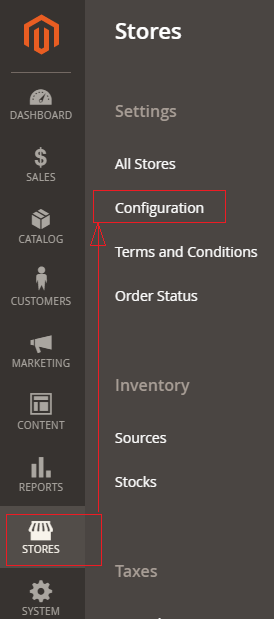
[1]- Go To STORES > Configuration, redirects on configuration.
[2]- Left Panel Clicked on Customers > Persistent Shopping Cart redirects on [Right Panel]
[3]- Once redirection on General Options [Right Panel]
[4] – General Options [Right Panel] having Enable Persistence Panel
By Default Enable Persistence Panel & No Option By Default selected
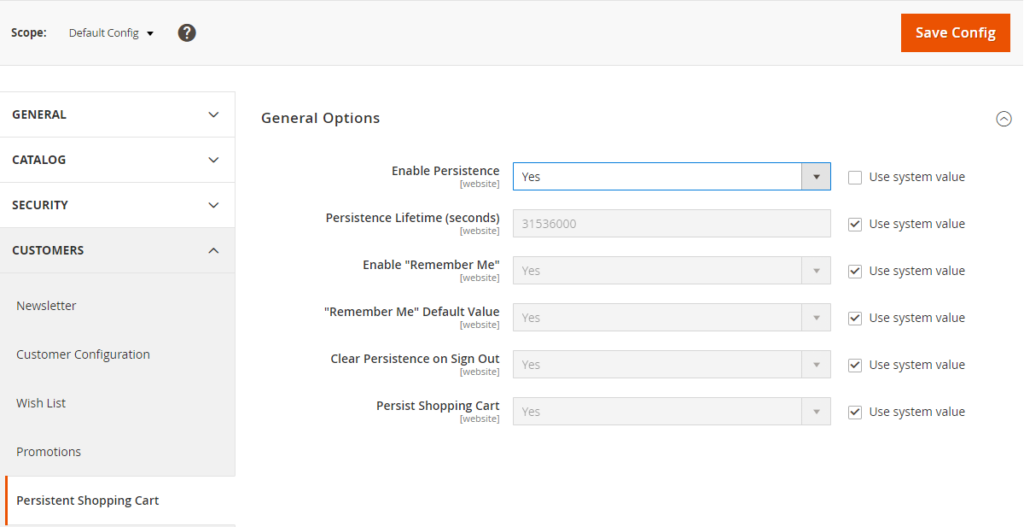
If Store Owner(Admin) want to enable Persistent Shopping Cart
Need to select Yes , There are following below options displayed.
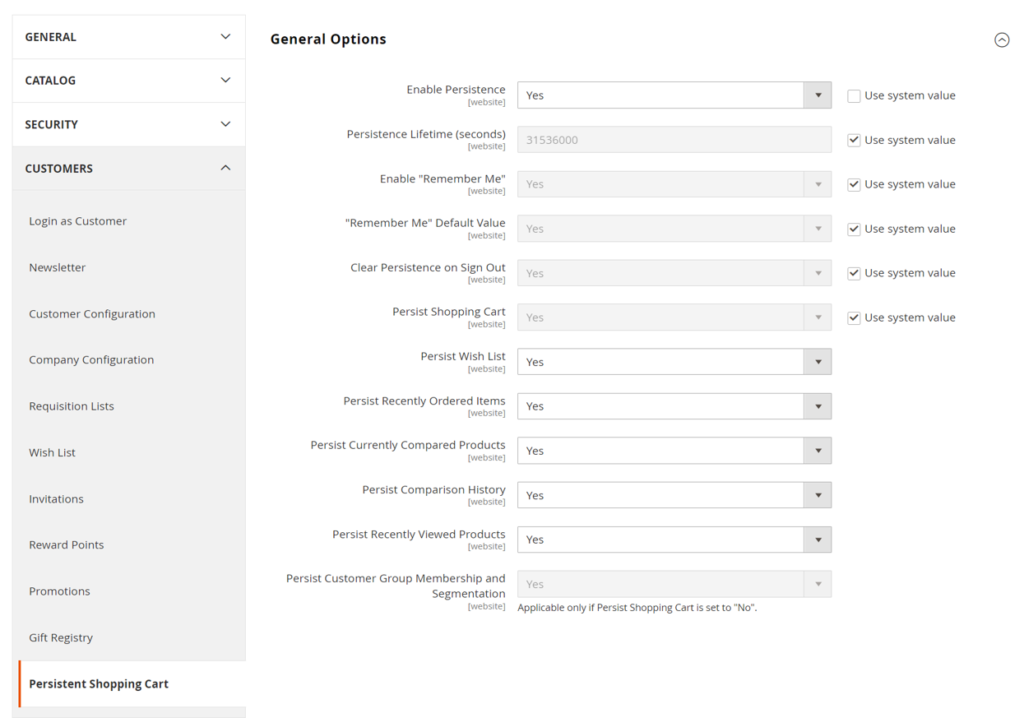
Only Adobe Commerce 2.x B2B
Each option defined as
[4.1]- Persistence Lifetime (seconds) : By default 31536000 Seconds (1 Year Timer Period) , as per store’s requirement, store owner(Admin) can fill time period in seconds.
[4.2]- Enable “Remember Me” : Enable Remember Me to display a checkbox on Customer’s Login page that allows saving the shopping cart information.
[4.3]- “Remember Me” Default Value : It is optional field, if Store Owner(Admin) want to set default option “Remember Me” once customer’s login to store.
[4.4]- Clear Persistence on Sign Out : By Default Yes selected. Store Owner(Admin) want to set “No” option for Clear Persistence on Sign Out to ensure that all shopping cart Items has been saved.
[4.5]- Persist Shopping Cart : By Default Yes selected , if Store Owner(Admin) want to keep the persistent cookie when the session cookie expires, do not need to select No
[4.6] – (Adobe Commerce only)
Persist Wish List:: Set Persist Wish List to determine if the state of customer wish lists is retained when the session ends
Yes – The wish list contents are saved when the session ends.
No – The wish list is not saved when the session ends.
[4.7] – Adobe Commerce (Adobe Commerce only) ::
Persist Recently Ordered Items:: Set Persist Recently Ordered Items to determine if the state of recently ordered items is retained when the session ends:
Yes – The state of Recently Ordered Items is saved when the session ends.
No – The state of Recently Ordered Items is not saved when the session ends.
[4.8] – Adobe Commerce (Adobe Commerce only) ::
Persist Currently Compared Products:: Set Persist Currently Compared Products to Yes or No.
[4.9] – Adobe Commerce (Adobe Commerce only) ::
Persist Comparison History:: Set Persist Comparison History to Yes or No.
[4.10] – Adobe Commerce (Adobe Commerce only) ::
Persist Recently Viewed Products:: Set Persist Recently Viewed Products to Yes or No.
[4.11] – Adobe Commerce (Adobe Commerce only) ::
Persist Customer Group Membership and Segmentation:: Adobe Commerce (Adobe Commerce only) Set Persist Customer Group Membership and Segmentation to determine if the state of the customer’s group membership and segmentation criteria are retained when the session ends:
Yes – The state of the customer’s group membership and segmentation data is saved when the session ends.
No – The state of the customer’s group membership and segmentation data are not saved when the session ends.
[5]- Click on Save Config button & run CLI command Flush
There are following below steps need to follow, Magento 2 Admin
[1]- Go To STORES > Configuration, redirects on configuration.
[2]- Left Panel Clicked on General > Currency Setup, redirects on [Right Panel]
[3]- Once redirection on [Right Panel]
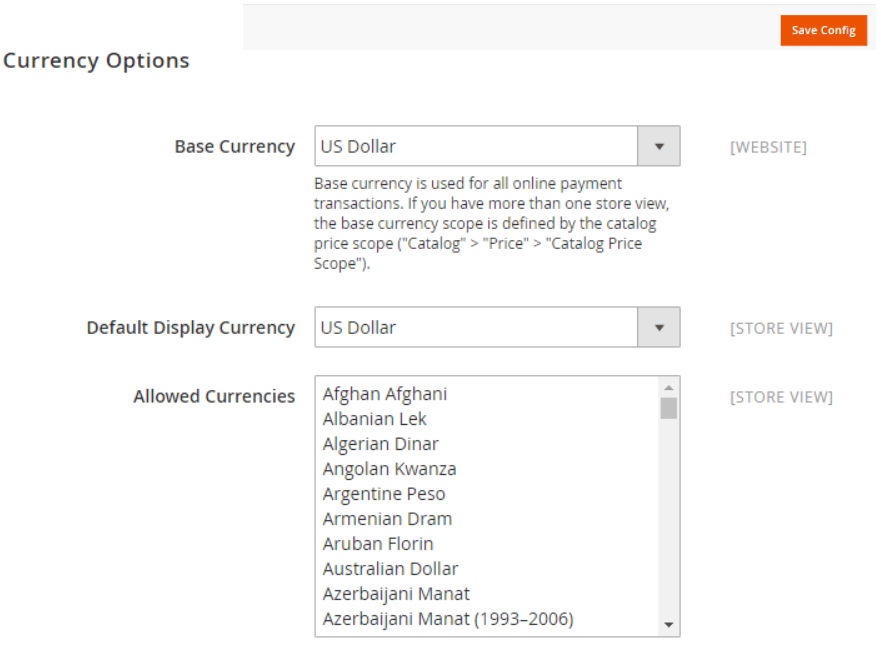
[4]- Once clicked / expanded, Currency Options [Right Panel]
Each Input field (Select Box Values), defined as
[4.1]- Base Currency : Select Base Currency (Main Currency) for online payment transaction, By Default US Dollar Selected
[4.2]- Default Display Currency :Select Default Display Currency that Store Owner(Admin) want to display pricing in store.
By Default US Dollar Selected.
[4.3]- Allowed Currencies : Select list of currencies that Store Owner(Admin) want to allow, in case of Multiple Currency( By Using to hold the ctrl key and then selecting the currency options).
During above operation, if message as cache refreshment display, then close it and refresh it.
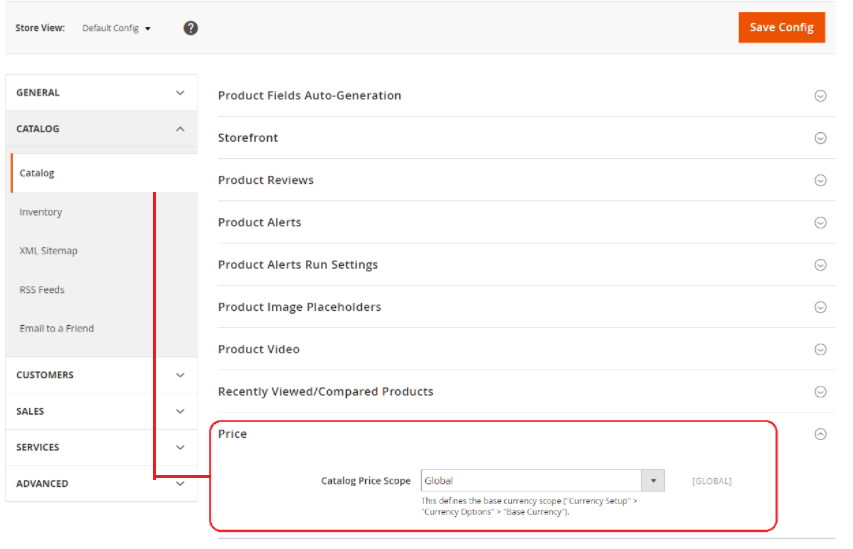
[5] Set scope of the base currency:
[5.1]- Once clicked on Left Panel (Catalog > Catalog)
[5.2]- Display Right Panel (Price)
Select Catalog Price Scope as either “Global” or “Website”
Magento 2 performs fully operations, if most of browser enabled both Cookies and JavaScript, As per Browser’s Capabilities Detection, require both Cookies and JavaScript must be enabled stage for Fully Functional Magento 2 Store.
sometimes, Users already set the browser to the highest privacy setting that cookies and JavaScript are not allowed. Magento 2 Admin can configure website store to check the capabilities of each visitor’s browser (either cookies and JavaScript enabled or not), if cookies and JavaScript not enabled send a notification to user’s browser to enable for Fully Functional Magento 2 Store.
There are following below steps need to follow for Browser Capabilities Detection.
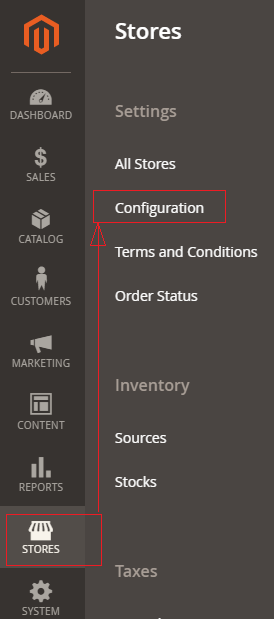
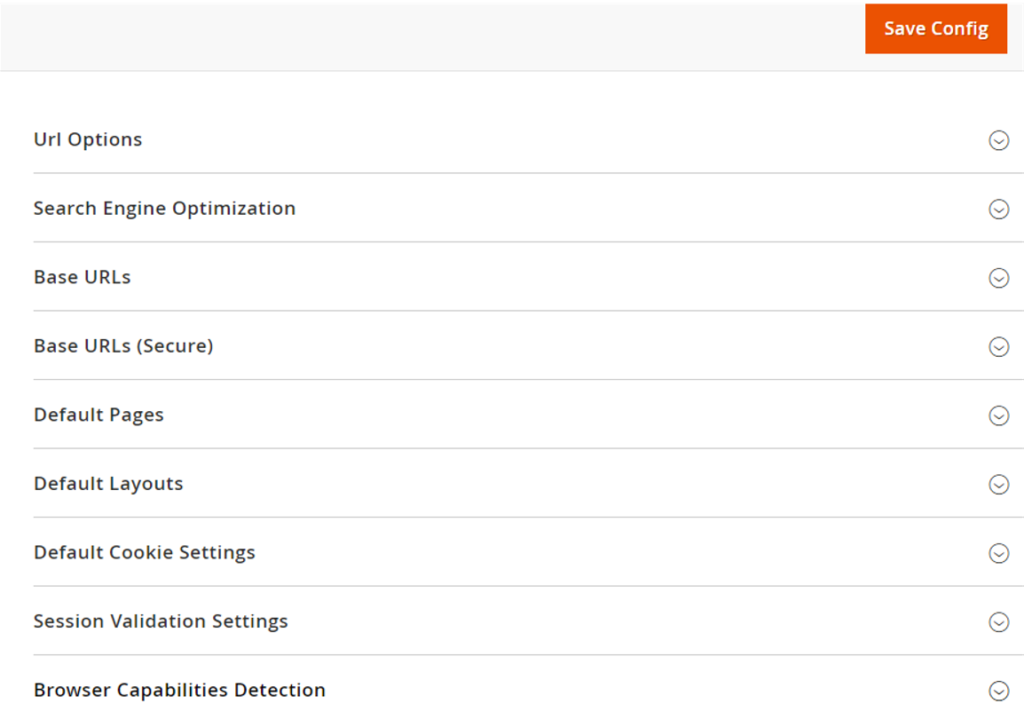
[1]- Go To STORES > Configuration, redirects on configuration.
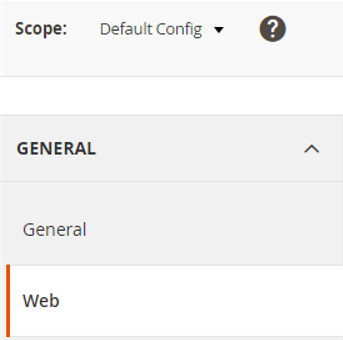
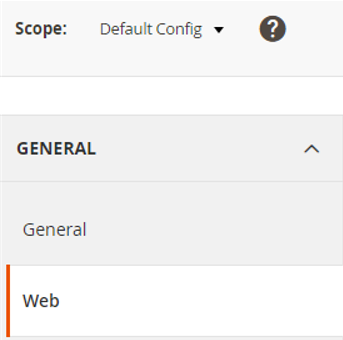
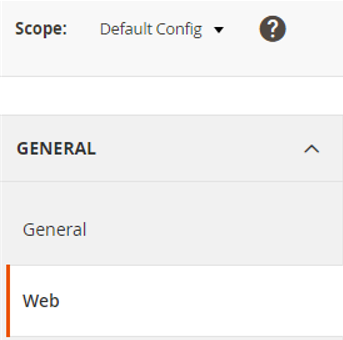
[2]- Left Panel Clicked on General > Web, redirects on [Right Panel]
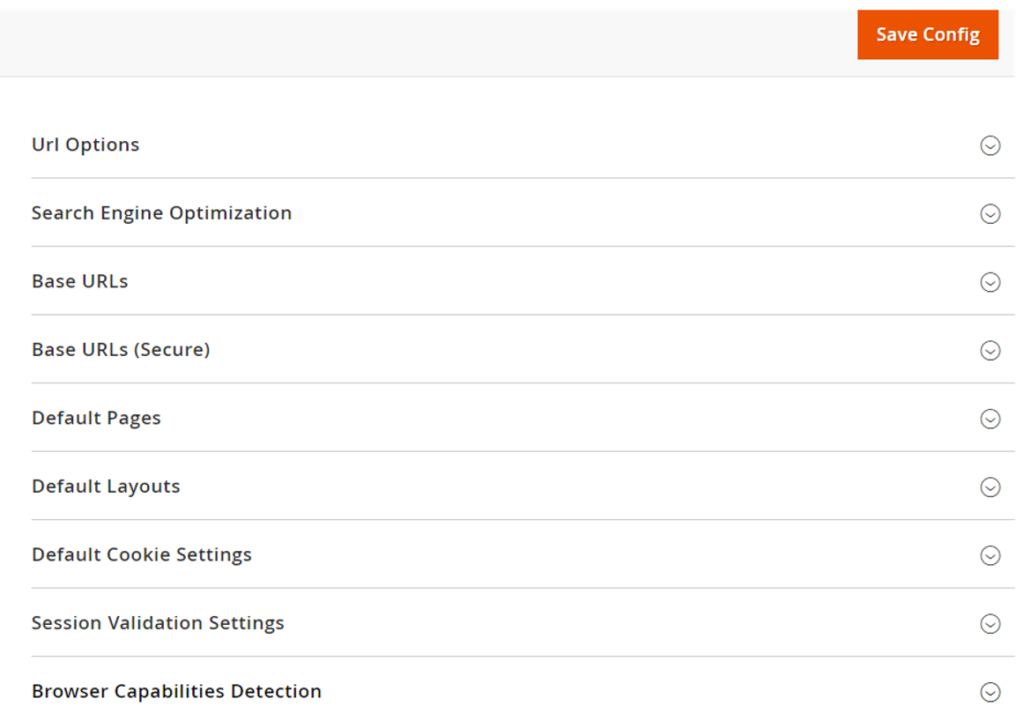
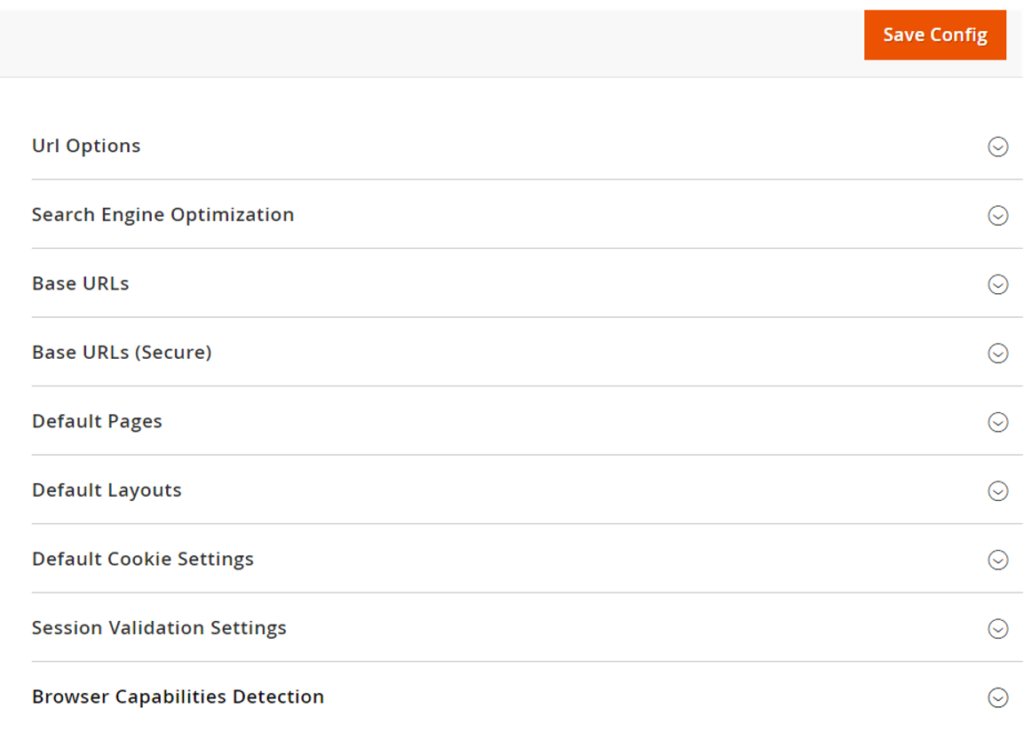
[3]- Once redirection on [Right Panel]
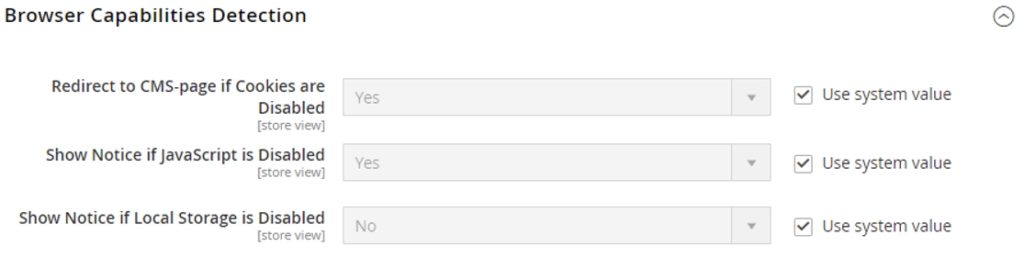
[4]- Once clicked / expanded, Browser Capabilities Detection [Right Panel]
Each Input Field (Drop Down Value) of Browser Capabilities Detection [Right Panel] defined as.
[4.1] Redirect to CMS-page if Cookies are Disabled : By Default selected Yes, It is allowed to display instructions & guidelines that describe how to configure the browser to allow Cookies , browser’s Cookies disabled.
[4.2] Show Notice if JavaScript is Disabled : By Default selected Yes, It is allowed to display instructions & guidelines as Alert notification banner above header that describe how to configure the browser to allow JavaScript, browser’s JavaScript disabled.
[4.3] Show Notice if Local Storage Disabled : By Default selected No
It is allowed to display instructions & guidelines as Alert notification , if Local Storage Disabled
Persistent(Permanent) Cookies : Once Cookie stored in small Text File in hard disk of the computer defined as Persistent(Permanent) Cookies
Non Persistent(Temporary)Cookies : Once Cookie stored in Browser’s Memory defined as Non Persistent(Temporary) or Per-Session Cookies or Session Cookies, These Cookies automatically discarded when the Web browser is closed.
Third-Party Cookies : Those are set by domains & not directly visited by the user. These cookies will be integrated by web advertisers, web publishers add third-party elements (if chatbot, social plugins, or advertisement etc) on the website.
Once User enabled Cookies on a website, It stores user’s data (Username & Password as unique identifiers, preferred language or location) in Browser’s Memory or as small Text File, Client’s cookies interconnected server to transmit data, These stored information making shopping experience very wonderful, once user again visited store site.
There are following below steps need to follow Cookie Settings in Magento 2 Admin
[1]- Go To STORES > Configuration, redirects on configuration.
[2]- Left Panel Clicked on General > Web, redirects on [Right Panel]
[3]- Once redirection on [Right Panel]
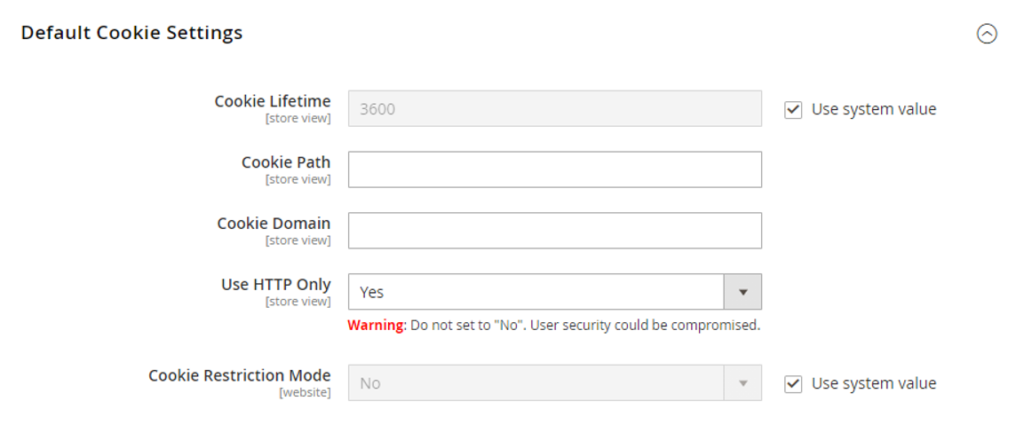
[4]- Once clicked / expanded, Default Cookie Settings [Right Panel]
Each Input Field of DefaultCookie Settings defined as
[4.1]- Cookie Lifetime : By Default It’s 3600 Second (1 Hour), In case customer Cookie Lifetime, need to put custom value (in seconds) as per store requirement.
[4.2]- Cookie Path : If admin want to keep cookies available to other folders, need to put forward slash to keep the cookies available anywhere on the site.
[4.3]- Cookie Domain : If admin want to enable cookies for some specific subdomain. Enter something like “.domain.com” to enable cookies for all the subdomains. Remember, put dot(.) before domain name.
[4.4]- Use HTTP Only : By Default selected Yes, to prevent scripting languages from gaining access to cookies.
General Data Protection Regulation (GDPR) and California Consumer Privacy Act (CCPA) require online merchants to make the process of collecting customer personal data secure, transparent, and with customer consent. To protect cookies from thefts, Admin should apply the HttpOnly attribute, which protects cookies from being accessed by JavaScript.
By default, Magento 2 examines whether HTTPS is enabled and sets a Security Flag automatically.
HttpOnly Attribute or Flag indicates, Always Use HTTP Only , select as Yes
Never try Use HTTP Only as select No as per Security Vulnerability Issue.
[4.5]- Cookie Restriction Mode : By Default selected No , to enable Cookie Restriction Mode, select Yes
” Cookie Restriction Mode prevents web store from collecting cookies data of customers, so full-featured operations cannot be enabled. In this mode, customers have to confirm that website needs cookies to allow full-featured operations & making wonderful shopping experience “
[5]- Click on Save Config button & run CLI command Flush