Adobe Commerce or Magento 2.3.x or 2.4.x Multi Source Inventory

Magento 2.3.0 & higher version supports Multi Source Inventory (MSI)

Magento 2.3.0 provides high revolution, high flexibility, cost-effectiveness, and efficiency  Inventory Management to allow the merchants to control inventory by using single or multiple sources and sales channels, It is called “Multi Source Inventory”

Magento 2.3.0 & higher version Multi Source Inventory[MSI] supports merchants to manage their inventory in more than one locations to accurately reflect their physical inventories.

Magento 2.3.0 & higher version MSI Configuration

There are two things [Magento 2 Admin]

[1] Multi Source Inventory Sources

MSI allows Admin to create sources for each product inventory location

There are following below steps need to follow

[1.1] Go to Admin -> Stores -> Inventory -> Sources
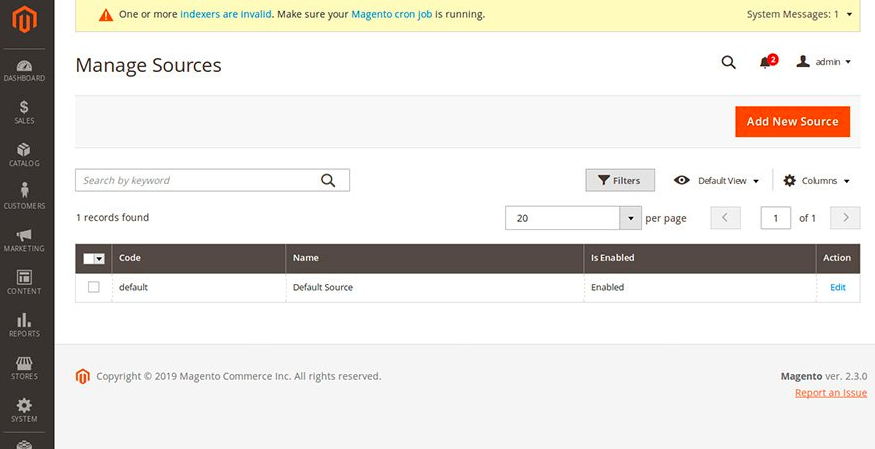
[1.2] Once clicked on Add New Source Button
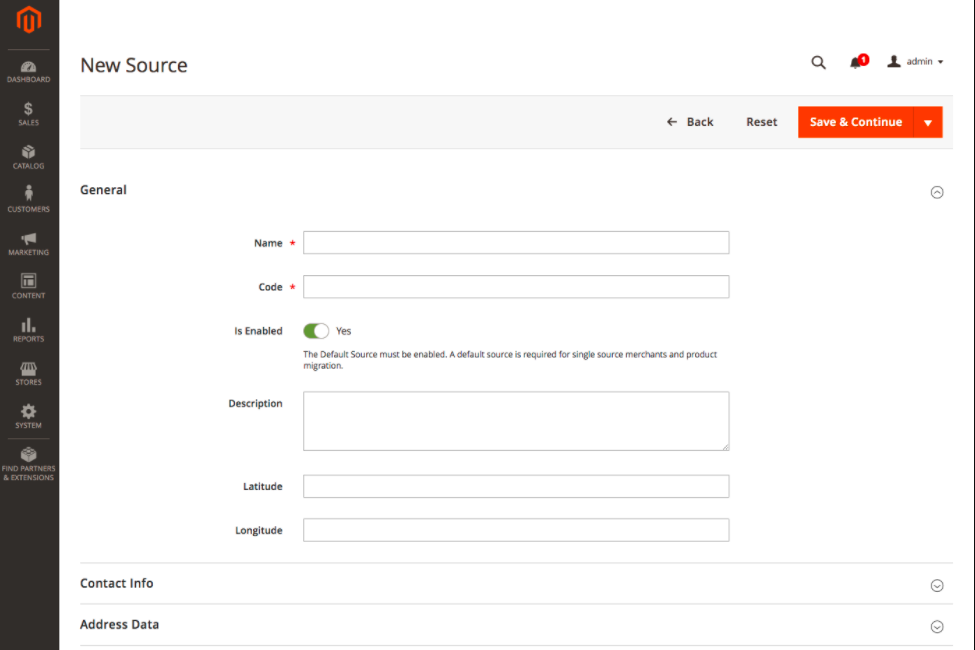
There are following General Form [New Create Source] field info

  •  Name: Put Name of Source, Required Field
  •  Code: Put Code of Source, Required Field “can’t change the Code of the source, once filled”
  • Is Enabled: Do Yes for Enabled
  • Description: Put Description, Optional Field
  • Latitude: Put Latitude, Optional Field
  • Longitude: Put Longitude, Optional Field

[1.3] Once clicked on Contact Info Tab & expanded
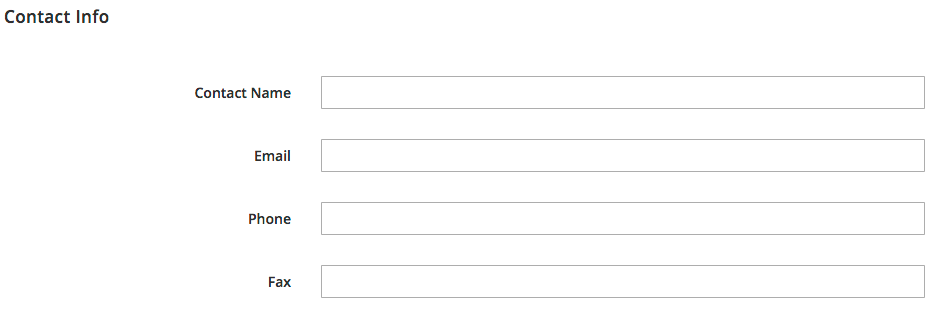
There are following Address Contact Form field info

  • Contact Name: Put Contact Name, Optional Field
  • Email: Put Email, Optional Field
  • Phone: Put Phone, Optional Field
  • Fax: Put Fax, Optional Field

[1.4] Once clicked on Address Data Tab & expanded
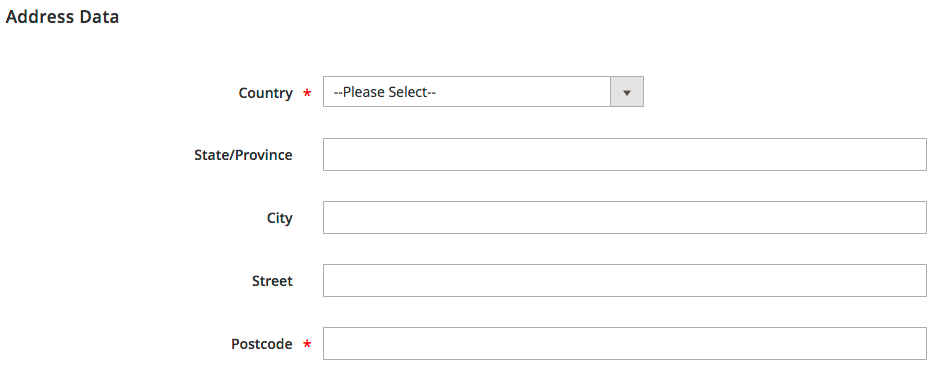
There are following Address Data Form field info

  • Country: Select country from drop down country list, Required Field
  • State/Province: Put State/Province, Optional Field
  • City: Put City, Optional Field
  • Street: Put Street, Optional Field
  • Postcode: Put Postcode, Required Field

[1.5] Finally, clicked on Save Button.

[2] Multi Source Inventory Stocks

[2.1] Go to Admin -> Stores -> Inventory -> Stocks

Select Stocks, redirects on Manage Stock
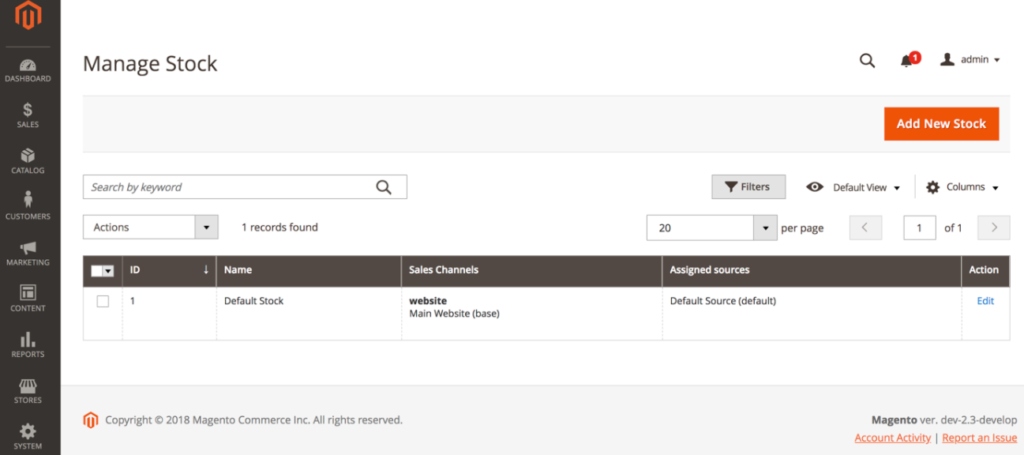
[2.1] Once Clicked on Add New Stock, redirects on below form
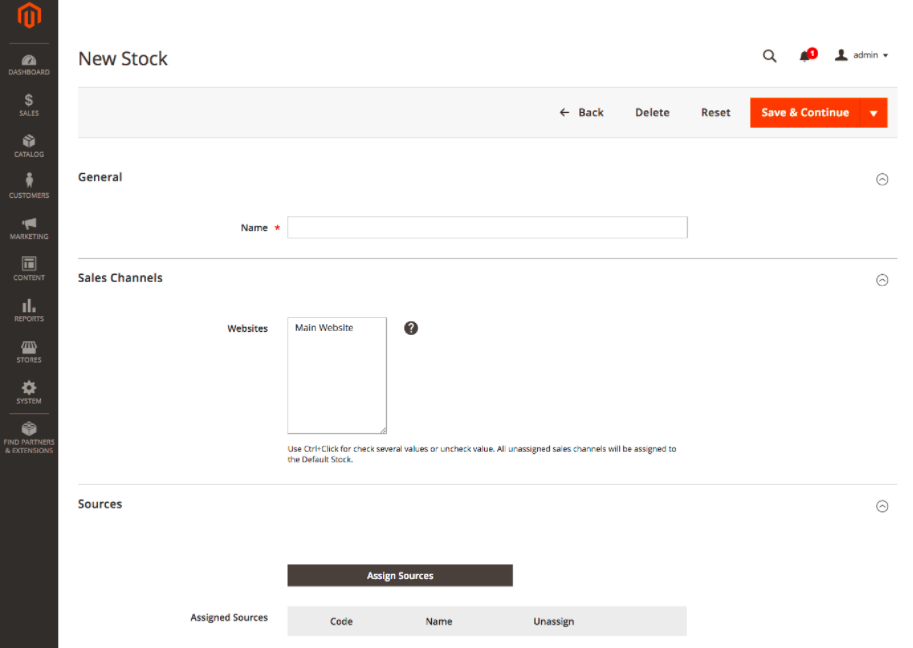
  • Name: Put name of stock, Required Field [must be unique name]
  • Sales Channels: Admin can assign the stock to one or more listed sales channels. The sales channel is (mostly) your Magento views.
  • Sources: Admin need to choose those Assign Sources., to apply to the new stock. Then, click Done.

[2.3] Finally clicked on Save Button

MSI allows to delete the product stocks and Admin can reassign any sales channel and sources to the Stocks. If a sales channel is not assigned to a custom stock, it will be assigned to the Default Stock.

Except default product stock, all other stocks can be modified as Stock Name , Stock sales channel and the assigned sources.

Once the sources are created and stocks are linked to the respective website, Next Step, MSI Saleable Quantity

MSI Saleable Quantity :

This presents in Product Grid Page as ‘Quantity per Source’ and ‘Salable Quantity’.

Go To Catalog -> Products
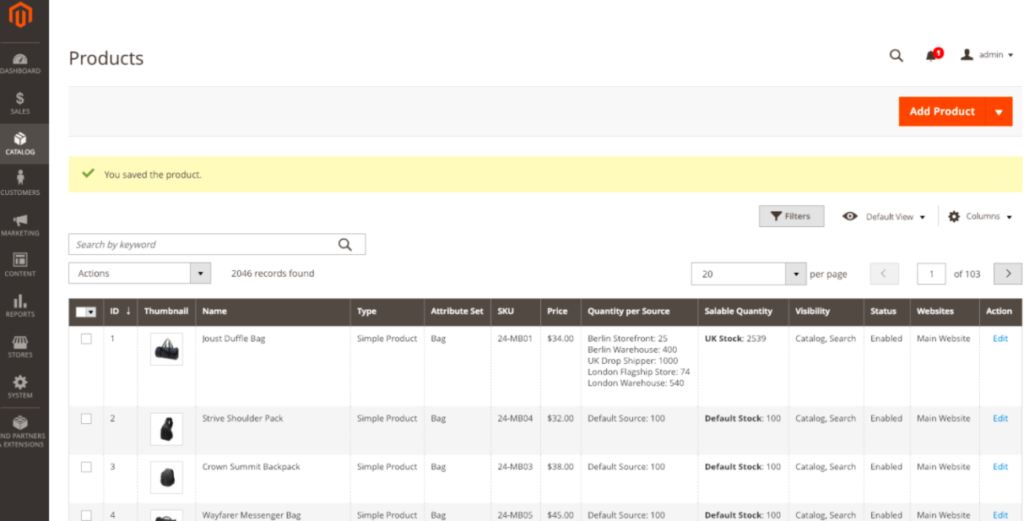
The following terms are important as you work with Inventory Management APIs:

[a] – Sources:: represent physical locations that store and ship available products. These locations can include warehouses, brick-and-mortar stores, distribution centers, and drop shippers. (Any location can be designated as a source for virtual products.)

[b] – Stocks:: map a sales channel (currently limited to websites) to source locations and on-hand inventory. A stock can map to multiple sales channels, but a sales channel can be assigned to only one stock.

[c] – Aggregate Salable Quantity:: is the total virtual inventory that can be sold through a sales channel. The amount is calculated across all sources assigned to a stock.

[d] – Reservations:: track deductions from the salable quantity as customers add products to carts and complete checkout. When an order ships, the reservation clears and deducts the shipped amounts from specific source inventory quantities.

Briefly Explained With Example

In this below diagram, a bicycle merchant has inventory for a mountain bike in two warehouses and a drop shipper. He has two stocks with configured website sales channels and sources. When a customer shops through the UK website, Magento aggregates bike inventory from the UK warehouse and the drop shipper sources, for a salable quantity of 95. The bike can be shipped from either the warehouse or the drop shipper, but not the NY warehouse. Amazon Marketplace has the same stock, drawing from the same aggregate stock as the UK website.
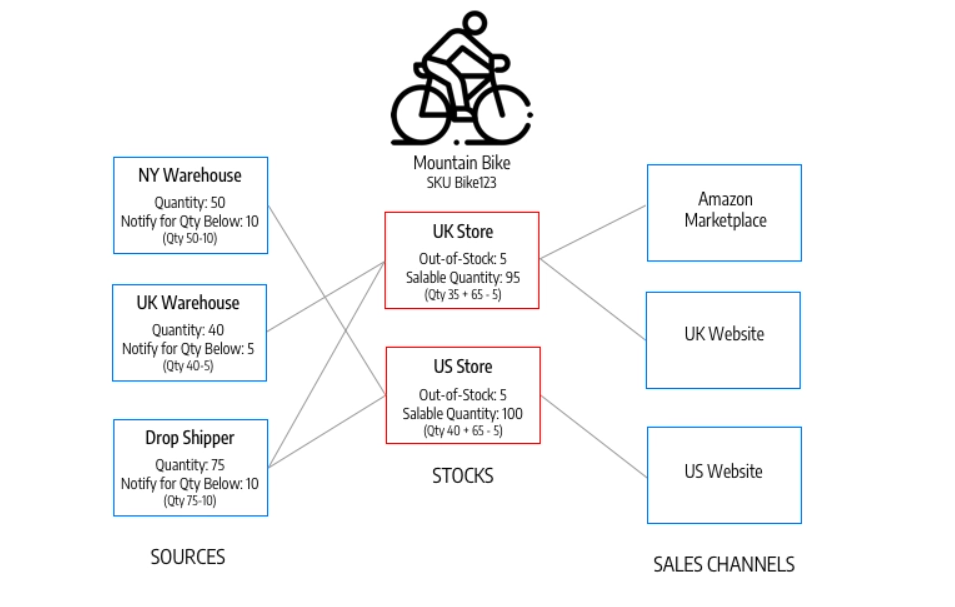
[a] – Source – Defines a physical stock.

[b] – SourceItem – A relation object that represents the amount of a specific product at a physical source. We use this entity for updating inventory on each source. Quantities might change as a result of synchronizing with an external Product Information Management (PIM) or Enterprise Resource Planning (ERP) system, or internally as a stock deduction during the checkout process. A SourceItem cannot be used for retrieving data that must be rendered on front-end, because only aggregated data should be used for all validations and UI representation.

[c] – StockItem – Also known as Aggregated Virtual Stock. This is read-only data that the re-indexation process generates. Based on a pre-defined mapping, we define what sources are assigned to the current scope (sales channel) and aggregate quantities from all assigned sources. We also use StockItem to check if a product is in or out of stock. Making this segregation by Read-Only interface (StockItem) and Write-Only interface (SourceItem), the Inventory architecture achieves Command Query Responsibility Segregation (CQRS). As a result, all GET HTTP requests should use StockItem entity, and all POST/PUT should use SourceItem.

Magento 2.x Multiple Store Views

There are following steps to create multiple website, store & view

Magento 2 Admin

Step 1Create websites

[1.1] Go To Stores > Settings All Stores.

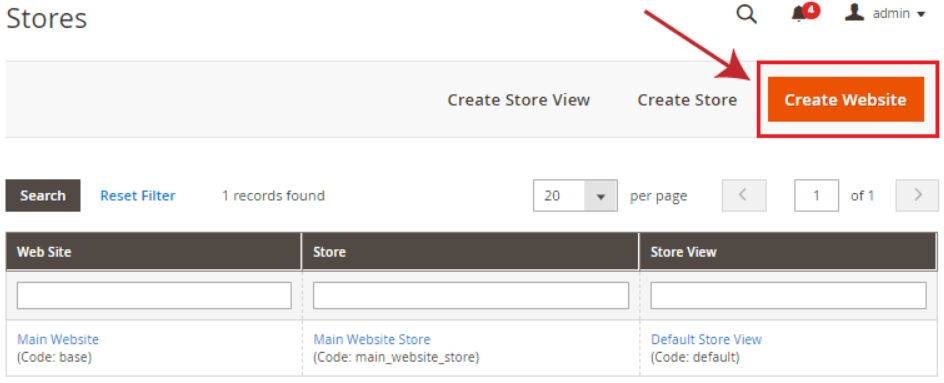
[1.2] Redirect on Stores page, click Create Website

[1.3] Once Clicked on Create Website

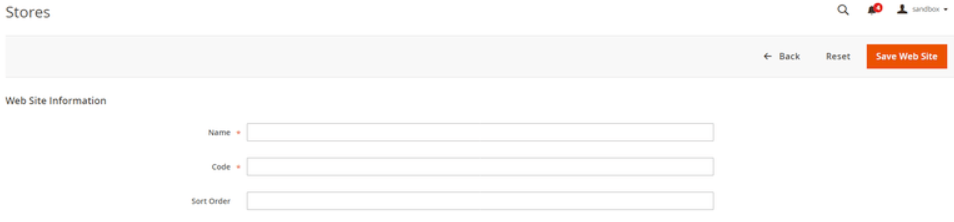
There are following below things need to put in Website Information Form.

  • Name: Enter a name of website.
  • Code: Enter a unique code, Example, for French store, enter french, for English store, enter english.
  • Sort Order: Enter numerical sort order, it is an optional field

[1.4] Finally Clicked on Save Web Site Button

Step 2: Create stores

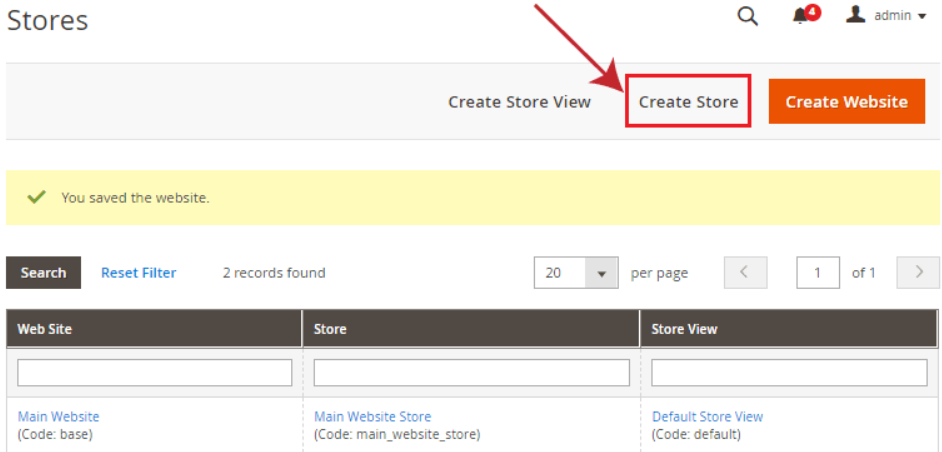
[2.1] On Stores page, click Create Store

[2.2] Once clicked Create Store

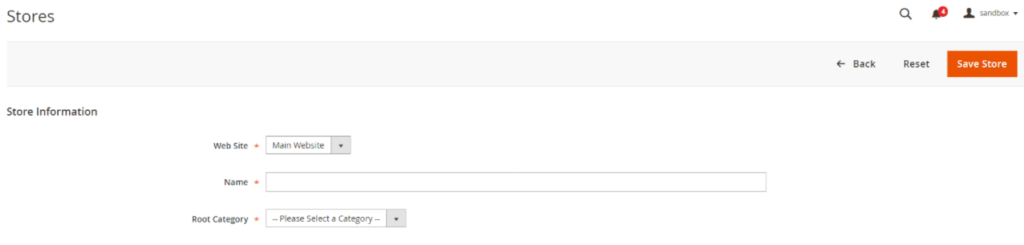
There are following below things need to put in Store Information

  • Web Site: Select the website, which one you want to associate current store.
  • Name: Enter a name to identify the store.
  • Root Category: Select the root category for current store.
  • Finally Clicked on Save Store Button

Step 3: Create store views

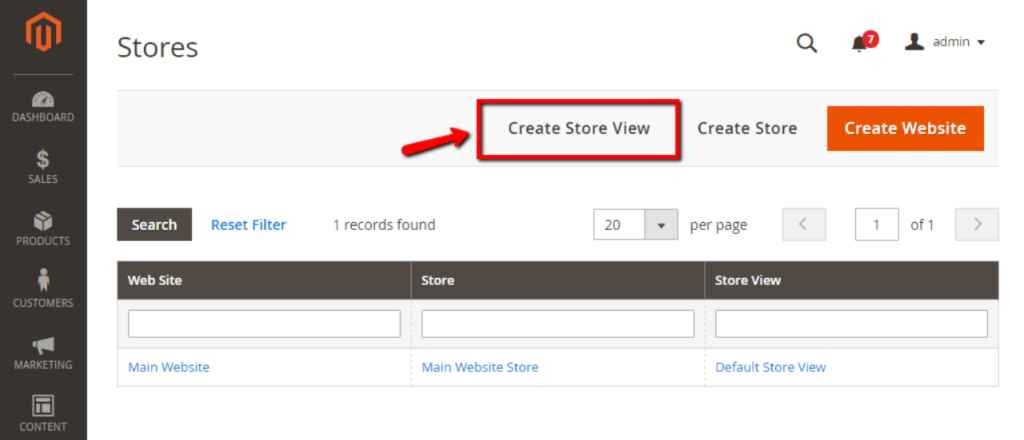
[3.1] On Stores page, click Create Store View

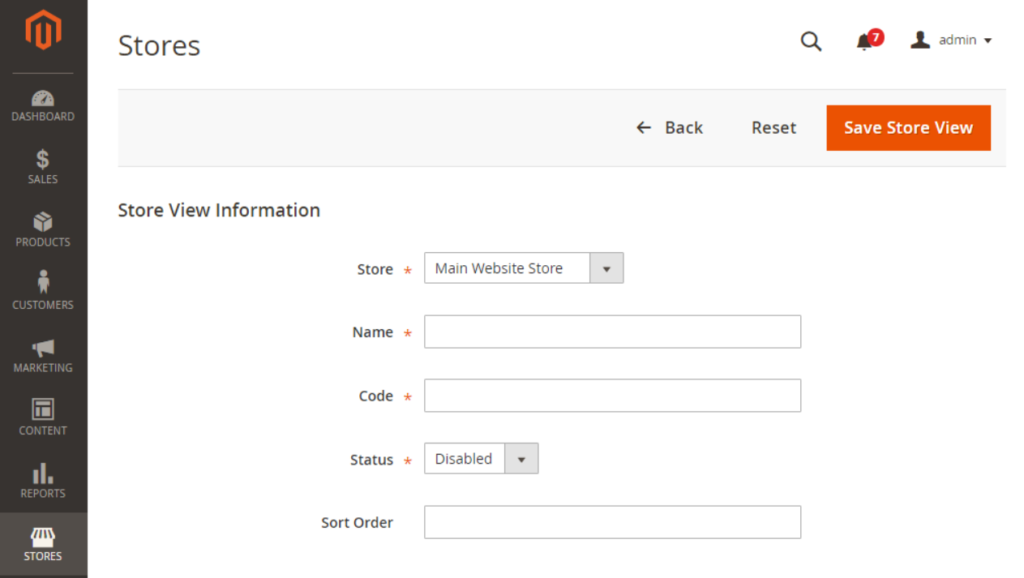
[3.2] Once clicked Create Store View

There are following below things need to put in Store View Information, to create Store View

  • Store: Select the store which you want to associate current store view.
  • Name: Enter a name to identify current store view.
  • Code: Enter a unique name to identify current store view.
  • Status: Select Enabled.
  • Sort Order: Enter numerical sort order, it is an optional field.

[3.3] Finally Clicked on Save Store View

There are no command defined in the “deploy:mode” namesapce

Once running Magento 2 CLI Command

php bin/magento deploy:mode:set developer

& getting error as

There are no command defined in the "deploy:mode" namespace

Solution : This error getting, while Magento 2 Database Configuration file env.php [app/etc/env.php], not available

Once Database Configuration file env.php [app/etc/env.php] available , issue will be resolved.

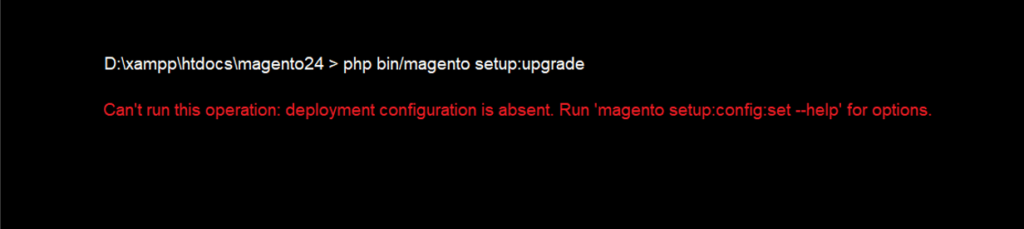
Can’t run this operation: deployment configuration is absent. Run ‘magento setup:config:set –help’ for options.

Once running Magento 2 CLI Command

php bin/magento setup:upgrade or any other CLI Command

& getting error as

Can't run this operation: deployment configuration is absent. Run 'magento setup:config:set --help' for options.

Solution : This error getting, while Magento 2 Database Configuration file env.php [app/etc/env.php], not available

Once Database Configuration file env.php [app/etc/env.php] available , issue will be resolved.

Magento 2.x Store Email Addresses

Magento 2 Store Email Addresses having different email addresses for different email transactions, These email addresses are used to send automated emails transactions to customers.

By default, Magento 2, There are five different email addresses for each store(view)

  • General Contact : Defines General Contact Email
  • Sales Representative : Defines Sales Email
  • Customer Support : Defines Customer Support Email
  • Custom Email 1 : Defines Custom Email 1
  • Custom Email 2 : Defines Custom Email 2

There are following steps need to follow.

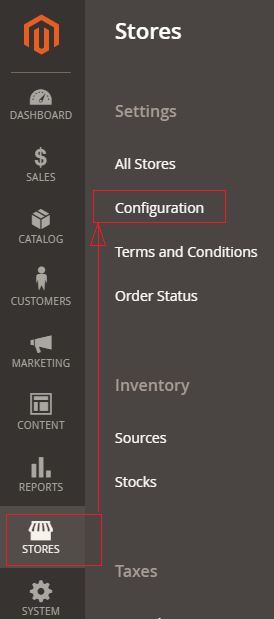
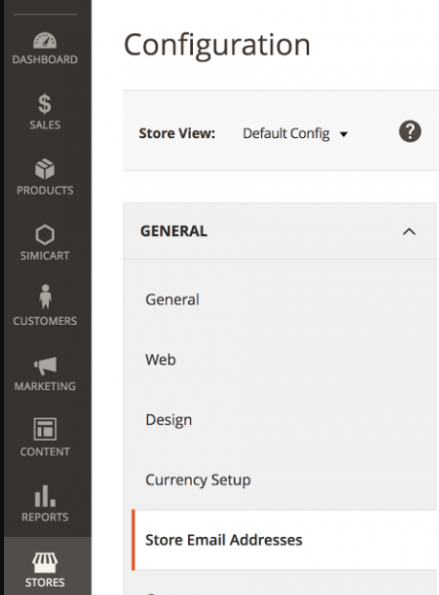
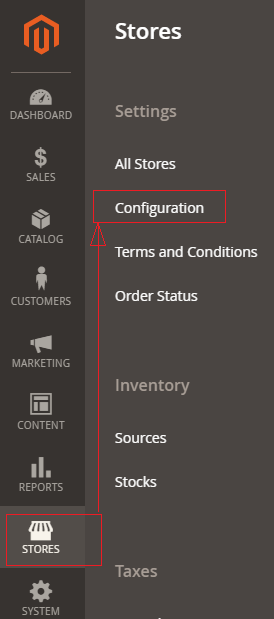
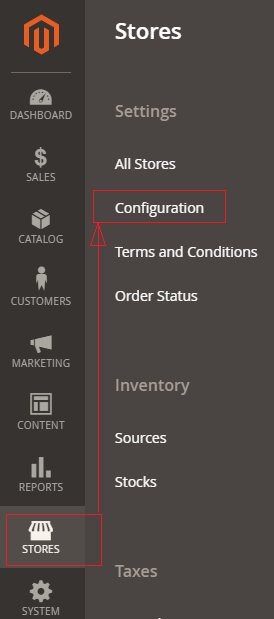
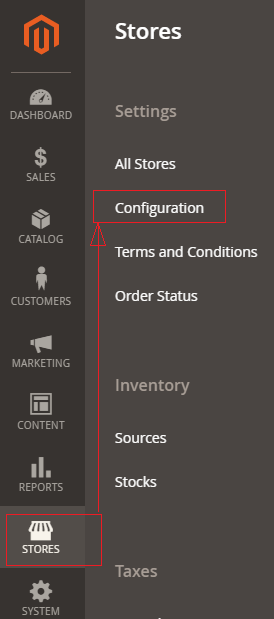
[1]- Go STORES > Configuration, redirects Configuration section.

[2]- Left panel, Configuration section choose

GERERAL > Store Email Addresses.

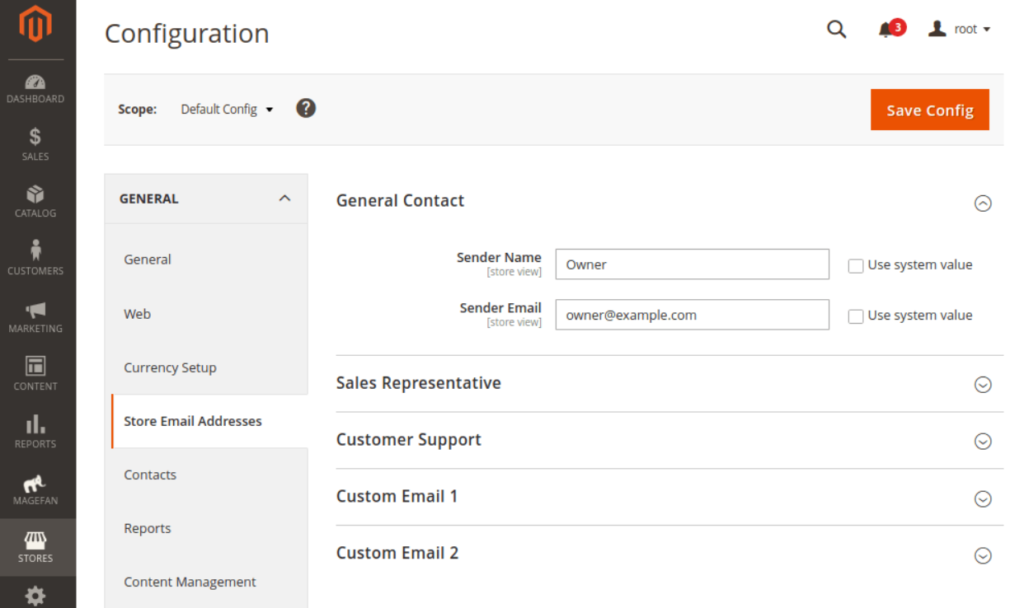
[3]- Once Clicked on Store Email Address, Right Panel Opened, with combination of five different email addresses

To Open any any email address, need to expand , particular Email Section

As above image, General Contact Section, Admin need to configure Sender Name and Sender Email for various roles inside your Magento store (Similarly put Sender Name and Sender Email for Sales Representative, Customer Support, Custom Email 1, Custom Email 2).

[5]- Click on Save Config button & run CLI command Flush

Magento 2.x Disable Contact Us Form

There are following steps need to follow.

Magento 2 Admin

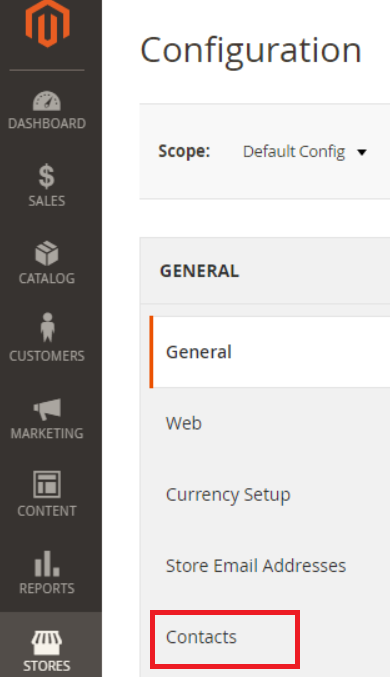
[1] Go STORES > Configuration, redirects Configuration section.

[2] Go to General –> Contacts

[3] Right Panel, Expand Contact Us

By Default Contact Us Form Enabled , Select No Option to Disable Contact Us Form

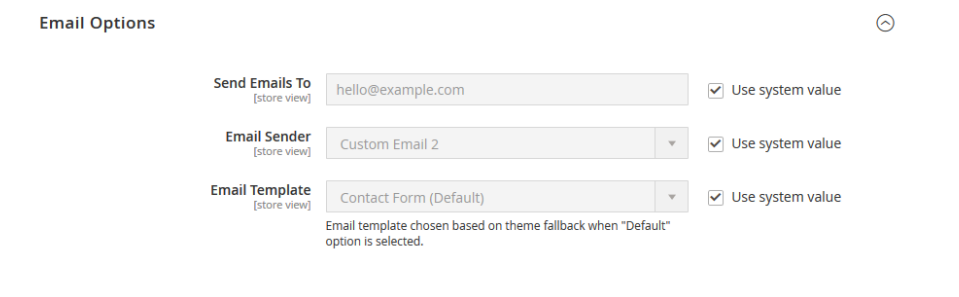
[4] Right Panel, Expand Email Options

Send Emails To: Admin need to put email on which Admin want to receive contact us inquiries.


Email Sender: While configuring the Store Email address section Admin already added sender and store email id, Same Senders are being displayed here, need to select the same Sender

Email Template: By default, "Contact form (Default)" is selected
If Admin want to change, can select any other Email Template

[5] Finally Clicked on Save Config Button

Magento 2.x Events and Observers

What are Magento 2 Events?

Magento 2 events are used to run custom code in response to any particular Magento 2 event or custom event. Events are dispatched by modules when certain actions are triggered. When an event is dispatched, it can pass data to any observers configured to watch that event.

How Can Use Magento 2 Events

Events are dispatched by Magento 2 modules whenever specific actions are triggered. When an event dispatches, it passes data to the observer that is configured to watch (or monitor) that event. You can dispatch Magento 2 Events using the Magento\Framework\Event\Manager class

List of All Events Magento 2 Events-Attachment-PDF-Format

“Events and Observers are used to extend the core functionalities”

What are Observers?

Observers are the particular classes that control the general behavior, performance, or change in the business logic

Which class file is used to create Observers

To create an observer in Magento 2, you must place your class file under the ModuleRoot/Observer directory. The observer class file should use

Magento\Framework\Event\Observer

&

Magento\Framework\Event\ObserverInterface

class and define the executive function.

Declaration Observer

There are following below method to declare observer

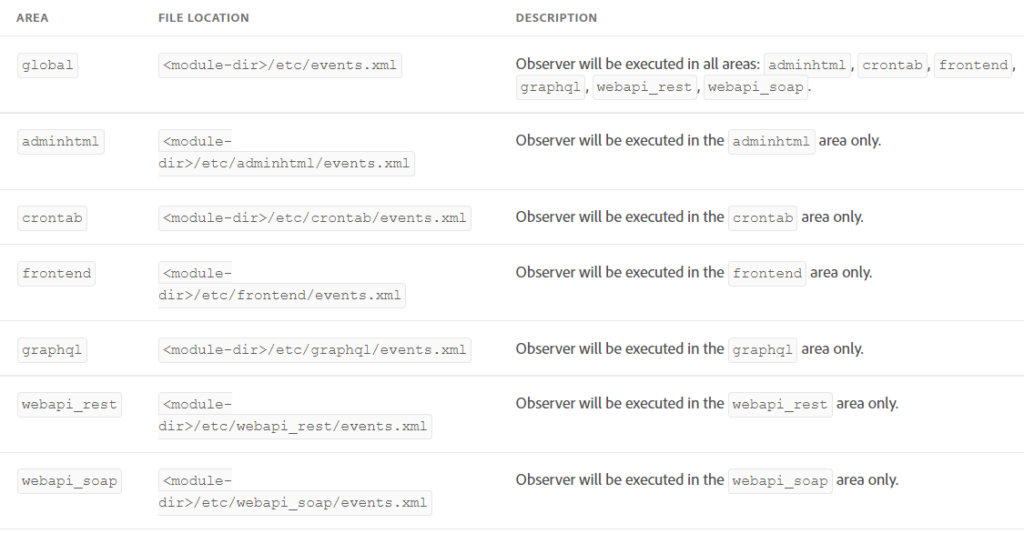
“Observer will be executed in all areas: adminhtml, crontab, frontend, graphql, webapi_rest, webapi_soap”

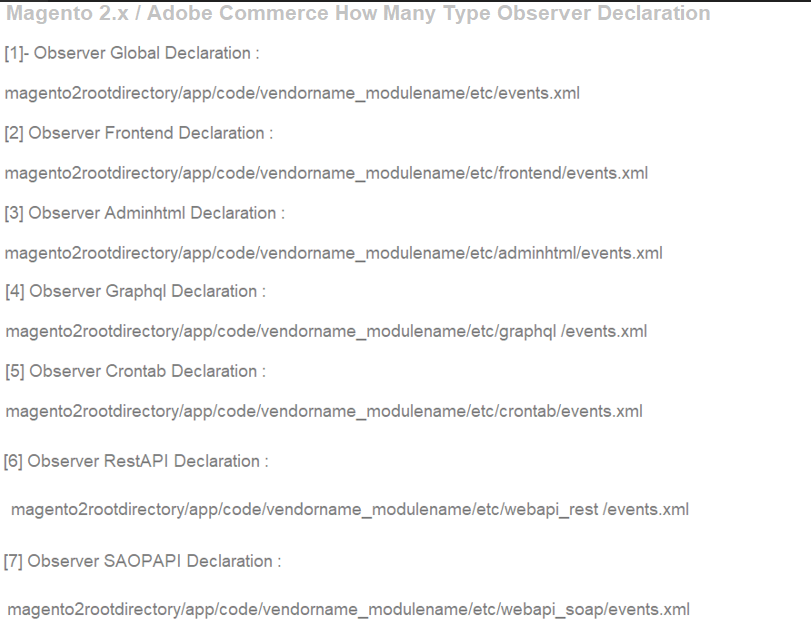
[1]- Observer Global Declaration :

magento2rootdirectory/app/code/vendorname_modulename/etc/events.xml

[2] Observer Frontend Declaration :

magento2rootdirectory/app/code/vendorname_modulename/etc/frontend/events.xml

[3] Observer Adminhtml Declaration :

magento2rootdirectory/app/code/vendorname_modulename/etc/adminhtml/events.xml

[4] Observer Graphql Declaration :

magento2rootdirectory/app/code/vendorname_modulename/etc/graphql /events.xml

[5] Observer Crontab Declaration :

magento2rootdirectory/app/code/vendorname_modulename/etc/crontab/events.xml

[6] Observer RestAPI Declaration :

magento2rootdirectory/app/code/vendorname_modulename/etc/webapi_rest /events.xml

[7] Observer SAOPAPI Declaration :

magento2rootdirectory/app/code/vendorname_modulename/etc/webapi_soap/events.xml

How To Create Events & Observer Using Custom Module in Magento / Adobe Commerce 2.x


How To Create Preference Using Custom Module in Magento / Adobe Commerce 2.x


How To Create Plugin Using Custom Module in Magento / Adobe Commerce 2.x


How To Get Base URL in Magento 2.x / Adobe Commerce 2.x


How To Create Custom Module in Magento 2.x / Adobe Commerce 2.x


How To Add Custom Block on Cart Page in Magento 2.x / Adobe Commerce 2.x


How To Create a Custom Log File in Magento 2.x / Adobe Commerce 2.x


How To Create Custom Controller in Magento 2.x / Adobe Commerce 2.x


How To Create a Custom Console Command in Magento 2.x / Adobe Commerce 2.x


How To Add Customer Groups Dropdown in Magento 2.x Admin Form and Grid By UI Component in Magento 2.x / Adobe Commerce 2.


How To Get all Customers Data in Magento 2.x / Adobe Commerce 2.x


How To Set Tier Price With Percentage Value Programmatically in Magento 2.x / Adobe Commerce 2.x


How To Add Tier Price Programmatically in Magento 2.x / Adobe Commerce 2.x


How To Add Websites Dropdown in Admin Form and Grid By UI Component in Magento 2.x / Adobe Commerce 2.x


Magento 2 All Database Tables [500 & more Tables]


How To Set Multi Shipping Settings In Magento 2


How To Set Origin Shipping in Magento 2


Difference Between Offline Shipping Method and Online Shipping Method


Magento 2 Online Customers Options


How To Apply Customer Group Price of Products in Magento 2


How To Add Customer Groups Dropdown in Magento 2 Admin Form and Grid By UI Component


How To Get all Customers Data in Magento 2


How To Create Customer Order in Magento 2 Admin Panel


Magento 2 Login As Customer Not Enabled


How To Configure Customer Account Sharing Options in Magento 2


Magento 2 Redirect To Customer Dashboard After Login


Which Magento 2 database table store customer shipping and billing address


How To Remove Sales Order Data & Customer Data in Magento 2


Which Magento 2 database table store customer’s Email Data


Which Magento 2 Database Table Store Customer Newsletter Data


Which Magento 2 database table store customer’s shipping and billing address


How To Remove Sales Order Data & Customer Data in Magento 2


Which Magento 2 Database Tables Store Customer Rating


Which Magento 2 Database Tables Store Customer Wishlist Products


Magento 2 Increase Customer Session Time


Which Magento 2 Database Table Store Patches

Magento 2.x Enable Allow Guest Checkout

There are following steps need to follow.

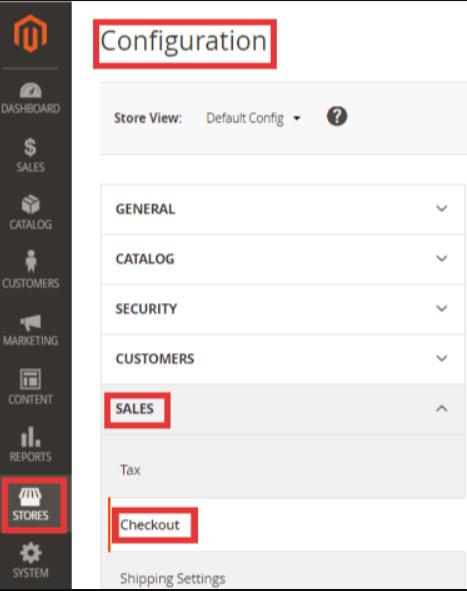
Step-[1] Go STORES > Configuration, redirects Configuration section.

Step-[2] Left panel, choose Sales > Checkout.

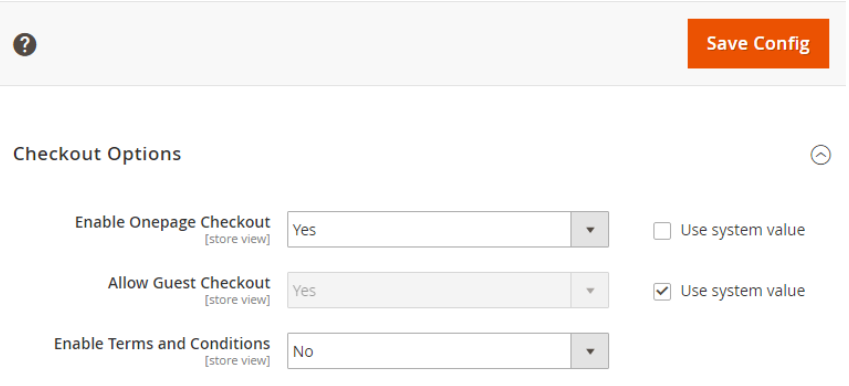
Step-[3] Once Clicked on Checkout, Right panel opened Checkout Options & expand

Step-[3.1] Enable Onepage Checkout: select Yes

Step-[3.2] If Admin want to allow Guest Checkout,
Allow Guest Checkout: select Yes

Step-[3.3] If Admin want to enable Terms & Conditions

Enable Terms and Conditions: select Yes

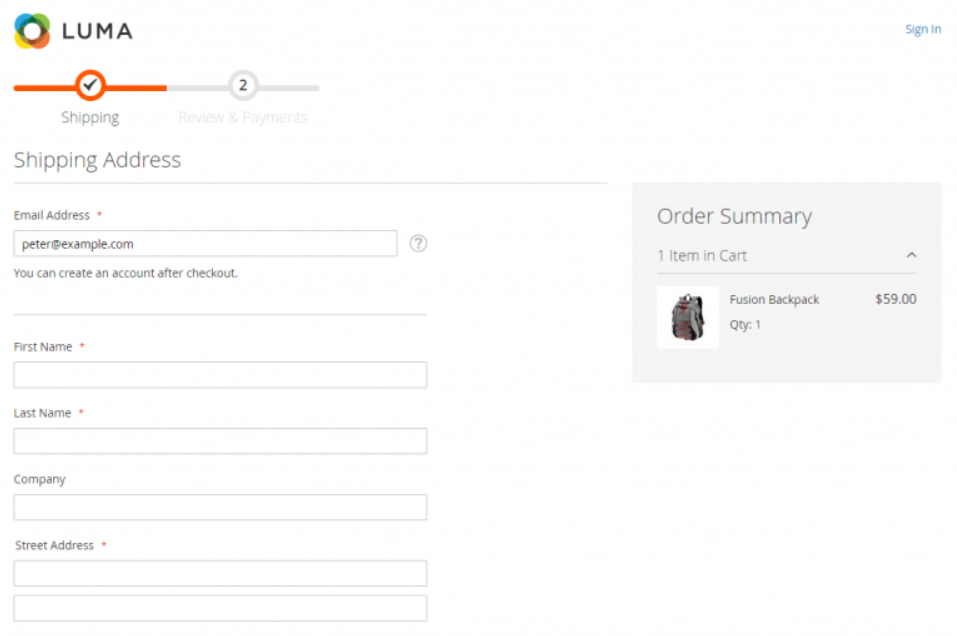
Step- [4] Finally, One Page Checkout has been enabled

Step- [5] Frontend View One Page Checkout

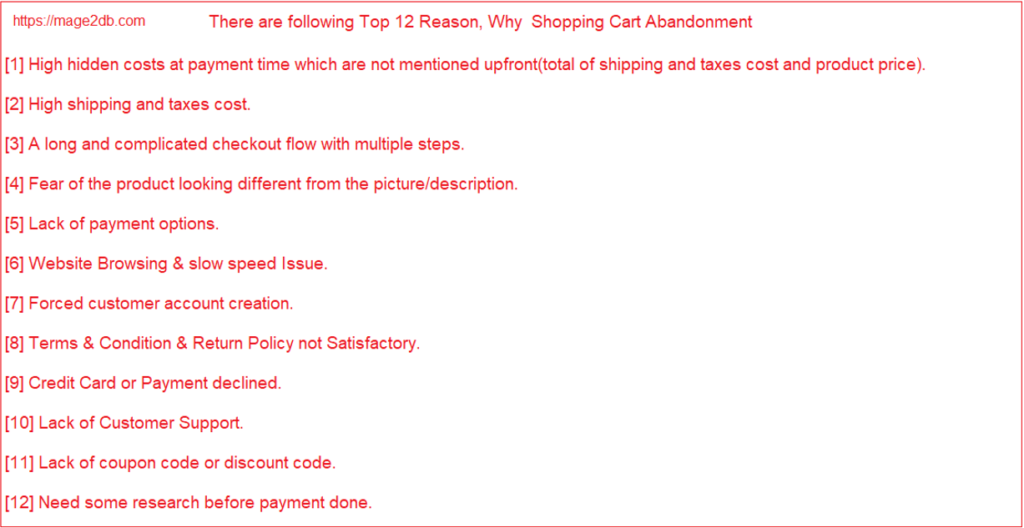
Reasons of Shopping Cart Abandonment

There are following below reasons, Why Shopping Cart Abandonment

[1]- High hidden costs at payment time which are not mentioned upfront(total of shipping and taxes cost and product price).
[2]- High shipping and taxes cost
[3]- A long and complicated checkout flow with multiple steps.
[4]- Fear of the product looking different from the picture/description.
[5]- Lack of payment options.
[6]- Website Browsing & slow speed Issue.
[7]- Forced customer account creation.
[8]- Terms & Condition & Return Policy not Satisfactory.
[9]- Credit Card or Payment declined.
[10]- Lack of Customer Support.
[11]- Lack of coupon code or discount code.
[12]- Need some research before payment done.

Ecommerce Abandonment or Shopping Cart Abandonment

Ecommerce Abandonment or Shopping Cart Abandonment as “Once potential customers visiting shopping websites, added products as per their need into Shopping Cart & process for checkout step, but they did not complete payment step & left shopping websites”

Shopping cart abandonment rate is calculated by dividing the total number of completed transactions by the total number of transactions that were initiated, This indicates what percentage of a shopping website’s users signal purchase intent by adding an item to the cart, but do not complete the purchase