How to Configure Default Page Layout Magento 2.x

Magento 2 design pages having collection of layouts, containers, blocks. headers, footers etc. each page having its own design set as per store requirement. Magento 2 Admin provides facility to change pages design set.

There are following below steps need to follow, Magento 2 Admin

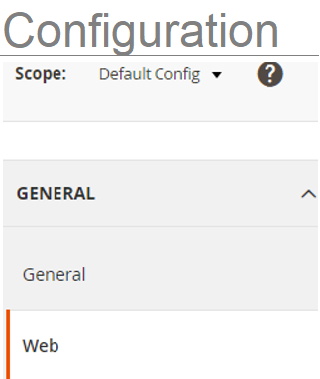
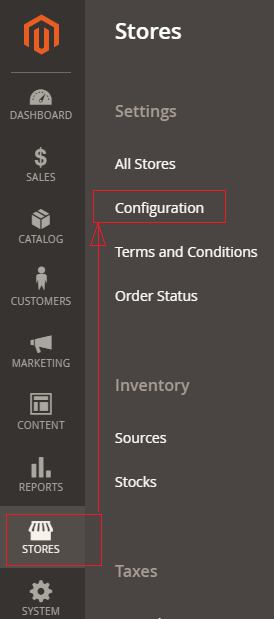
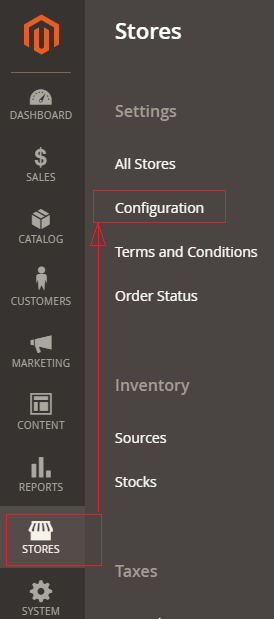
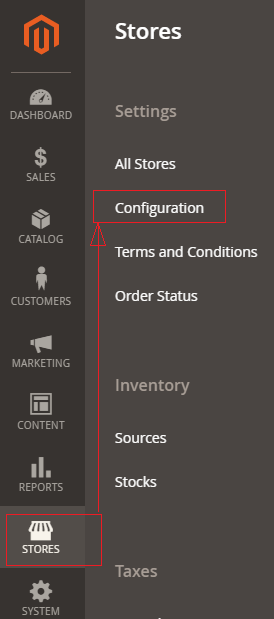
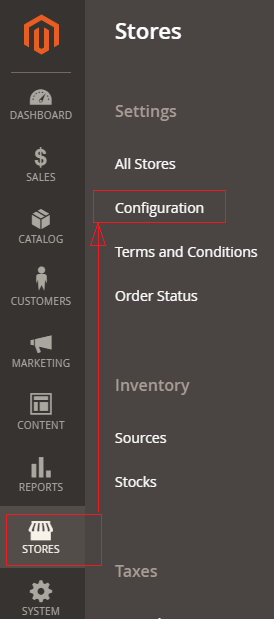
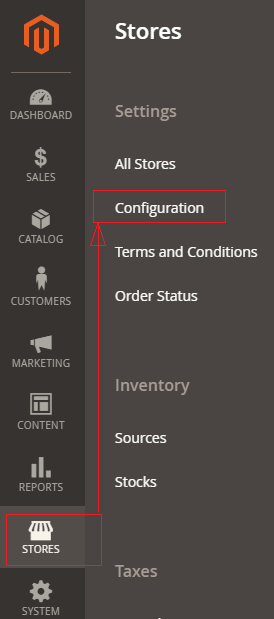
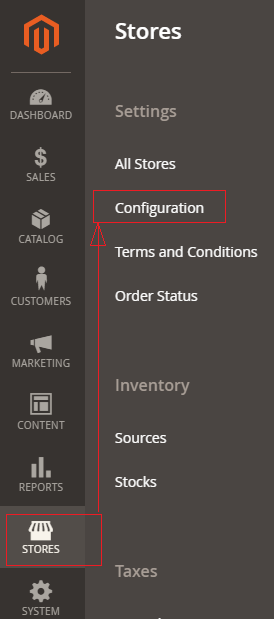
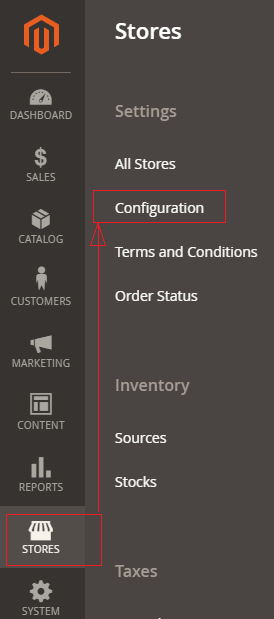
[1]- Go To STORES > Configuration, redirects on configuration.
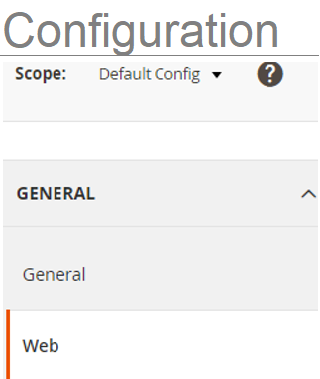
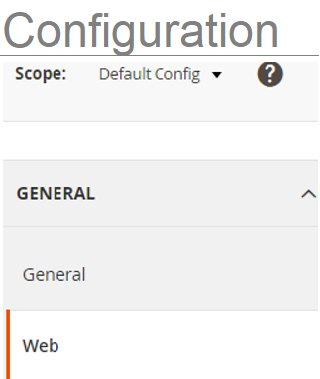
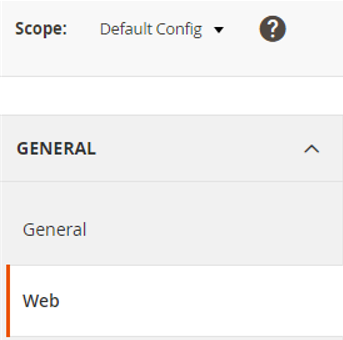
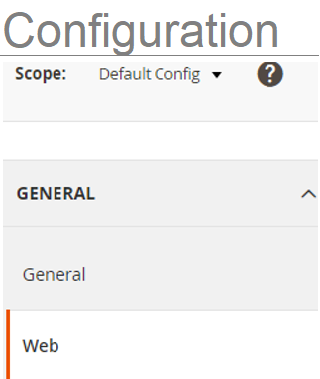
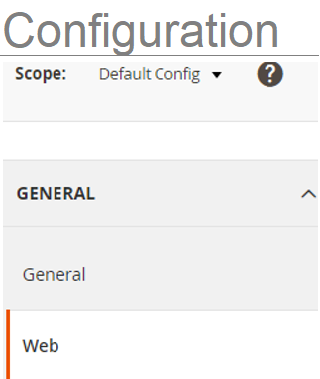
[2]- Left Panel Clicked on General > Web, redirects on [Right Panel]
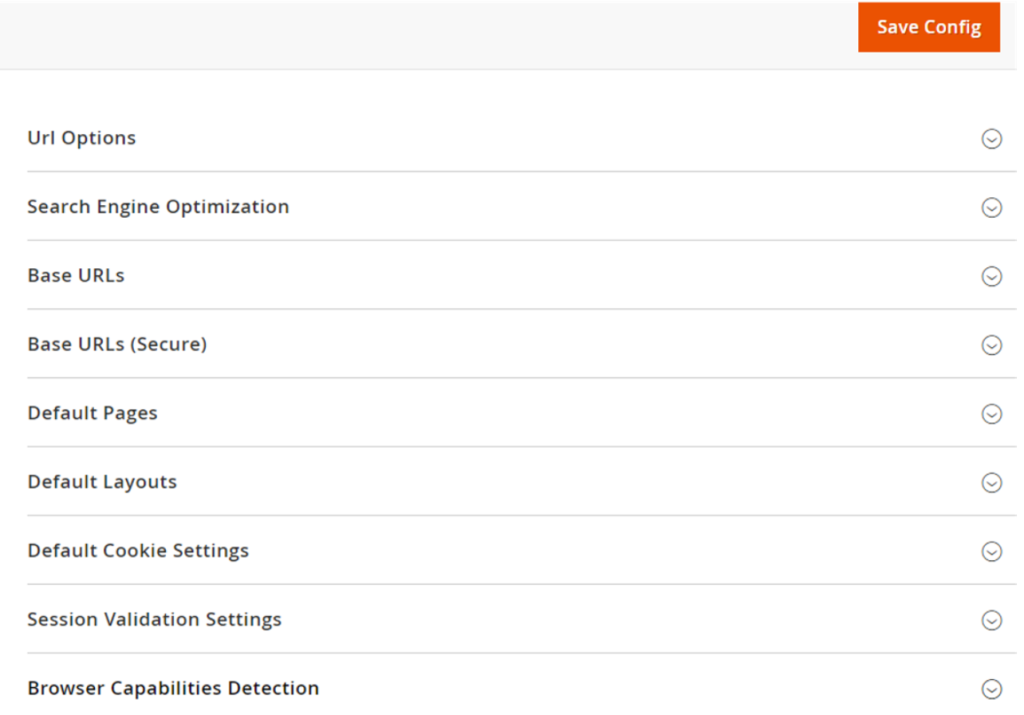
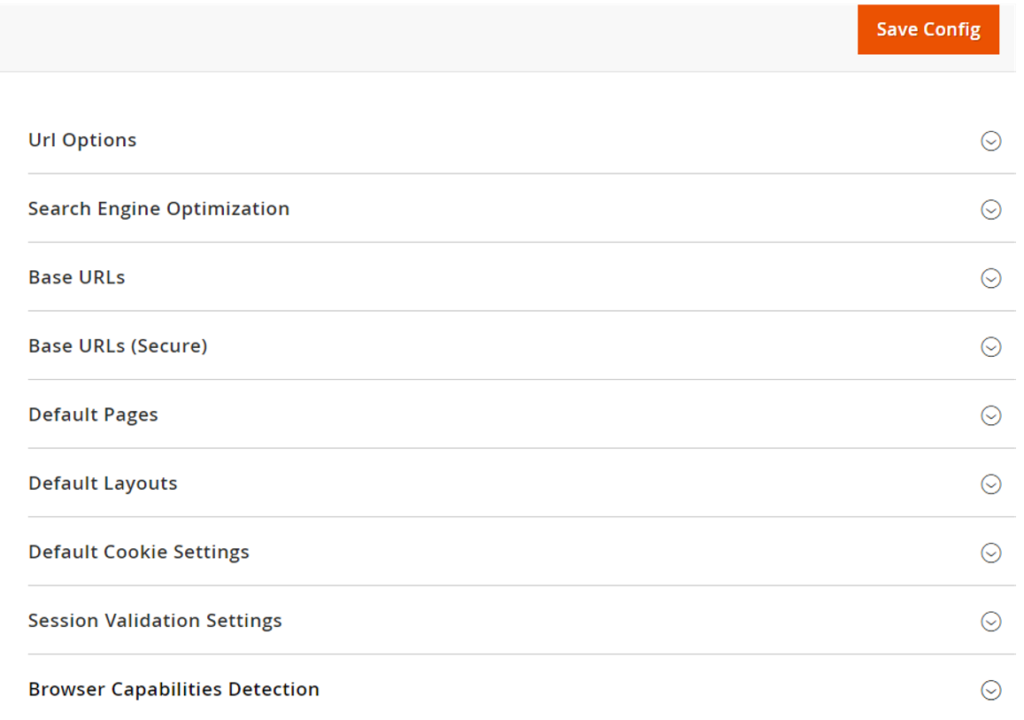
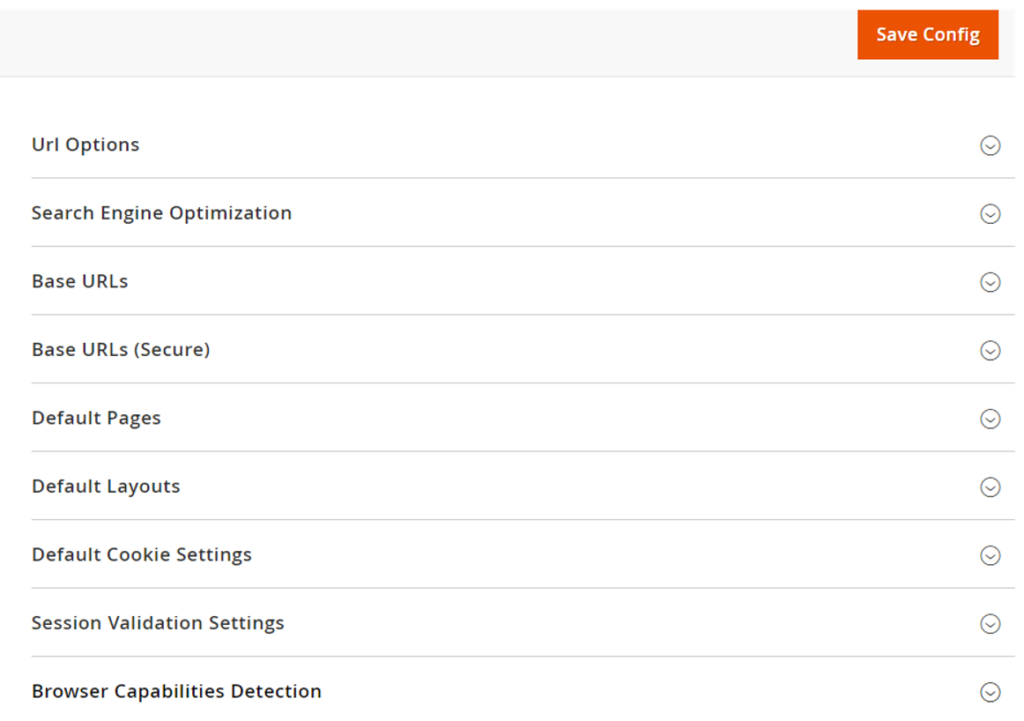
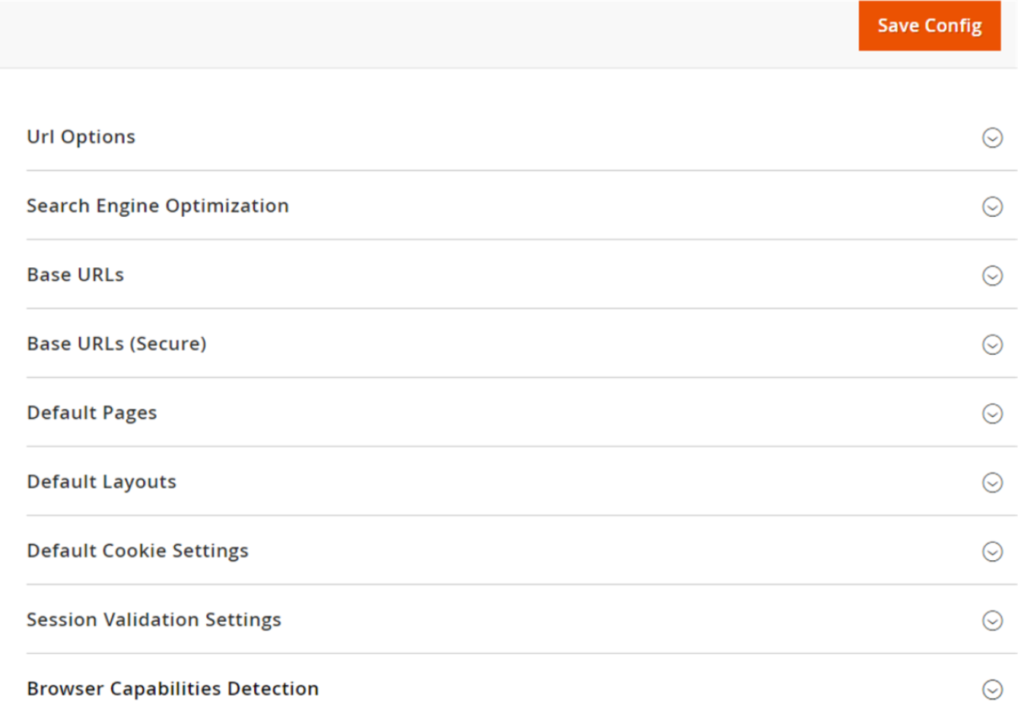
[3]- Once redirection on [Right Panel]
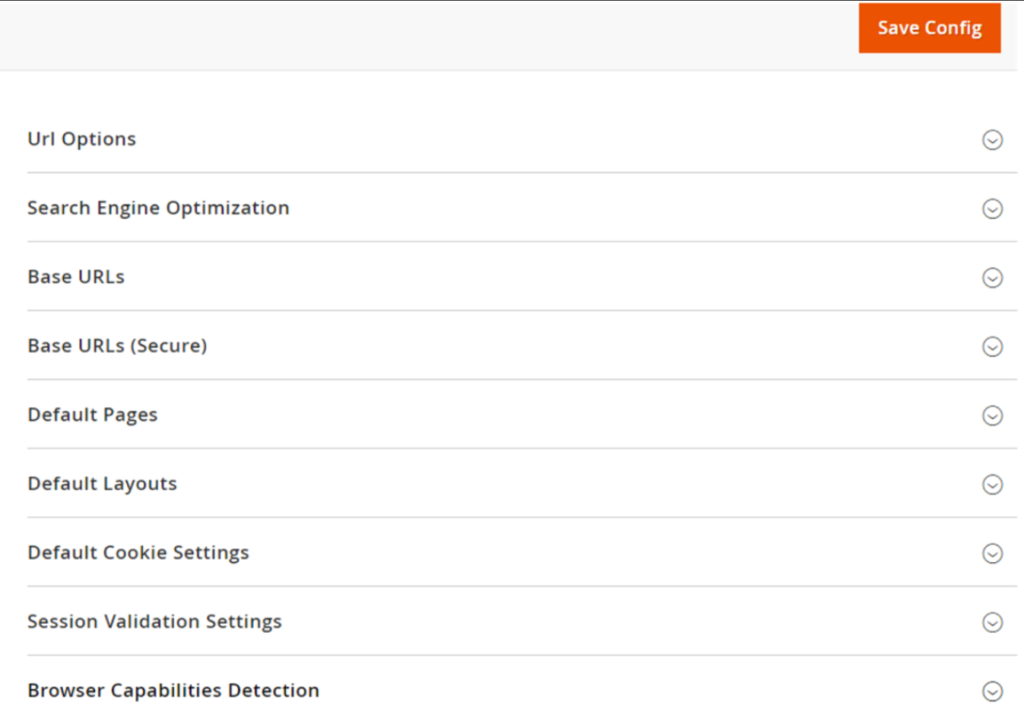
[4]- Once clicked / expanded, Default Layouts [Right Panel]
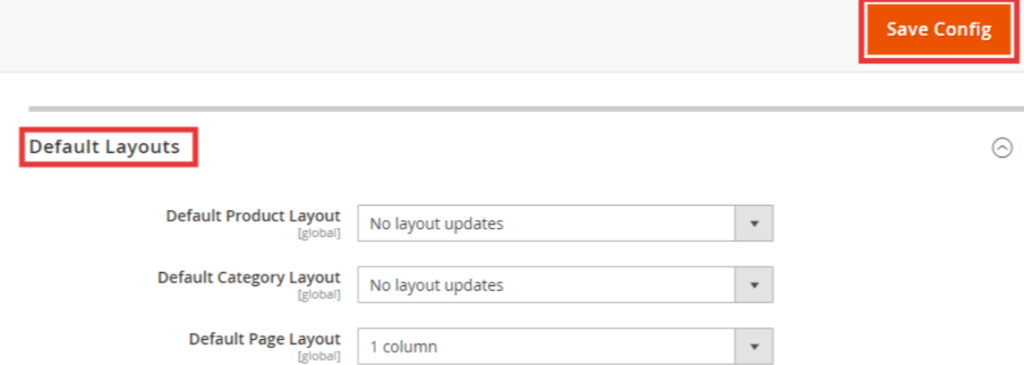
Each Layout defined as

[4.1] Default Product Layout : This layout allow to select the layout option for the product pages

[4.2] Default Category Layout : This layout allow to select the layout option for the category pages

[4.3] Default Page Layout : This layout allow to select the layout option for the default pages

Each Drop Down Value of  Default Product Layout, Default Category Layout & Default Product Layout defined as below
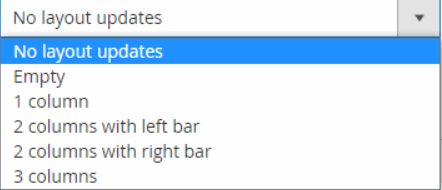
[a]- No layout updates : Layout updates are not available for product or category pages.

[b]- Empty : Uses a blank layout for product or category pages.

[c]- 1 column : Uses a single column layout for product or category pages .

[d]- 2 columns with left bar : Uses a two-column layout with the sidebar on the left for category pages.

[e]- 2 columns with right bar : Uses a two-column layout with the sidebar on the right product or category pages.

[f]- 3 columns : Uses a three-column layout with sidebars on the left and right for product or category pages.

[5]- Finally click on Save Config Button
How To Configure the Default Page in Magento 2.x

Magento 2 default page, which is appeared as Home Page, once user typing URL & specified URL page found as “Page Not Found” error occurs, the default page will be displayed.


Finally, Magento 2 Home Page & Error Page “Page Not Found” defined as Default Pages.

There are following below steps to follow to configure Default Pages.

[1]- Go To STORES > Configuration, redirects on configuration.

[2]- Left Panel Clicked on General > Web, redirects on [Right Panel]

[3]- Once redirection on [Right Panel]

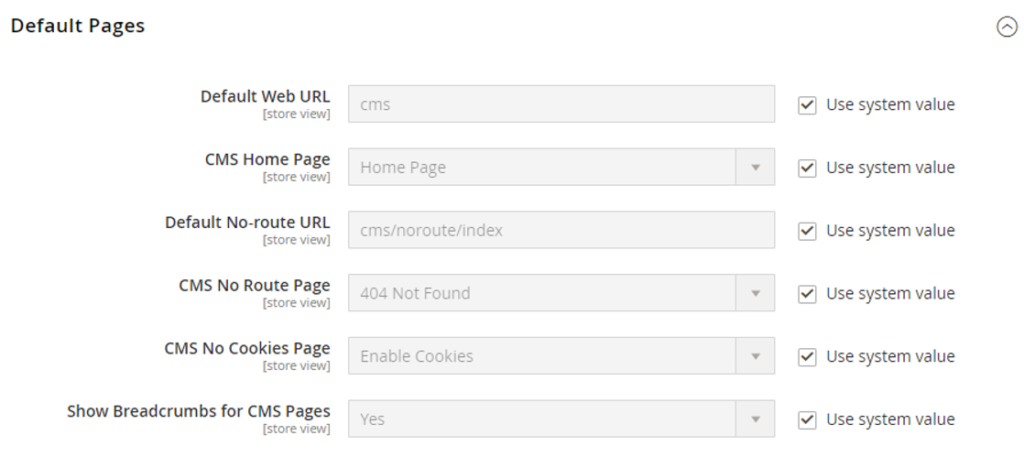
[4]- Once clicked / expanded, Default Pages [Right Panel]

Each Input Field of  Default Pages defined as below

[4.1]- Default Web URL : By Default cms or enter other value as per Store Requirement.

[4.2]- CMS Home Page : By Default Home Page selected or select other page from drop as per Store Requirement.

[4.3]- Default No-route URL : By Default “cms/index/noRoute” or enter other value as per Store Requirement.

[4.4]- CMS No Cookies Page : By Default “404 Page Not Found” selected or select other page from drop as per Store Requirement.

[4.5]- CMS No Cookies Page : By Default “Enable Cookies” selected or select other value from drop as per Store Requirement.

[4.6]- Show Breadcrumbs for CMS Pages : By Default “Yes” selected, if do not want display Breadcrumbs for CMS Pages, select No.

[5]- Finally click on Save Config Button
How To Change Base URLs in Magento 2.x By Database Query

There are following database SQL query need to run

To change the base URLs, run the following SQL Query:

update core_config_data set value = 'http://mage2db.com/' where path = 'web/unsecure/base_url';


To change the secure base URLs, run the following SQL Query:

update core_config_data set value = 'https://mage2db.com/' where path = 'web/secure/base_url';

How To Change Base URLs in Magento 2.x

There are following below steps need to follow.

[1]- Go To STORES > Configuration, redirects on configuration.

[2]- Left Panel Clicked on General > Web, redirects on [Right Panel].

[3]- Once redirection on [Right Panel]

[4]- Once clicked / expanded, Base URLs [Right Panel]

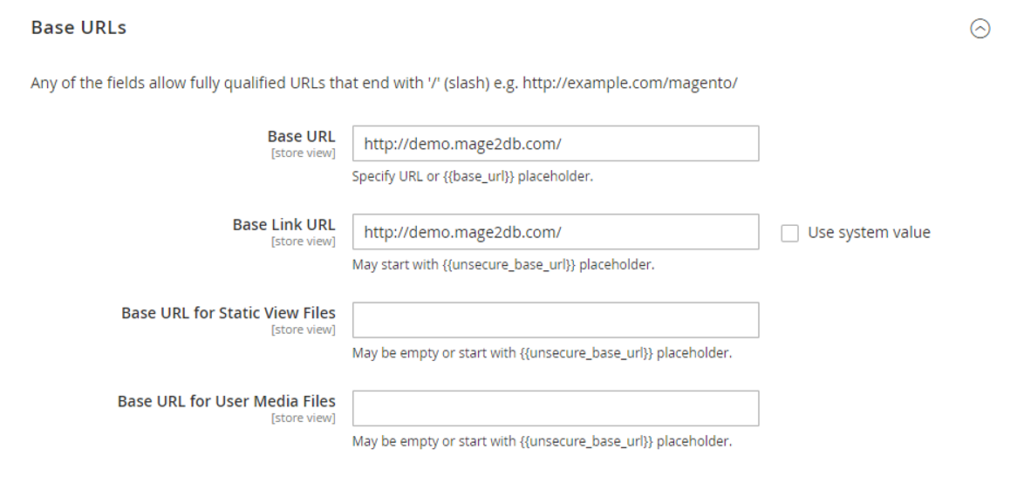
[4.1] After expanded Base URLs [Right Panel]

Each Input Field of Base URLs defined as below

[a]- Base URLs : Enter the unsecure (http) Base URL for your store. Make sure to end the URL with a forward slash (“/”).

[b]- Base Link URL : The placeholder link is available and used to create relative links to the base URL.

[c]- Base URL for Static View Files : Option Field, The alternate location for the base URL for static view files.

[d]- Base URL for User Media Files : Option Field, The alternate location for the base URL for Media files.

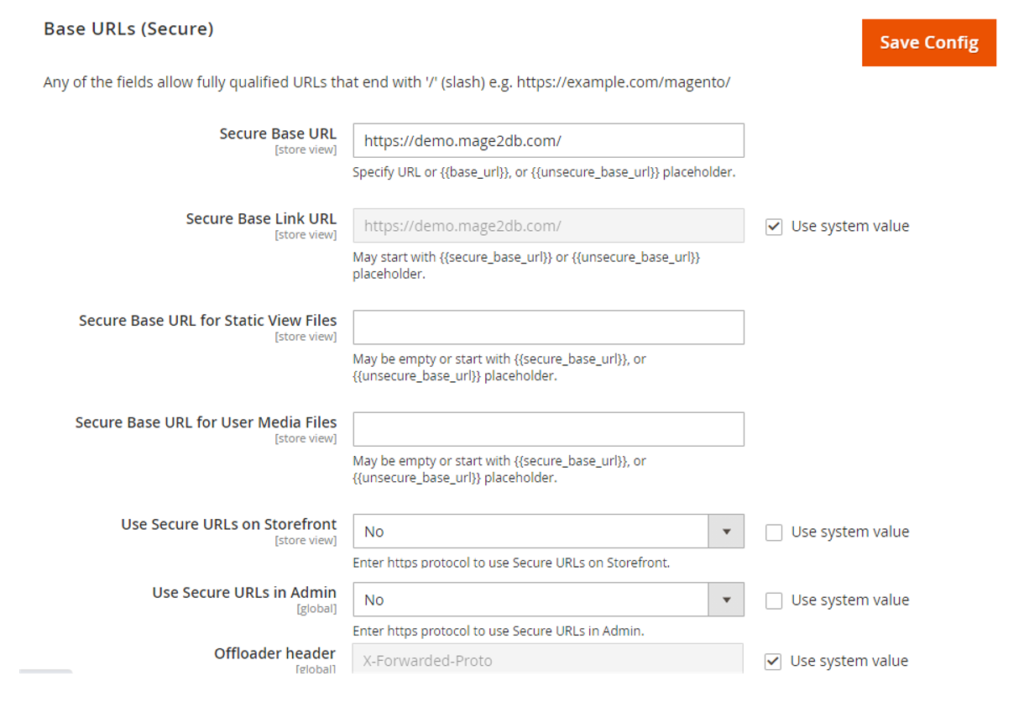
[4.2] After expanded Base URLs (Secure) [Right Panel]

Each Input Field of Secure Base URLs defined as below

[a]- Secure Base URLs : Enter the secure (https) Base URL for your store. Make sure to end the URL with a forward slash (“/”).

[b]- Secure Base Link URL : The placeholder link is available and used to create relative links to the base URL.

[c]- Secure Base URL for Static View Files : Option Field, The alternate location for the base URL for static view files.

[d]- Secure Base URL for User Media Files : Option Field, The alternate location for the base URL for Media files.

[e]- Use Secure URLs on Storefront : By Default No selected, if Admin want to run Secure Storefront URLs, need to select Yes

[f]- Use Secure URLs in Admin : By Default No selected , if Admin want to run Secure URLs in Admin, need to select Yes

[5]- Finally click on Save Config Button
How To Configure Search Engine Optimization in Magento 2.x

Search Engine Optimization display SEO or User Friendly URL, so that customers can easily ready shopping site pages URLs. These URLs are indexed by Search Engine.

There are following things need to do enable SEO

Magento 2 Admin

[1]- Go To STORES > Configuration, redirects on configuration.

[2]- Left Panel Clicked on General > Web, redirects on [Right Panel]

[3]- Once redirection on [Right Panel]

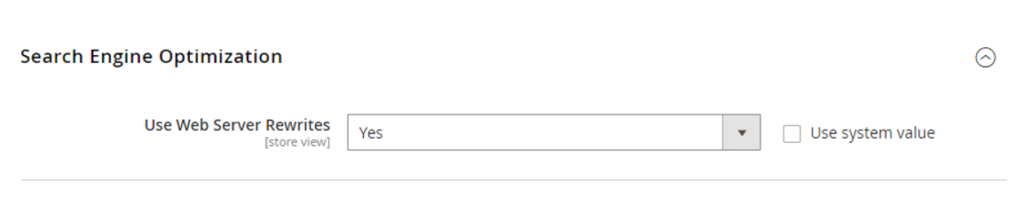
[4]- Once clicked / expanded, Search Engine Optimization [Right Panel]

Use Web Server Rewrites with Yes Selection

Use Web Server Rewrites By Default Yes selected.

[5]- Finally click on Save Config Button
How To Add Store Codes To The URLs in Magento 2.x

There are following below steps need to follow

[1]- Go To STORES > Configuration, redirects on configuration

[2]- Left Panel Clicked on General > Web, redirects on [Right Panel]

[3]- Once redirection on [Right Panel]

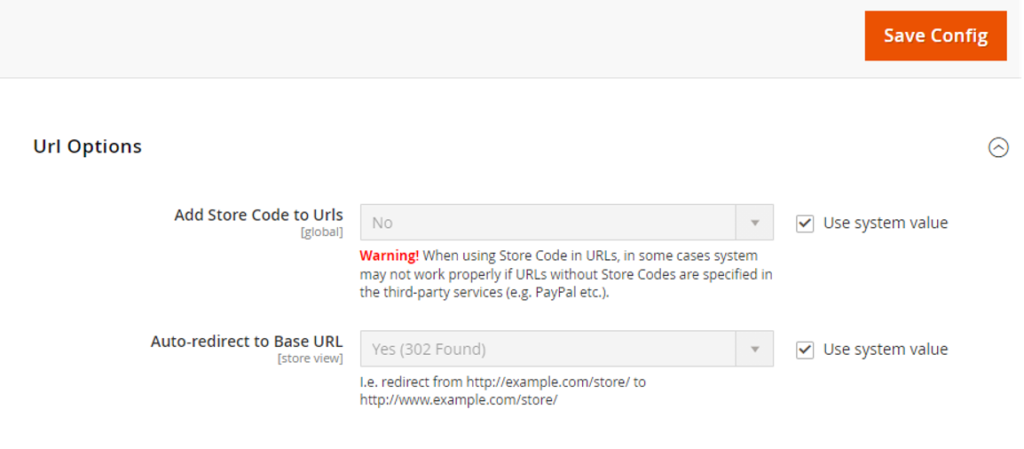
[4] -Once clicked / expanded, URL Options [Right Panel]

  • Add Store Code to Urls : It is strictly recommendation , always select No. By Default Selected No. Never try to select Yes, otherwise Application will be stopped.
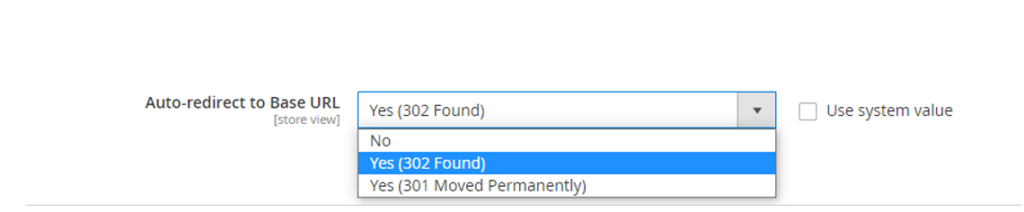
  • Auto-redirect to Base URL : It represents Auto Redirection Website Application Base URL, normally these setting need to do .htaccess file of Website Application, but here Magento 2 provide Admin Setting to do.
  • There are three type redirection

No : Once selected No, There will no Redirection in Base URL.

Yes(302 Found) : Once selected Yes(302 Found), Base URL will b redirected from http://yoursite.com To http://www.yoursite.com

Yes (301 Moved Permanently) : Once selected Yes (301 Moved Permanently), indicates Permanent redirection from Base URL to another Base URL, Search Engines that page has moved that new page can be properly indexed,

Some Common of Yes (301 Moved Permanently)

  • After moving New Domain
  • After Moving old site pages to new site pages , so that users can view new site pages.

[5] – Finally click on Save Config Button
Magento 2.x Configuration General Web

Magento 2 General Web Configuration important terms, having collection following things

  • Url Options
  • Search Engine Optimization
  • Base URLs
  • Base URLs (Secure)
  • Default Pages
  • Default Layouts
  • Default Cookie Settings
  • Session Validation Settings
  • Browser Capabilities Detection

Magento 2.x Configure Content Management

Magento 2 Configure Content Management allow setting, how to configure / use WYSIWYG Editor settings.

There are following below steps need to follow

[1]- Go To STORES > Configuration, redirects on configuration

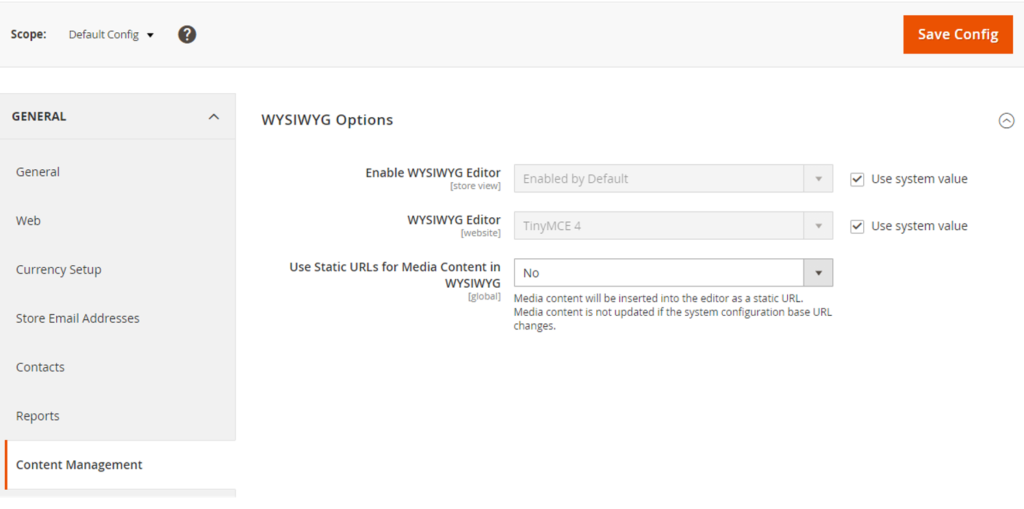
[2]-Left Panel Clicked on General > Content Management, redirects on WYSISYG Options [Right Panel]

[3]-Once WYSISYG Options [Right Panel] expanded , there are following below options displayed.

  • Enabled WYSISYG Editor :

Once clicked on Drop Down there are three options as

First Option “Enabled by Default” -By Default Selected
Second Option “Disabled by Default” -Select, If do not want to use WYSISYG
Third Option “Disabled Completely” -Select, If want to disable WYSISYG

  • WYSIWYG Editor :

Once clicked on Drop Down there are two options as

First Option “TinyMCE 4.” By Default Selected
Second Option “TinyMCE 3”, already deprecated before Version Magento 2.3.2

  • Use Static URLs for Media Content in WYSIWYG :

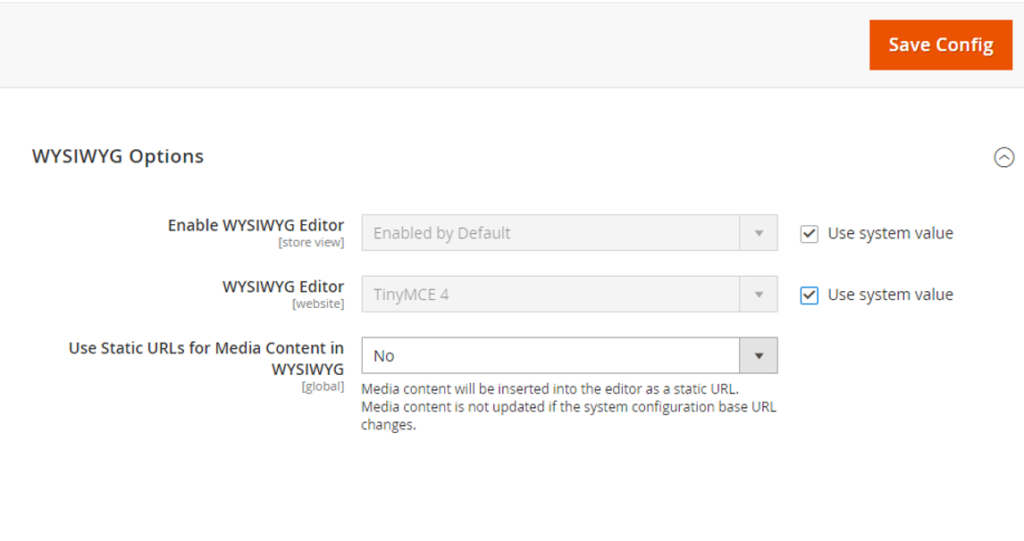
This option must be selected as No. Because when Admin insert the media in WYSIWYG editor, it automatically takes base URL If option selected as Yes, It will allow to insert full static URL of Media, once Store Base URL, When Store move from local to live, Admin will have to change all the Media URLs manually, So It is hectic task, keep it as No as it is.

[4] Click on Save Config button & run CLI command Flush

Magento 2.x or Adobe Commerce 2.x Configuration General Settings

Magento 2 Configuration General Settings is important terms.

There are following below section included as:

  • Country Options
  • State Options
  • Locale Options
  • Store Information
  • Single-Store Mode

How to configure Magento 2 General Settings

Magento 2 Admin

[1]- Go To STORES > Configuration, redirects on configuration page

[2]- Left Panel click on General > General , expanded Right Panel with combination of following things as

[2.1]- Country Options

There are following below subsections of Country Options are described as

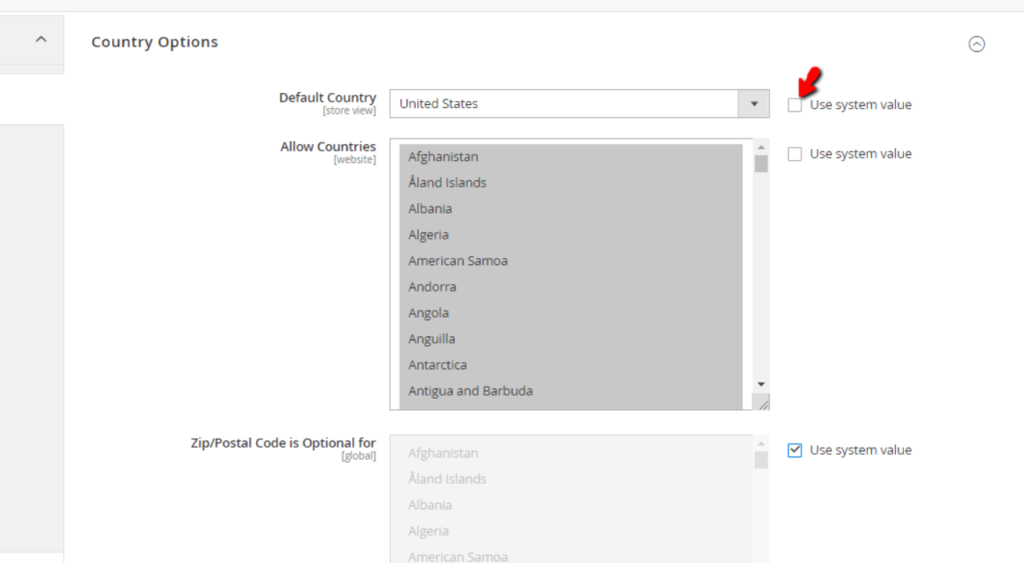
  • Default Country : This represents, which country admin want to operate store, By Default United States selected.
  • Allow Countries : This represents, Admin, how many countries are allowed to view store, By Default, all countries are selected.
  • Zip/Postal Code is Optional for : This represents, Admin, how many countries [Zip/Postal Code] are allowed to view store, By Default, all Zip/Postal Code are selected, this is optional field
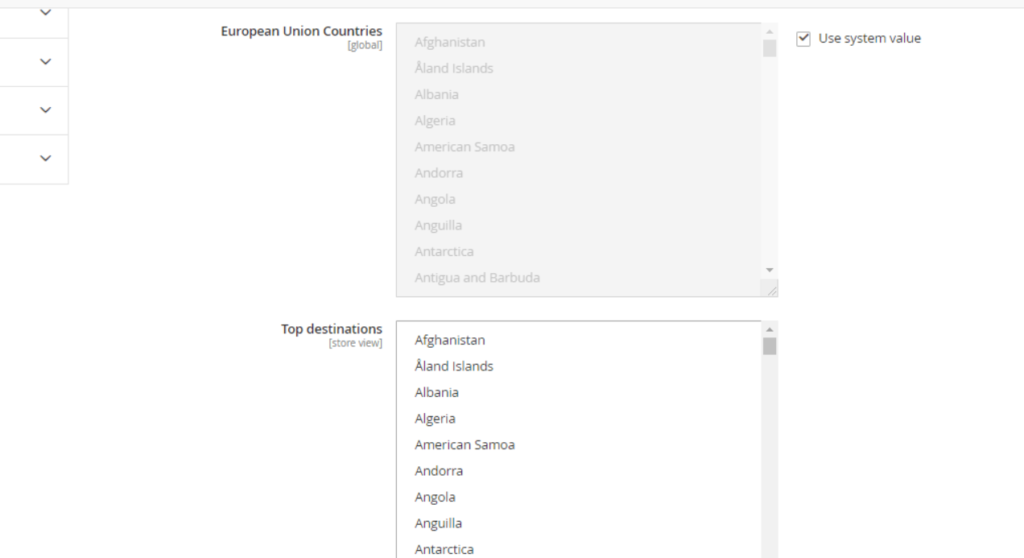
  • European Union Countries : Admin can exclude countries that will not be considered as members of the EU for the purposes of store
  • Top destination : Admin can select counties that will be positioned at the top of any county list displayed for customers before it gets to alphabetic order.

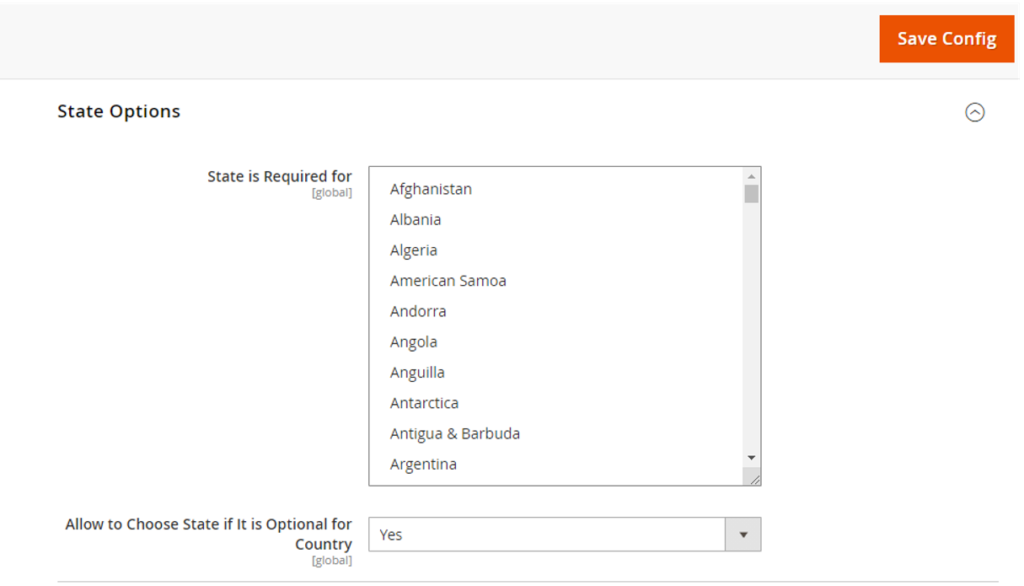
[2.2]- State Options : Once expanded State Options, The following below things displayed.

There are following below subsections of State Options are described as

  • State is Required for : This represents, How many countries are allowed by Admin for customers shopping, either can select or some selected countries,

By Default below following countries are selected, This is required field

Australia
Brazil
Canada
China
Colombia
Croatia

Estonia
India
Latvia
Lithuania
Mexico
Poland

Romania
Spain
Switzerland
United States

  • Allow to Choose State if It is Optional for Country: This represents, allow State County to add, even if it is optional for Country

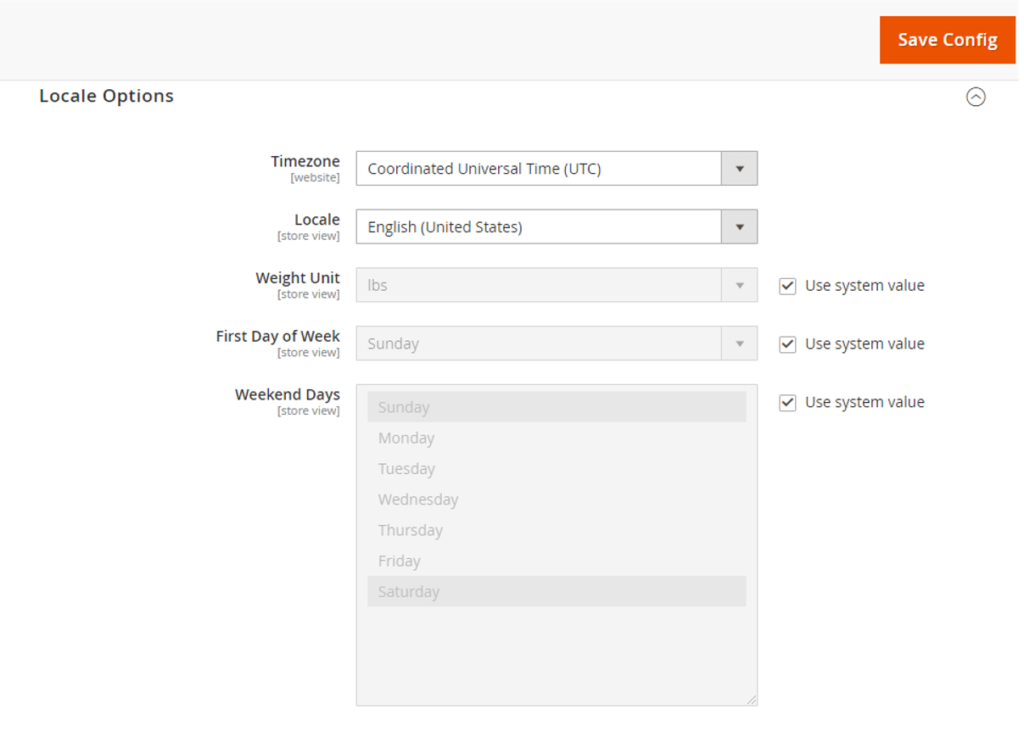
[2.3]– Locale Options : Once expanded Locale Options, The following below things displayed.

  • Timezone : This represents, Time Zone, Admin can choose Time Zone, as per Store Need. By Default Selected Time zone, depends on which Time zone selected @time of Magento 2 Installation
  • Locale : This represents, Language, Admin can decide Language, as per Store Need. By Default Selected Language, depends on which Language selected @timeof Magento 2 Installation
  • Weight Unit : This represents, the weight measurement unit
  • First Day of Week : This represents, which day, Admin want to select as “First Day of Week”, By Default Sunday selected
  • Weekend Days: This represents, which day, Admin want to select as “Weekend Days”, By Default Sunday & Saturday selected

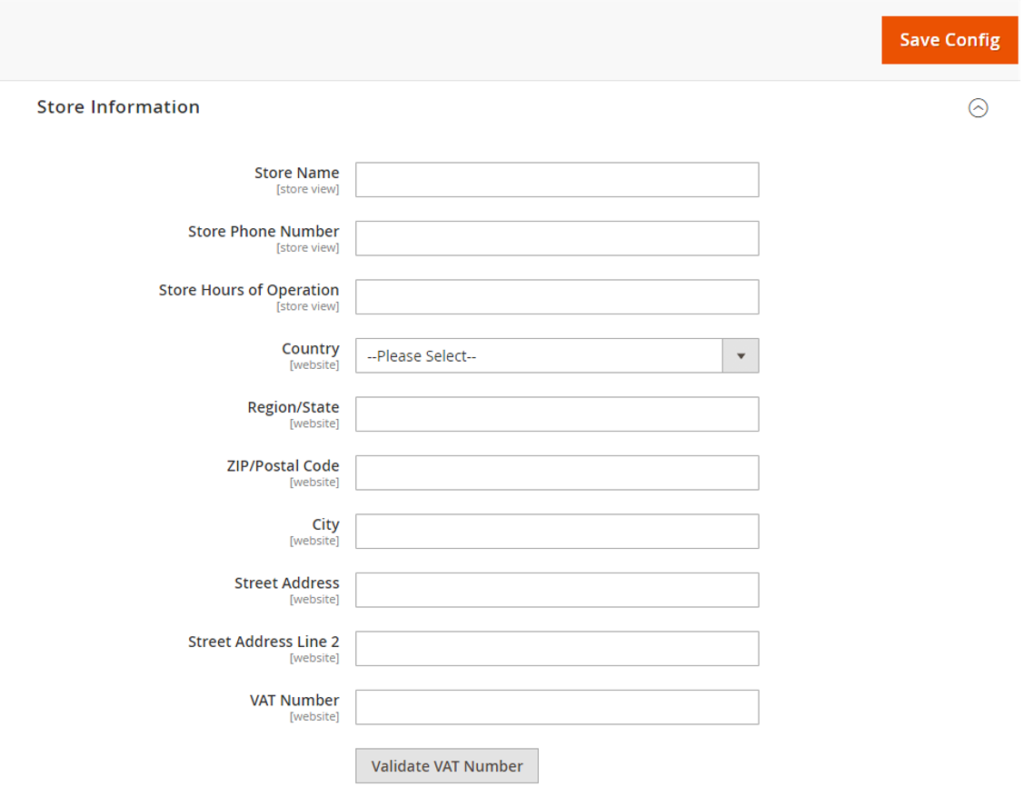
[2.4]– Store Information : Once expanded Store Information, The following below things displayed.

  • Store Name – This represents official name of your Online Store.
  • Store Phone Number – This represents official store’s contact phone number of your Online Store.
  • Store Hours of Operation – This represents official store’s working hours.
  • Country – This represents to select the country of your store’s base address..
  • Region/State – This represents to enter the Region/State of your store’s base address
  • ZIP/Postal code – This represents to enter the ZIP/Postal code of your store’s base address.
  • City – This represents to enter the ZIP/Postal code of your store’s base Address
  • Street Address – This represents to enter the Street Address of your store’s base address.
  • Street Address Line 2 – This represents to enter the second Street Address of your store’s base Address, this is optional second Street Address of your store’s base address.
  • VAT Number – This represents to enter the VAT number if applicable.
  • Validate VAT Number – This represents to initiate verification on the entered VAT number. If you have entered VAT number, please make sure to click on it, to verify VAT Number

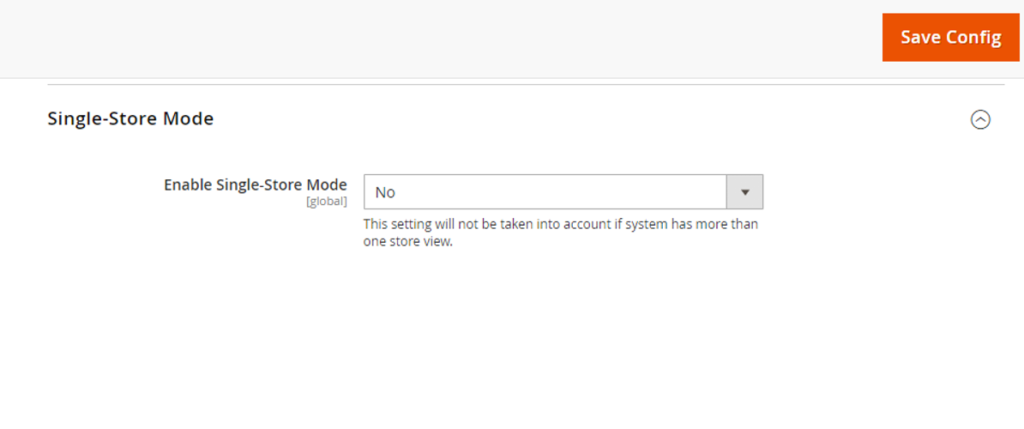
[2.5]– Single-Store Mode : This represents to allows to control whether the “Single-Store” mode is enabled or disabled.

[2.6] Click on Save Config button & run CLI command Flush

How Many Design Patterns Magento 2.x

There are following below 11 Design Patterns supported by Magento 2

[1] Object Manager Design Pattern
[2] Dependency Injection Design Pattern
[3] Factory Design Pattern
[4] Proxy Design Pattern
[5] Preferences Design Pattern
[6] Argument Replacement Design Pattern
[7] Virtual Types Design Pattern
[8] Events and observers Design Pattern
[9] Plugins Design Pattern
[10] Repository Design Pattern
[11] Injectable/Non-Injectable Object