As previous post Products Review , similarly, users are also able to leave a product rating. Magento 2 allowed to manage the ratings and create custom ratings.
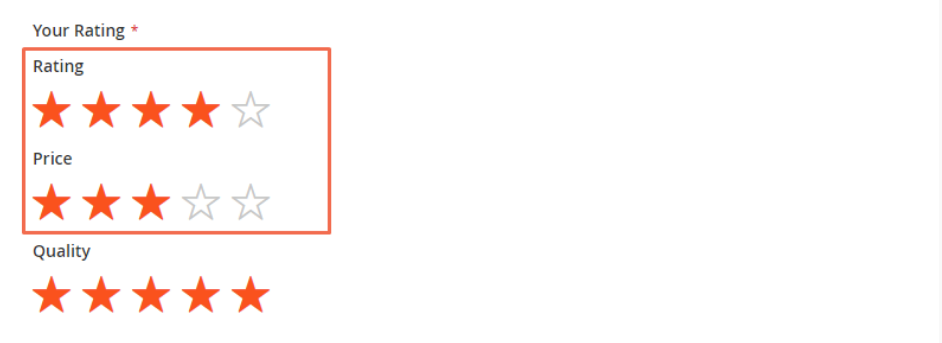
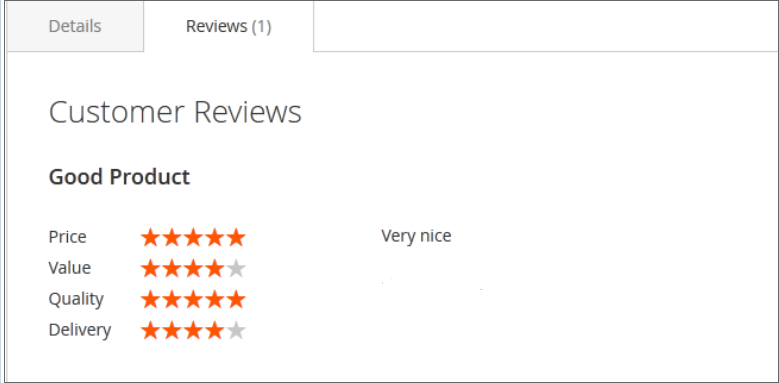
Frontend Ratings format as below
If Admin user wants to add custom, also able to add custom Ratings
There are following below things , how to manage & apply Ratings
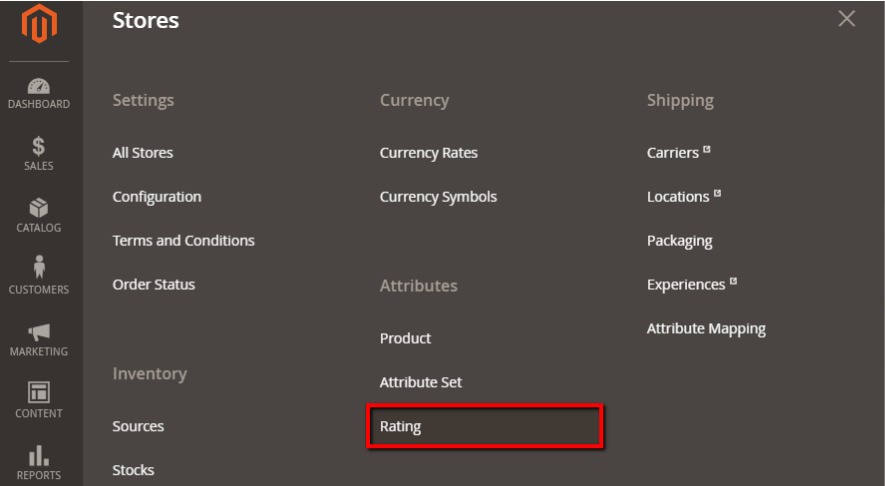
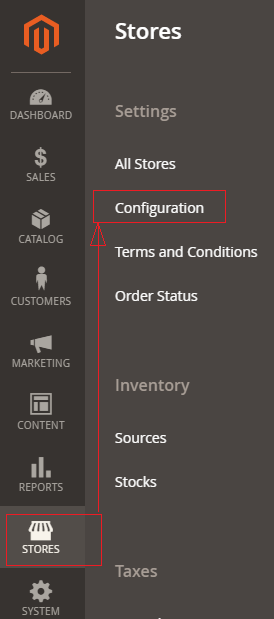
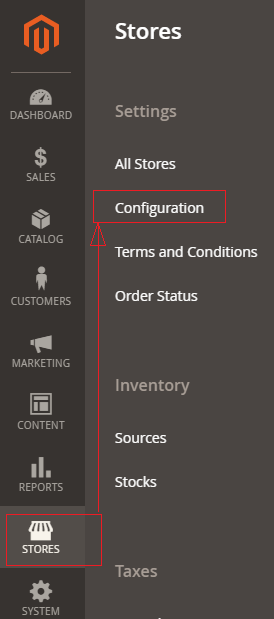
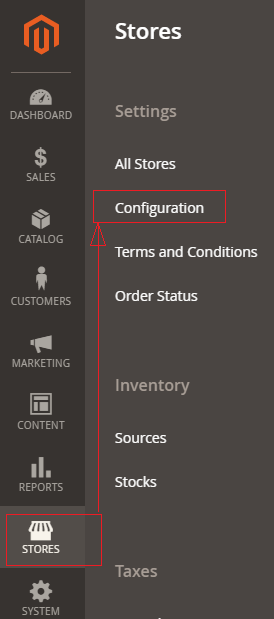
[1] Go STORES > Configuration, redirects Configuration section.
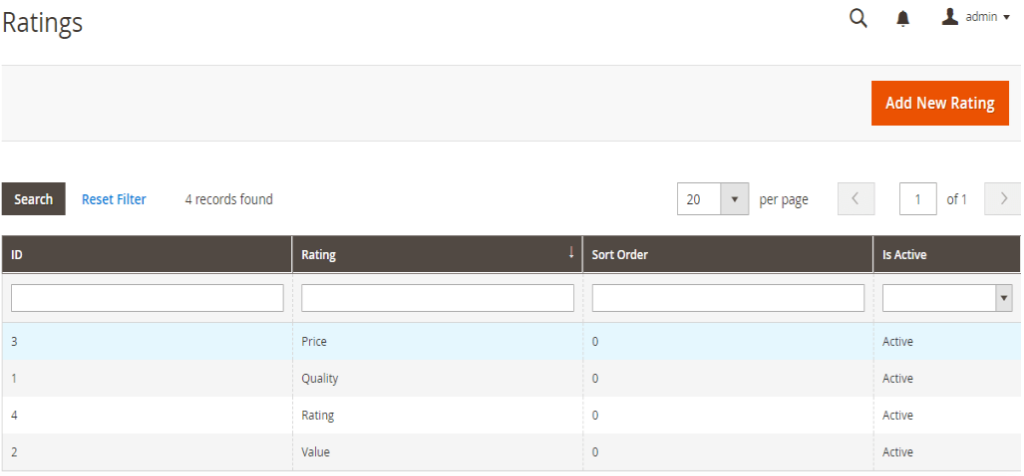
[2] Once clicked on Rating, It redirects on Rating Listing page as below
There are following four type Ratings & activate by default
Rating
Quality
Price
Value
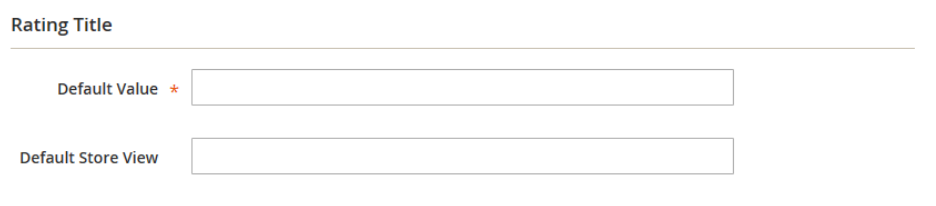
[3] Create new Rating clicked on Add New Rating,
In Default Value, enter the default value for the new rating. If you are using multiple store view, fill store view value.
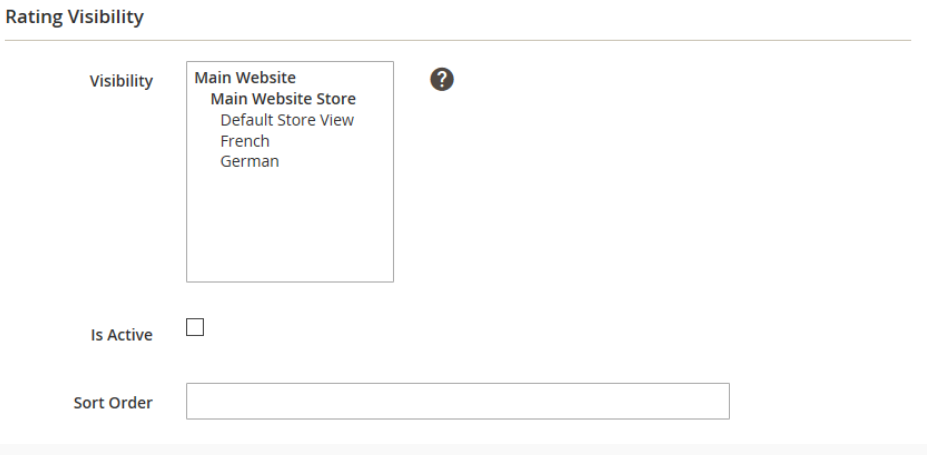
Visibility: set the visibility for the store views you want to show the rating. .
Is Active: click on the checkbox to active the value.
Sort Order:, enter the order of the rating value in the frontend.
[4] Finally clicked on Save Button , custom Rating will be applicable on frontend.
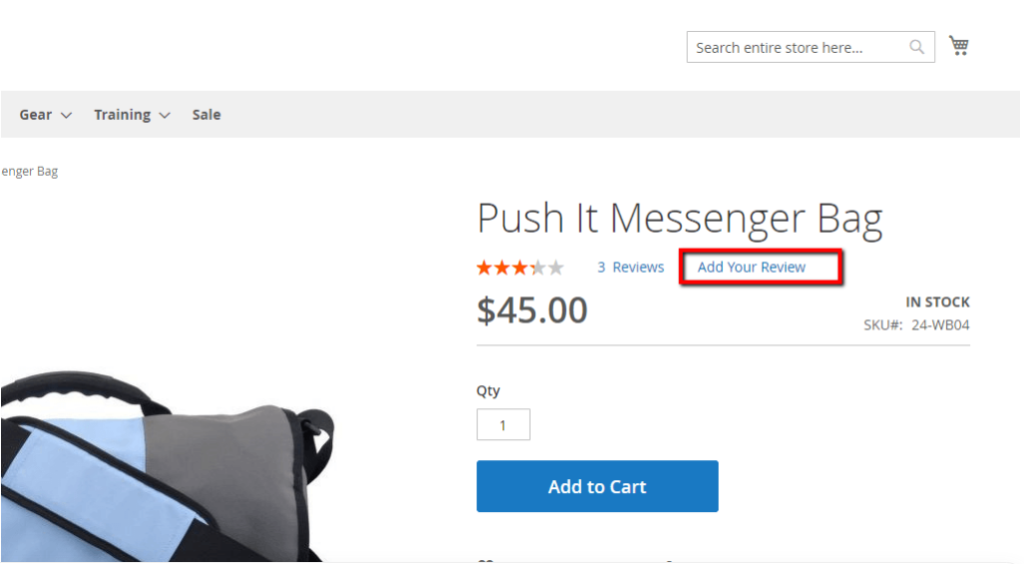
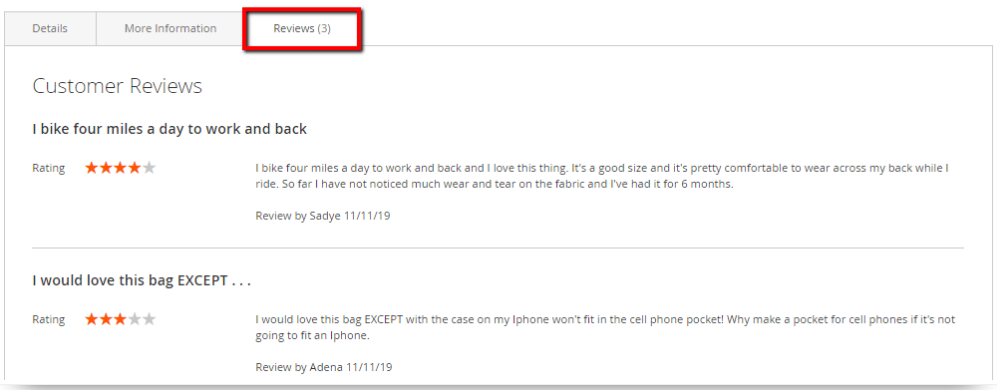
Once clicked on Add Your Review Button, users are able to add their reviews, & once Admin user approved , enable to display on frontend as below
There are following below things to follow to manage Product Reviews
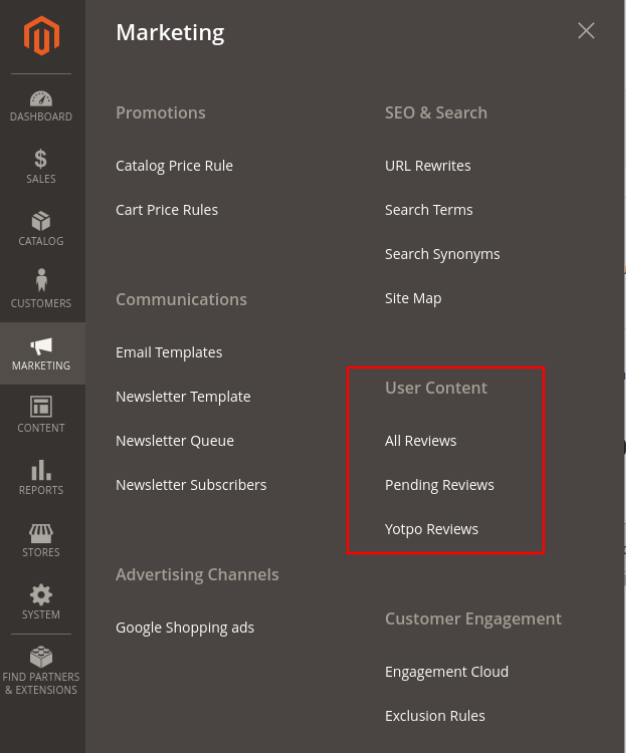
[1] Go to Marketing > User Content > All Reviews.
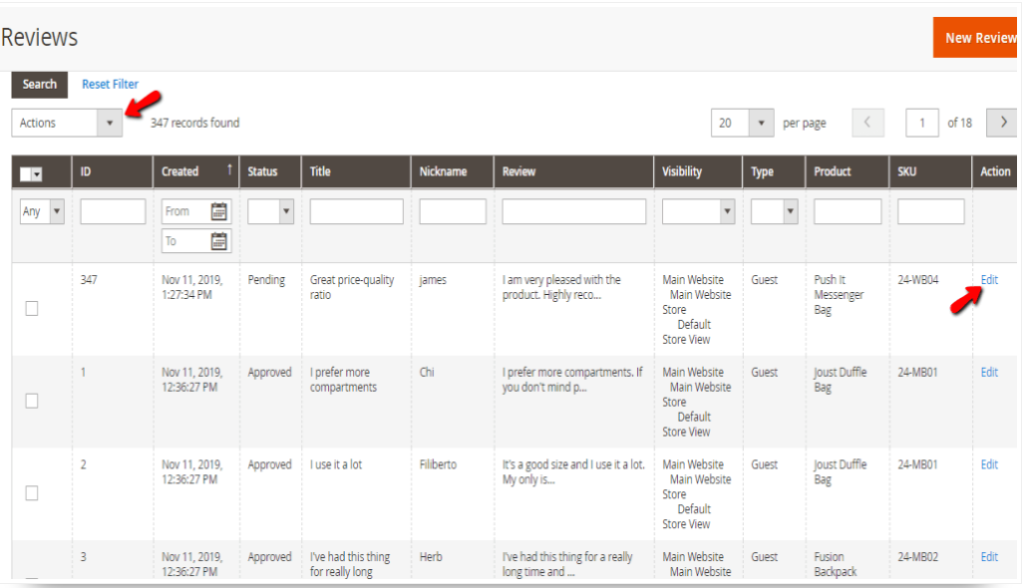
[2] Once clicked on All Reviews, following review list displaying with combination of Approved & Pending Reviews Data
If Admin user wants to delete any set of displaying Reviews Data, need to checked , Review Checkbox & select Delete Button from Top Left side Actions drop down
In case of bulk Approved or Pending Reviews , checked multiple Reviews & select Approved or Pending option form Top Left side Actions drop down
[3] In case edit Review, clicked on right side Edit Button will be displayed as
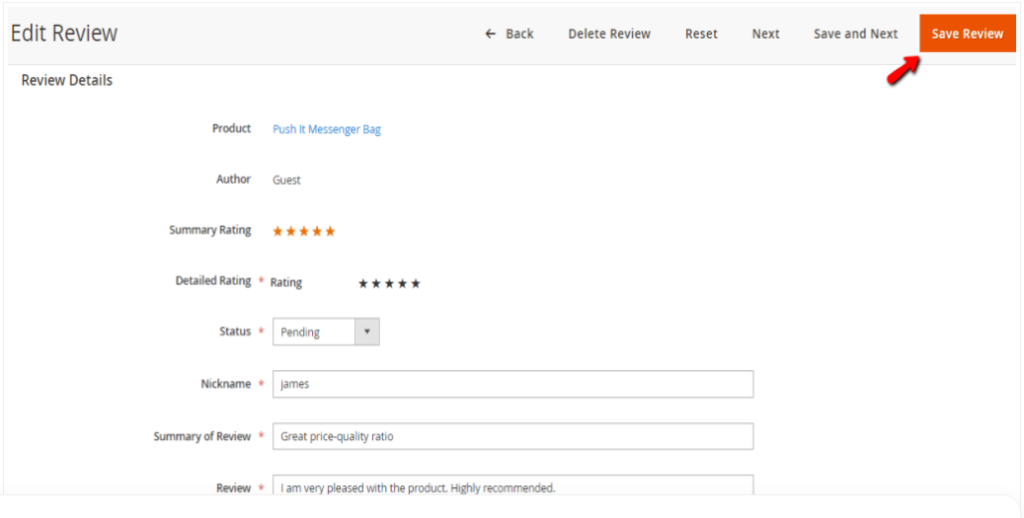
There are following below things about Product Reviews
Product: Display product name.
Author: Display user name who posted the review. In case of “Guest” user means the user who left the review was not logged in his account.
Summary Rating: Display the star rating.
Detailed Rating: Display the star rating and allows Admin user to edit it , in case required.
Status: Display drop down having values as Pending & Approved by using this dropdown menu Admin user will be able to change the status of the review. In order to display the review on the store frontend, need to select Approved
Nickname: Display the reviewer and allows Admin user to edit name.
Summary of Review: Display the review summary and allow Admin user to edit any typos and spelling error.
Review: Display detailed content of the review & also allows Admin user to edit.
Once things has been updated , Finally clicked on Save Review
It is process comparing similar products before deciding which one to buy, There are many available products, buyers / customers can compare products on the bases of price, size, colour, discount etc comparison, before having purchase decision.
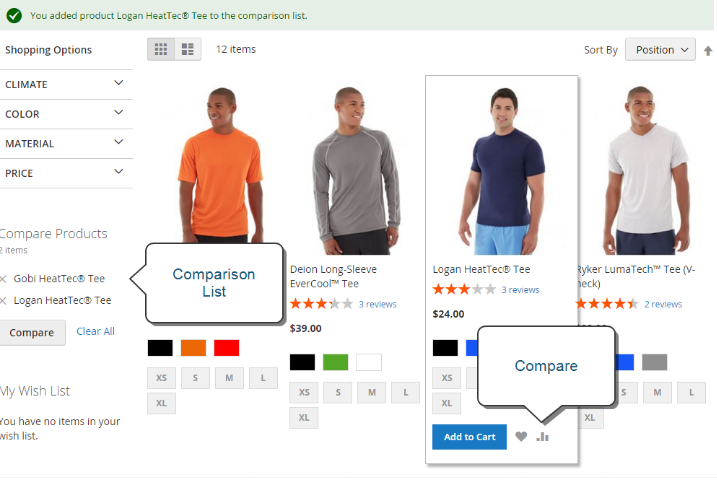
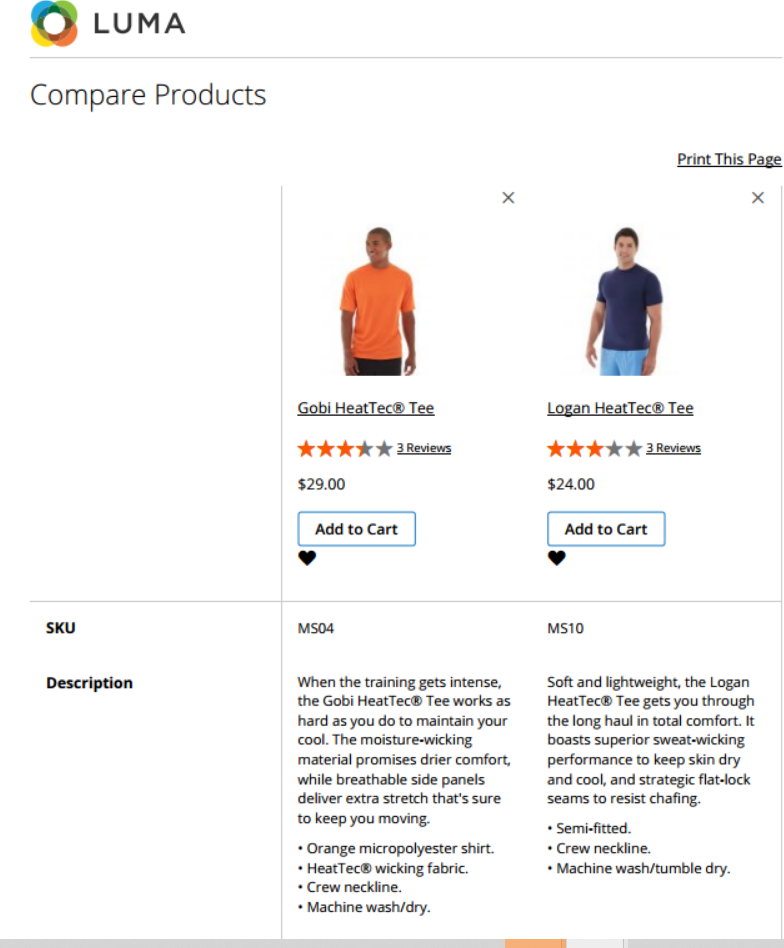
Magento 2 Compare Products generates a detailed comparison or side-by-side comparison of two or more products on the bases of price, size, colour, discount etc comparison, before having purchase decision.
By Default The Compare Products block usually appears in either the left or right sidebar of a catalog page.
After comparing Product Logan Heatec Tee & Global Heatec Tee
Similarly, customers can add more products to compare.
There are following below things need to follow to Enable & Disable Compare Products
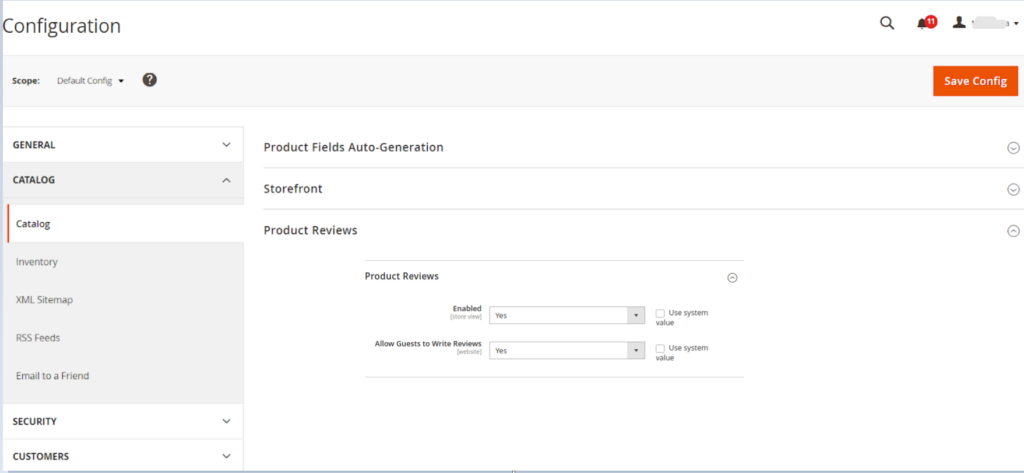
[1] Go STORES > Configuration, redirects Configuration section.
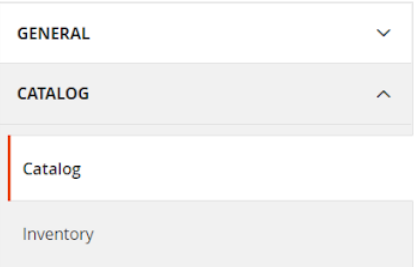
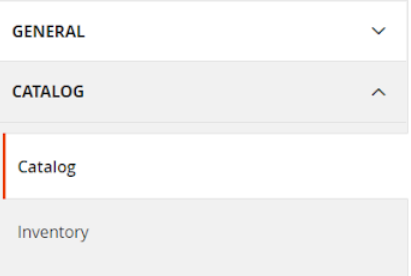
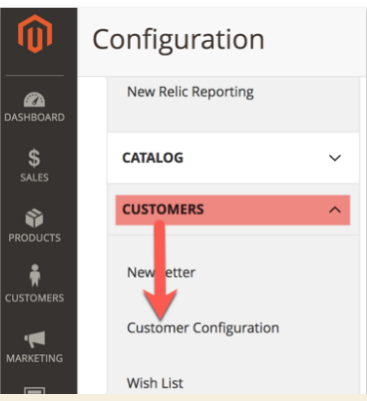
[2] Left panel under Catalog, choose Catalog
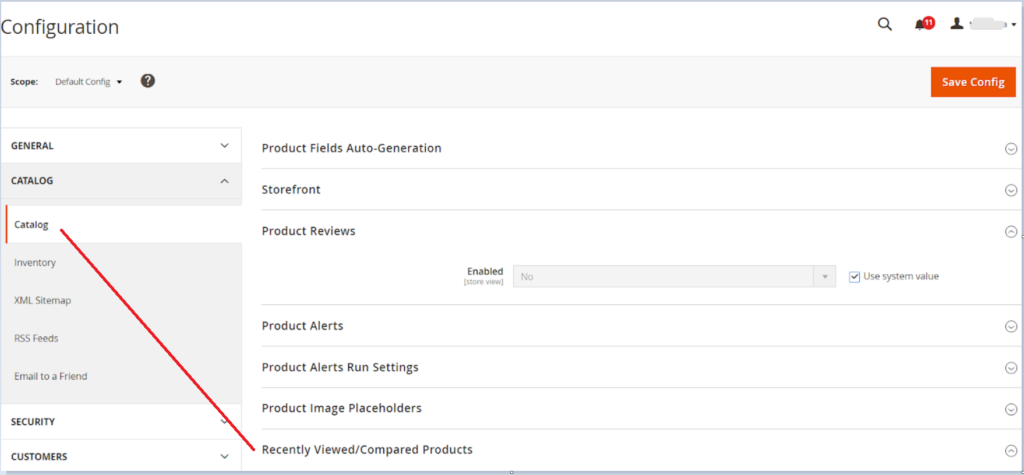
[3] Go to Catalog & Expand the Recently Viewed/Compared Products section & follow below things
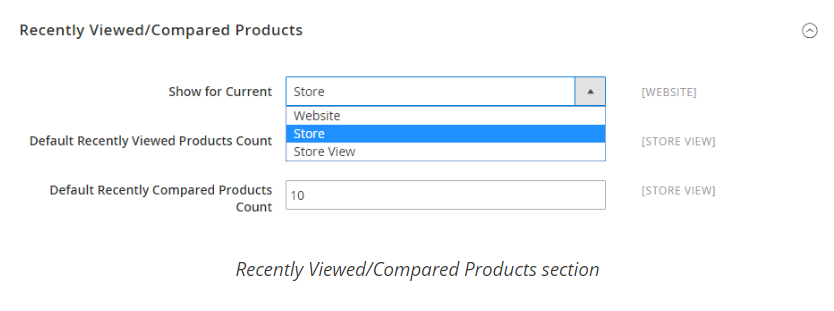
Once Recently Viewed/Compared Products section expanded, It is view as below
Set Show for Current to the website, store, or store view where the configuration applies.
In the Default Recently Viewed Products Count field, enter the number of recently viewed products to appear on the list. In the Default Recently Compared Products Count, enter the number of recently compared products to appear in the list.
There are following below things need to follow to enable Magento 2 One Page Checkout.
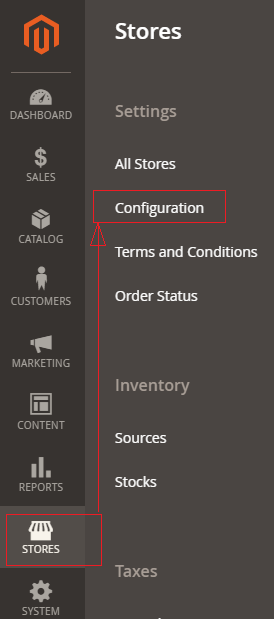
Step-[1] Go STORES > Configuration, redirects Configuration section.
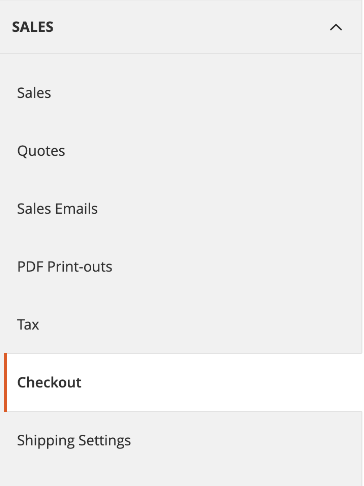
Step- [2] Go To Sales > Checkout
Once clicked on Sales, display multiple values , need to click on Checkout.
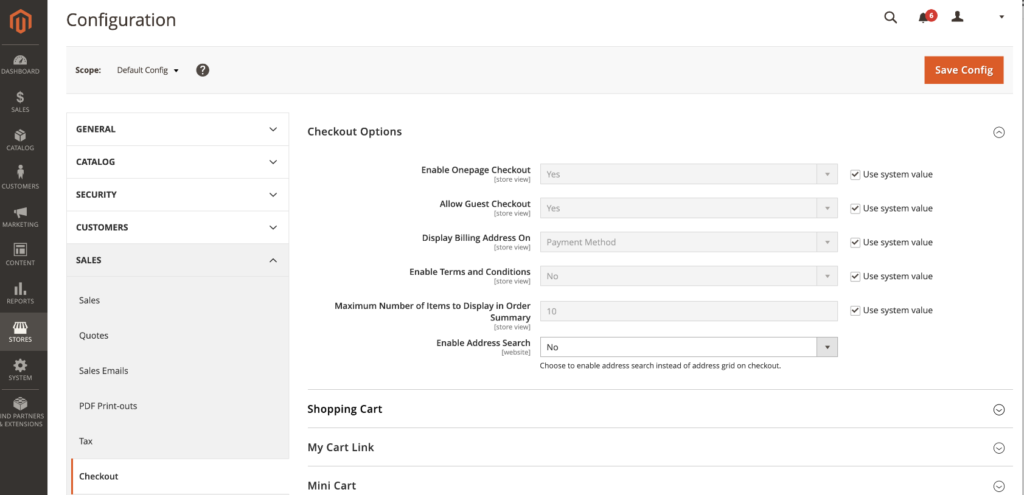
Step- [3] Once Clicked on Checkout, displayed checkout options as below image, There are following below Checkout Things are given
Enable One Page Checkout: By Default enable , if Admin User wants to disable, need to select No from Drop Down, Finally One Page Checkout will be disabled.
Allow Guest Checkout: By Default enable , if Admin User wants to disable, need to select No from Drop Down. Finally Guest Checkout will be disabled.
Display Billing Address On: By Default Payment Method selected, There are two Values given , Once Clicked on Drop Down
Payment Method: If selected Billing Address will be displayed on Payment Method
Payment Page: If selected Billing Address will be displayed on Payment Page
Enabled Terms & Conditions: By Default Payment No selected, If Yes selected Enabled Terms & Conditions checkbox will be displayed.
Maximum Number of Items to display in Order Summary: By Default 10 Products are being displayed, if filled more than 10, Total no of products will be more than 10 in Checkout Order Summary
Enable Address Search: By Default No
Step- [4] Click on Save Config button & run CLI command Flush
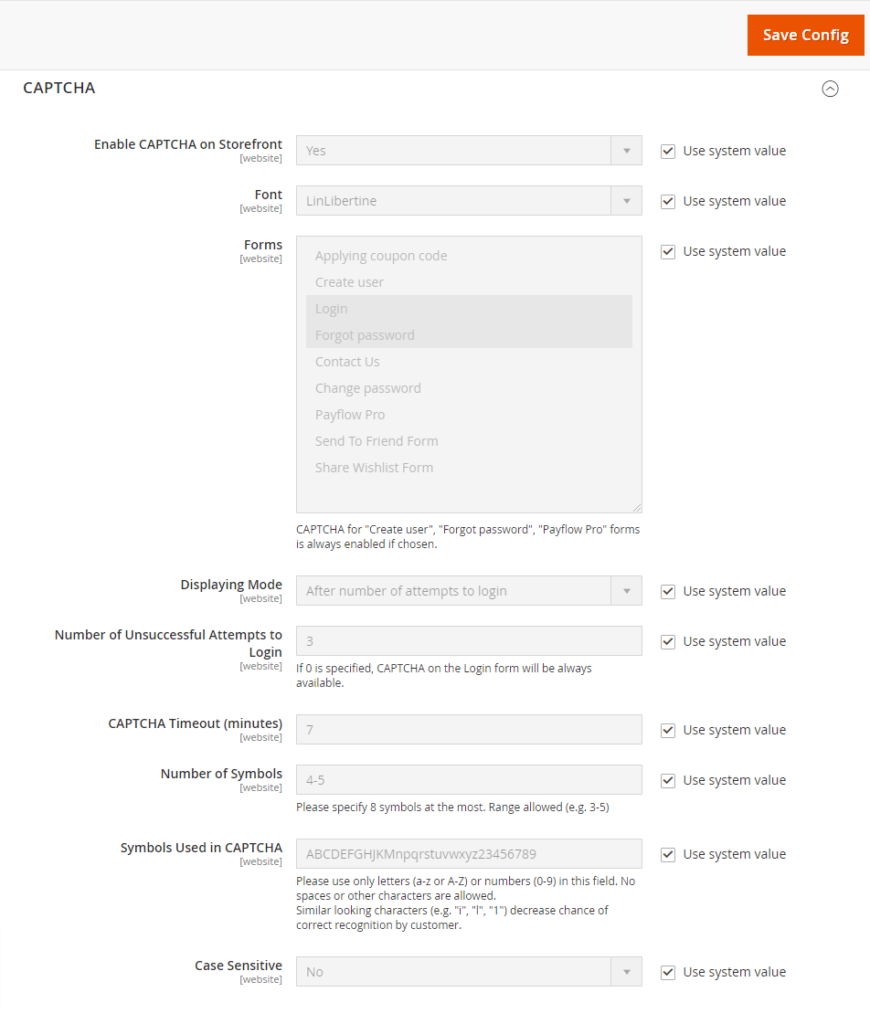
[3]- Go To Forms section. There are following below each CAPTCHAForm field details described.
Note : Each form field use system value checked, if you want to modify need to uncheck.
[3.1] – Enable CAPTCHA on Storefront : Select Yes from drop down, by default Yes selected.
[3.2] – Font : Select font, by default font LinLibertine selected
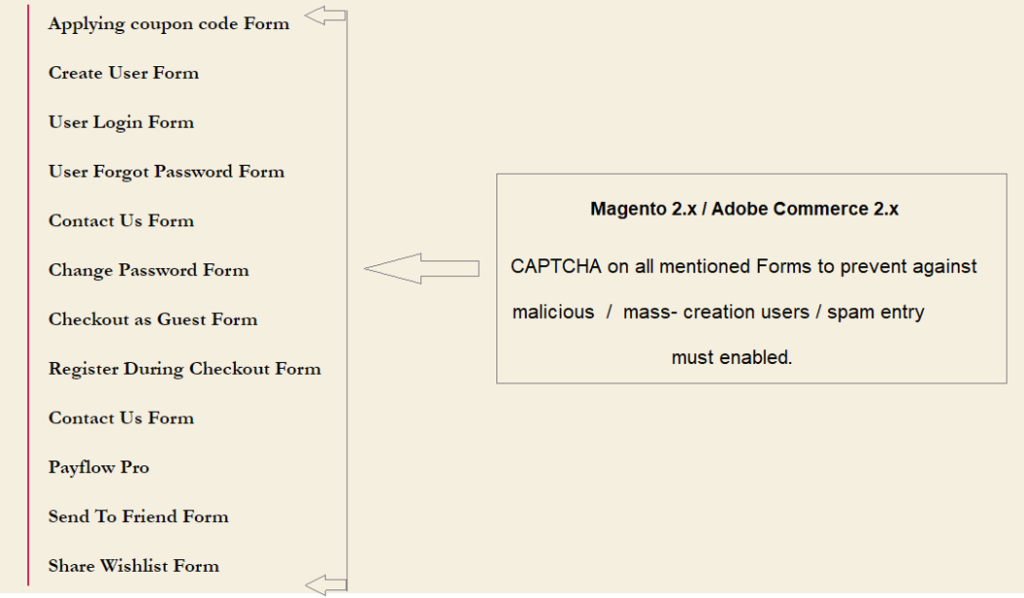
[3.3] – Forms : select any form or set of form as
Applying coupon codeForm
Create UserForm
User Login Form
User Forgot Password Form
Contact Us Form
Change Password Form
Checkout as Guest Form
Register During Checkout Form
Contact Us Form
Payflow Pro
Send To Friend Form
Share Wishlist Form
once selected any form or set of form, Captcha will be enabled.
By Default User Login Form & User Forget Password Form Captcha enabled
[3.4] – Displaying Mode : Two option are here as After number of attempts to login or Always
By default After number of attempts to login selected, It means number of login attempts , CAPTCHA will be displayed, number of login attempts defined next step.
[3.5] – Number of Unsuccessful Attempts To Login : By default 3 attempts, if 0 selected CAPTCHA will be always displayed on forms.
[3.6] – CAPTCHA Timeout (minutes) : By default 7 minute specified, as per store requirement, need to modify.
[3.7] – Number of Symbols : By default 4-5 , as per store requirement, need to modify.
[3.8] – Symbols Used in CAPTCHA : By default combination of Capital Alphabet, Small Alphabet & Number (0-9).
It only allows combination of Capital Alphabet, Small Alphabet & Number (0-9), Never allowed Spaces, Character, Special Character
[3.9] – Case Sensitive : By Default, No selected, as per store requirement, need to modify.
[4]- Finally click on save button & now Magento 2 website / store User Login Form & User Forgot Password form now ready with CAPTCHA
Website / Store protects against prevent against malicious/mass-creation users / spam entry after enabled CAPTCHA
There are following steps need to follow in Magento 2 admin to be secure Magento 2 Admin, only authorized user can access system
Go To Magento 2 Admin
Stores–Configuration–Advanced–System–Admin
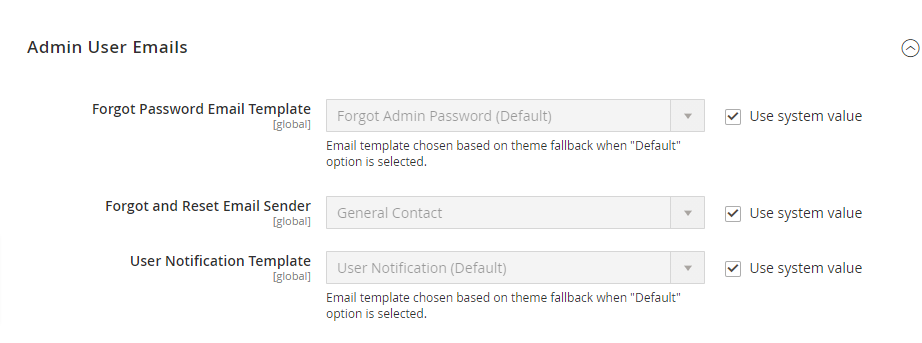
Admin User Emails
There are following three parts are given under Admin User Email

Forgot Password Email Template: Select Forgot Password Email Template from drop down email template--by default Forgot Admin Password (Default).

Forgot & Reset Email Sender: Select Contact List to send forget & reset password to specified email-- By Default General Contact, whatever email written in General Contact, forget & reset password
email sent to that email. There is another option Sales Representative  or any custom contact list from drop down list

User Notification Template:  Select User Notification Email Template
which is responsible for all users activity email notification template to Admin
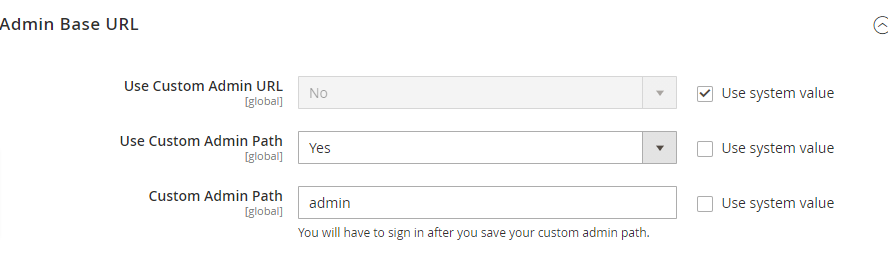
Admin Base URL
There are following three parts are given under Admin User Email

Use Custom Admin URL: Select Yes if Admin User want Custom Admin URL

Use Custom Admin Path: Select Yes if Admin User want Custom Admin Path

Custom Admin Path: Provide Custom Admin Path Name if Admin user want
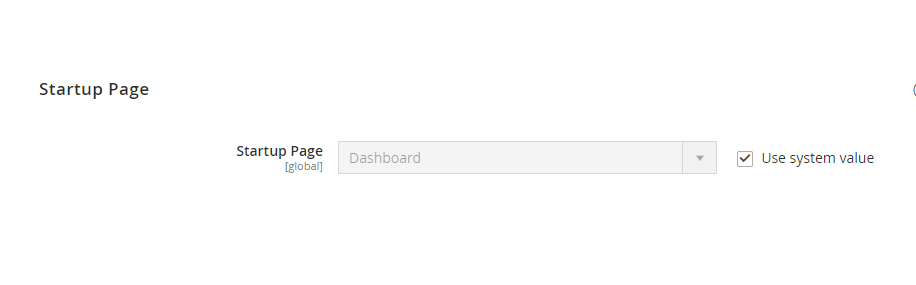
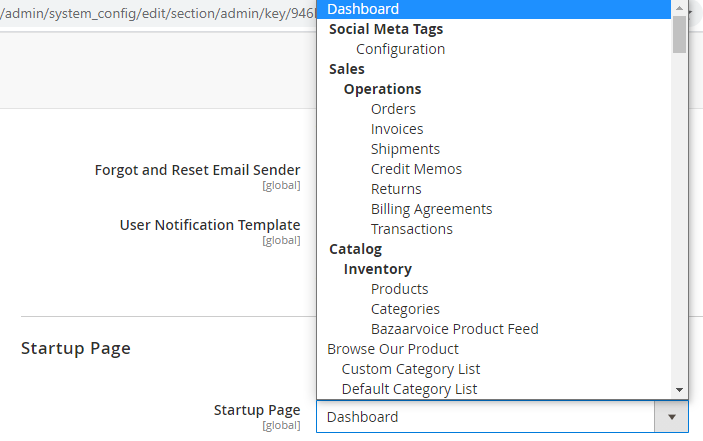
Startup Page
Once Admin Uses logged in Magento 2 admin by default redirects on Dashboard Page , if Admin User want, select another admin redirection page from drop down list, where all admin pages are given as per below Dashboard drop down list
Security
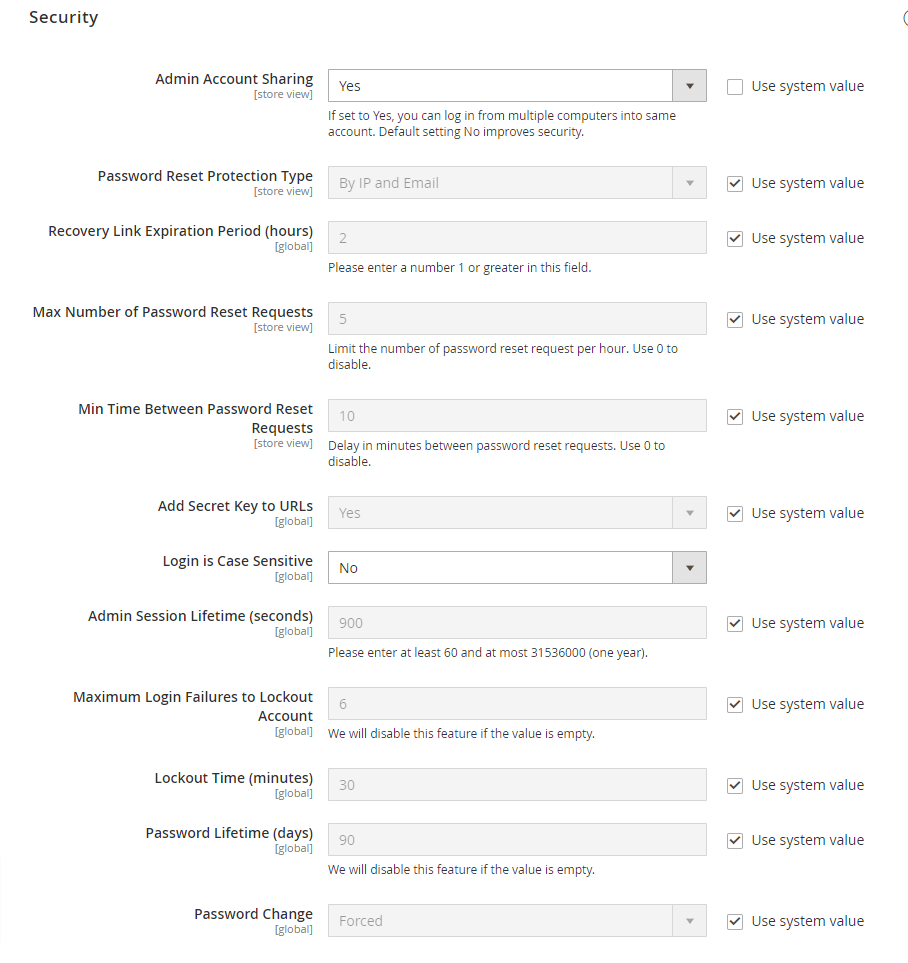
There are following three parts are given under SecurityAdmin Account Sharing: By Default, it is Yes, because Admin User can login in multiple system, by using same Admin User Credentials
If It is No, Admin User can not login in multiple system, by using same Admin User Credentials.
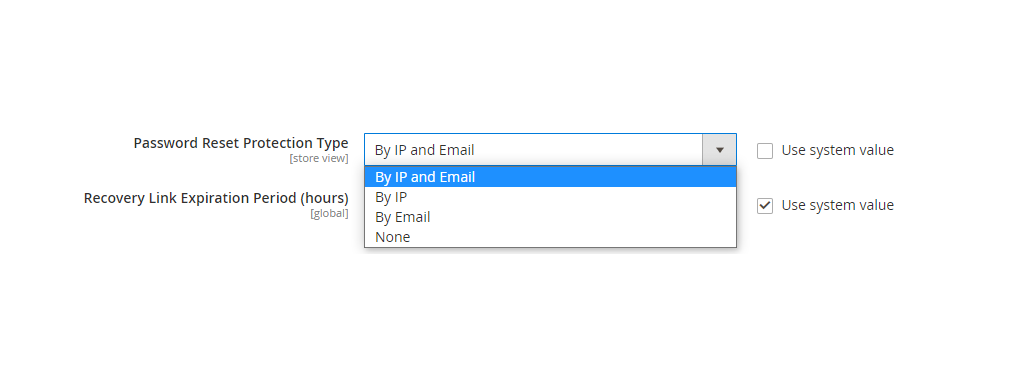
Password Reset Protection Type: By Default IP and Email, if Admin User can select by IP or Email or None from drop down list.
Recovery Link Expiration Period (hours): Password Recovery Link expiation period , By Default 2 Hours, If Admin User wants to put more Hours, can modify value more than 2.
Max Number of Password Reset Requests: Limit the number of password reset request per hour. Use 0 to disable. .
Min Time Between Password Reset Requests: Delay in minutes between password reset requests. Use 0 to disable
Add Secret Key to URLs: By default Yes, If Admin User do not want to put Secret Key to URLs, can select No from drop down.
Login is Case Sensitive: By default No , If Admin User want to
Login User Name as Case Sensitive, can select Yes from drop down.
Admin Session Lifetime (seconds): By default 900 Seconds [15 Minute], If Admin User want to modify , can modify values,
but enter at least 60 seconds and at most 31536000 seconds (one year).Maximum Login Failures to Lockout Account: By default 6, maximum Login failures attempt, if not putting correct Admin Credentials,
If Admin User want to modify , can put different value,
this feature will be disabled if the value is empty.Lockout Time (minutes): By default Lockout Time 30 minutes, increase as per requirement.
Password Lifetime (days): By default 90 days, increase as per requirement. this feature will be disabled if the value is empty.Password Change: By default forced, If Admin User want to change
can select Recommendation from drop down list.
In case forced whatever strong password while creating / updating password it will accept.
In case Recommendation , there are some strong password steps will be displayed, while creating / updating password
When user browsing a website, the website’s contents will cache in your browser. This cache can be controlled by using to configure Cache-Control HTTP headers for your website, This is done by adding mod_expires in the .htaccess file of your server.
If you don’t use Cache-Control HTTP headers, then, you will have a longer wait times when browsing your website. Each time your website is accessed without Cache-Control, your website has to make a request to the server for each content as image, html file, jquery file, javascript file, CSS file, and so forth to load.
HTACCESS mod_expires Module instructs Apache to generate Expires and Cache-Control HTTP response headers for the specified content types. Web browsers parse these HTTP response headers to determine how long to cache content on the client’s machine browser.


 Recovery Link Expiration Period (hours): Password Recovery Link expiation period , By Default 2 Hours, If Admin User wants to put more Hours, can modify value more than 2.
Max Number of Password Reset Requests: Limit the number of password reset request per hour. Use 0 to disable. .
Min Time Between Password Reset Requests: Delay in minutes between password reset requests. Use 0 to disable
Add Secret Key to URLs: By default Yes, If Admin User do not want to put Secret Key to URLs, can select No from drop down.
Login is Case Sensitive: By default No , If Admin User want to
Login User Name as Case Sensitive, can select Yes from drop down.
Admin Session Lifetime (seconds): By default 900 Seconds [15 Minute], If Admin User want to modify , can modify values,
but enter at least 60 seconds and at most 31536000 seconds (one year).
Maximum Login Failures to Lockout Account: By default 6, maximum Login failures attempt, if not putting correct Admin Credentials,
If Admin User want to modify , can put different value,
this feature will be disabled if the value is empty.
Lockout Time (minutes): By default Lockout Time 30 minutes, increase as per requirement.
Password Lifetime (days): By default 90 days, increase as per requirement. this feature will be disabled if the value is empty.
Password Change: By default forced, If Admin User want to change
can select Recommendation from drop down list.
In case forced whatever strong password while creating / updating password it will accept.
In case Recommendation , there are some strong password steps will be displayed, while creating / updating password
Recovery Link Expiration Period (hours): Password Recovery Link expiation period , By Default 2 Hours, If Admin User wants to put more Hours, can modify value more than 2.
Max Number of Password Reset Requests: Limit the number of password reset request per hour. Use 0 to disable. .
Min Time Between Password Reset Requests: Delay in minutes between password reset requests. Use 0 to disable
Add Secret Key to URLs: By default Yes, If Admin User do not want to put Secret Key to URLs, can select No from drop down.
Login is Case Sensitive: By default No , If Admin User want to
Login User Name as Case Sensitive, can select Yes from drop down.
Admin Session Lifetime (seconds): By default 900 Seconds [15 Minute], If Admin User want to modify , can modify values,
but enter at least 60 seconds and at most 31536000 seconds (one year).
Maximum Login Failures to Lockout Account: By default 6, maximum Login failures attempt, if not putting correct Admin Credentials,
If Admin User want to modify , can put different value,
this feature will be disabled if the value is empty.
Lockout Time (minutes): By default Lockout Time 30 minutes, increase as per requirement.
Password Lifetime (days): By default 90 days, increase as per requirement. this feature will be disabled if the value is empty.
Password Change: By default forced, If Admin User want to change
can select Recommendation from drop down list.
In case forced whatever strong password while creating / updating password it will accept.
In case Recommendation , there are some strong password steps will be displayed, while creating / updating password