Magento 2 Customer Account Sharing Options allows which level customer account information need to share either Website Level or Global Level.
There are following below steps need to follow.
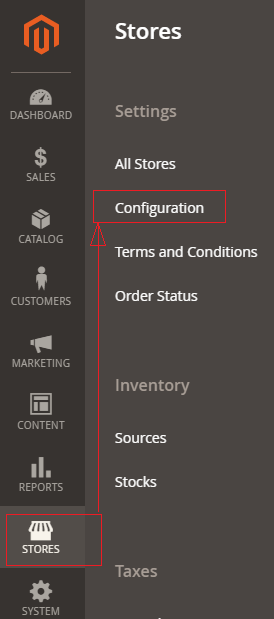
[1]- Go To STORES > Configuration, redirects on configuration.
[2] – Left Panel Clicked Customers > Customer Configuration
[3] – Once redirection on [Right Panel]
[4] – Once clicked / expanded, URL Options [Right Panel]
There are following below two options are given in Drop Down Values
By Default Per Website & Another one Global
Per Website : Customer Information like First Name, Last Name Email, Contact Details etc will be shared by within website, Finally customer information accessed by specified website.
Global : Customer Information like First Name, Last Name Email, Contact Details etc will be shared by Globally by website or store, Finally customer information accessed by multiple website or store.
Each of these Customer Account Sharing Options must be select as per Multi Website & Store need
The Magento 2 customer password options provides customer’s account security, once customer creating account, required strong password, Customer’s change password, Customer’s forget password, Customer’s reset password etc.
There are following options , how to storeowner(admin) can make strong password for their customers.
[1] – Go To STORES > Configuration, redirects on configuration.
[2] – Left Panel Clicked Customers > Customer Configuration
[3] – Once redirection on [Right Panel]
[4] – Once clicked / expanded, Password Options [Right Panel]
[4.1] Password Reset Protection Type : There are four options given By IP / Email, By IP, By Email, None, as per store requirement select any of them.
[4.2] Max Number of Password Reset Requests : By Default 5 Hour given, as per store requirement enter Hour value, value must be greater than 0, in case disable this feature, enter 0
MySQL supports master-slave replication and master replication. and auto-elections.
9
MongoDB Supports languages are C++, C
MySQL supports languages are C++, C and JavaScript
10
Cloud based application preferred MongoDB, build applications faster, handle highly diverse data types, and manage applications more efficiently at scale.
MySQL, If data security is your priority then MYSQL is the best option for you, is the best suited for you.
There are following below two ways to get Base URLs
[1] By Using DI (Dependency Injection)
[2] By Using Object Manager
[1] By Using DI (Dependency Injection) : You can get Base URL, with / without Index, Store URL, Link URL, Media URL
[1.1] Write below code inside custom module Helper as
[VendorName][ModuleName]\Helper\Data.php
<?php
namespace [VendorName]\[ModuleName]\\Helper;
use Magento\Store\Model\StoreManagerInterface;
use Magento\Framework\Controller\ResultFactory;
use Magento\Framework\App\Response\RedirectInterface;
class Data extends \Magento\Framework\App\Helper\AbstractHelper
{
protected $storeManager;
public function __construct( \Magento\Framework\App\Helper\Context $context,
StoreManagerInterface $storeManager
)
{
$this->storeManager = $storeManager;
parent::__construct($context);
}
public function getStoreManagerData()
{
// To get Store Url with index.php
return $storeUrl = $this->storeManager->getStore()->getBaseUrl();
// To get Store Url without index.php
return $storeUrl = $this->storeManager->getStore()->getBaseUrl(\Magento\Framework\UrlInterface::URL_TYPE_WEB);
// To get Link Url of store
$storeLinkUrl = $this->storeManager->getStore()->getBaseUrl(\Magento\Framework\UrlInterface::URL_TYPE_DIRECT_LINK);
// To get media Base Url
$storeMediaUrl = $this->storeManager->getStore()->getBaseUrl(\Magento\Framework\UrlInterface::URL_TYPE_MEDIA);
//To get Static content Url
$storeStaticUrl = $this->storeManager->getStore()->getBaseUrl(\Magento\Framework\UrlInterface::URL_TYPE_STATIC);
}
}
[1.2] Write below code inside custom module Block as
[VendorName]\[ModuleName]\Block\Index\Index.php
<?php
namespace [VendorName]\[ModuleName]\Block\Index;
class Index extends \Magento\Framework\View\Element\Template
{
protected $helper;
public function __construct(
\Magento\Framework\View\Element\Template\Context $context,
[VendorName]\[ModuleName]\Helper\Data $helperData,
)
{
$this->helper = $helperData;
parent::__construct($context);
}
public function getbaseurldata()
{
return $this->helper->getStoreManagerData();
}
}
$objectManager = \Magento\Framework\App\ObjectManager::getInstance();
$storeManager = $objectManager->get('\Magento\Store\Model\StoreManagerInterface');
$storeManager->getStore()->getBaseUrl(); // to get Base Url
$storeManager->getStore()->getBaseUrl(\Magento\Framework\UrlInterface::URL_TYPE_WEB); // to get Base Url without index.php
$storeManager->getStore()->getBaseUrl(\Magento\Framework\UrlInterface::URL_TYPE_LINK); // to get store link url
$storeManager->getStore()->getBaseUrl(\Magento\Framework\UrlInterface::URL_TYPE_MEDIA); // to get Base Media url
Persistent Shopping Cart allow retention of unpurchased items that are left in the cart and saves them for a time period that is configured in Persistence Lifetime (By Default 31536000 Seconds, 8760 Hours, 1 Year)
If customers want to take advantages of Persistent Shopping Cart below things must done.
For Registered customers must be logged in, if Guest customers want to advantage of Persistent Shopping Cart, must be create account & logged in
For Persistent Shopping Cart, Customer’s Browser’s Cookies must be enabled
By default, Magento 2 Persistent Shopping Cart disabled
Magento 2 Enabled Persistent Shopping Cart
There are following below steps need to follow to enable Persistent Shopping Cart in Magento 2 Admin
[1]- Go To STORES > Configuration, redirects on configuration.
[2]- Left Panel Clicked on Customers > Persistent Shopping Cart redirects on [Right Panel]
[3]- Once redirection on General Options [Right Panel]
[4] – General Options [Right Panel] having Enable Persistence Panel
By Default Enable Persistence Panel & No Option By Default selected
If Store Owner(Admin) want to enable Persistent Shopping Cart
Need to select Yes , There are following below options displayed.
Only Adobe Commerce 2.x B2B
Each option defined as
[4.1]- Persistence Lifetime (seconds) : By default 31536000 Seconds (1 Year Timer Period) , as per store’s requirement, store owner(Admin) can fill time period in seconds.
[4.2]- Enable “Remember Me” : Enable Remember Me to display a checkbox on Customer’s Login page that allows saving the shopping cart information.
[4.3]- “Remember Me” Default Value : It is optional field, if Store Owner(Admin) want to set default option “Remember Me” once customer’s login to store.
[4.4]- Clear Persistence on Sign Out : By Default Yes selected. Store Owner(Admin) want to set “No” option for Clear Persistence on Sign Out to ensure that all shopping cart Items has been saved.
[4.5]- Persist Shopping Cart : By Default Yes selected , if Store Owner(Admin) want to keep the persistent cookie when the session cookie expires, do not need to select No
[4.6] – (Adobe Commerce only)
Persist Wish List:: Set Persist Wish List to determine if the state of customer wish lists is retained when the session ends
Yes – The wish list contents are saved when the session ends.
No – The wish list is not saved when the session ends.
[4.7] – Adobe Commerce (Adobe Commerce only) ::
Persist Recently Ordered Items:: Set Persist Recently Ordered Items to determine if the state of recently ordered items is retained when the session ends:
Yes – The state of Recently Ordered Items is saved when the session ends.
No – The state of Recently Ordered Items is not saved when the session ends.
[4.8] – Adobe Commerce (Adobe Commerce only) ::
Persist Currently Compared Products:: Set Persist Currently Compared Products to Yes or No.
[4.9] – Adobe Commerce (Adobe Commerce only) ::
Persist Comparison History:: Set Persist Comparison History to Yes or No.
[4.10] – Adobe Commerce (Adobe Commerce only) ::
Persist Recently Viewed Products:: Set Persist Recently Viewed Products to Yes or No.
[4.11] – Adobe Commerce (Adobe Commerce only) ::
Persist Customer Group Membership and Segmentation:: Adobe Commerce (Adobe Commerce only) Set Persist Customer Group Membership and Segmentation to determine if the state of the customer’s group membership and segmentation criteria are retained when the session ends:
Yes – The state of the customer’s group membership and segmentation data is saved when the session ends.
No – The state of the customer’s group membership and segmentation data are not saved when the session ends.
[5]- Click on Save Config button & run CLI command Flush
There are following below steps need to follow, Magento 2 Admin
[1]- Go To STORES > Configuration, redirects on configuration.
[2]- Left Panel Clicked on General > Currency Setup, redirects on [Right Panel]
[3]- Once redirection on [Right Panel]
[4]- Once clicked / expanded, Currency Options [Right Panel]
Each Input field (Select Box Values), defined as
[4.1]- Base Currency : Select Base Currency (Main Currency) for online payment transaction, By Default US Dollar Selected
[4.2]- Default Display Currency :Select Default Display Currency that Store Owner(Admin) want to display pricing in store.
By Default US Dollar Selected.
[4.3]- Allowed Currencies : Select list of currencies that Store Owner(Admin) want to allow, in case of Multiple Currency( By Using to hold the ctrl key and then selecting the currency options).
During above operation, if message as cache refreshment display, then close it and refresh it.
[5] Set scope of the base currency:
[5.1]- Once clicked on Left Panel (Catalog > Catalog)
[5.2]- Display Right Panel (Price)
Select Catalog Price Scope as either “Global” or “Website”