The Following below admin setting required to configure Mini Cart section in Magento 2
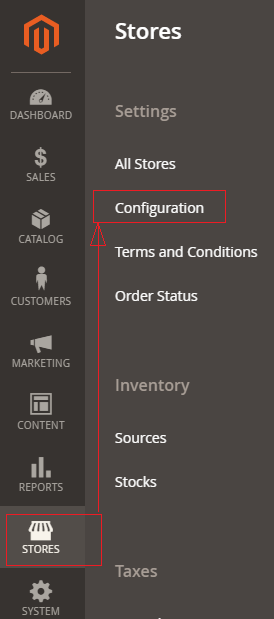
Step [1] – Go STORES > Configuration, redirects Configuration section.
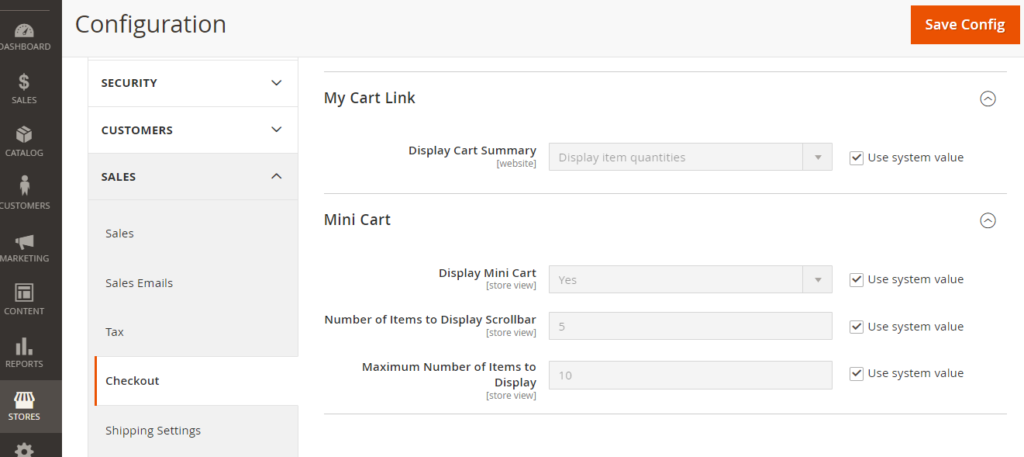
Step [2] – Go Sales > Checkout, redirects to right panel Mini Cart section.
Each field of Mini Cart section explained as below
Display Mini Cart: Represents Mini Cart at top right corner, by default enabled.
Number of items to Display Scrollbar: Represents, how many number of products displayed while customer scrolling Mini Cart at top right corner by default number of products 5
Maximum Number of Items to Display: Represents maximum number of products in Mini Cart, by default number of products 10
Step [3] – Click on Save Config button & run CLI command Flush
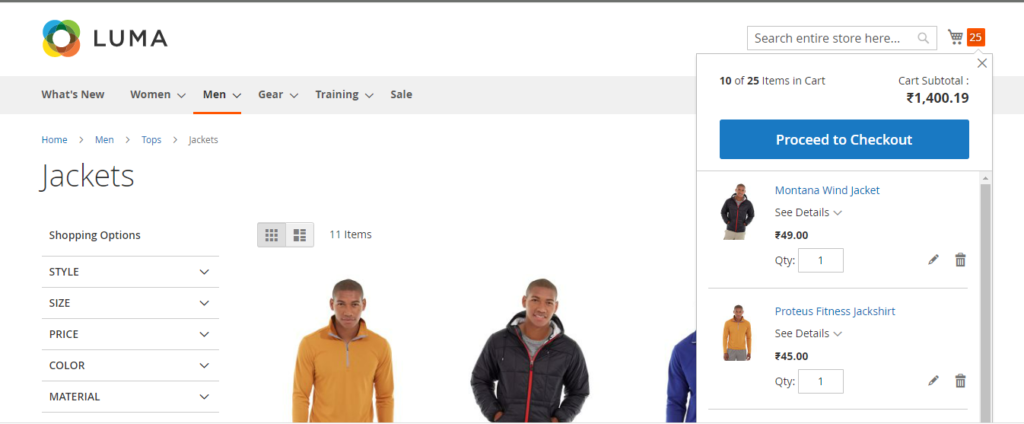
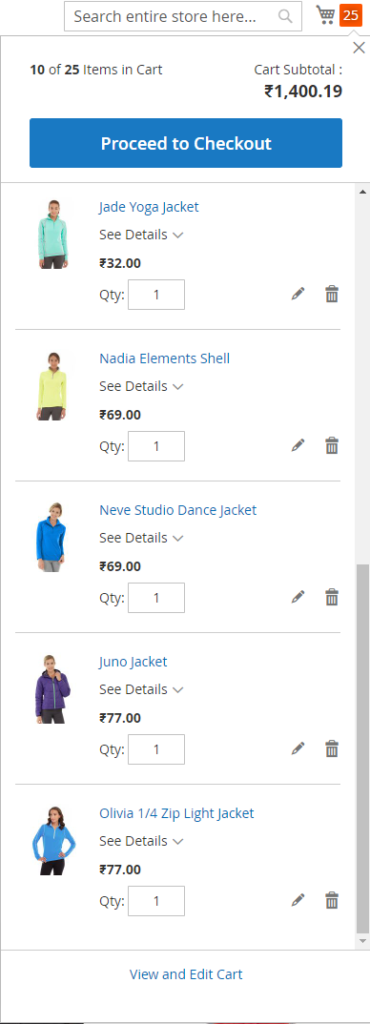
For Example::
I have added 25 Products in Shopping Cart, it display 10 Items in Mini Cart once scroll, because Maximum Number of Items to Display =10
The Following below admin setting required to configure Payment Failed Email in Magento 2
Step [1] – Go STORES > Configuration, redirects Configuration section.
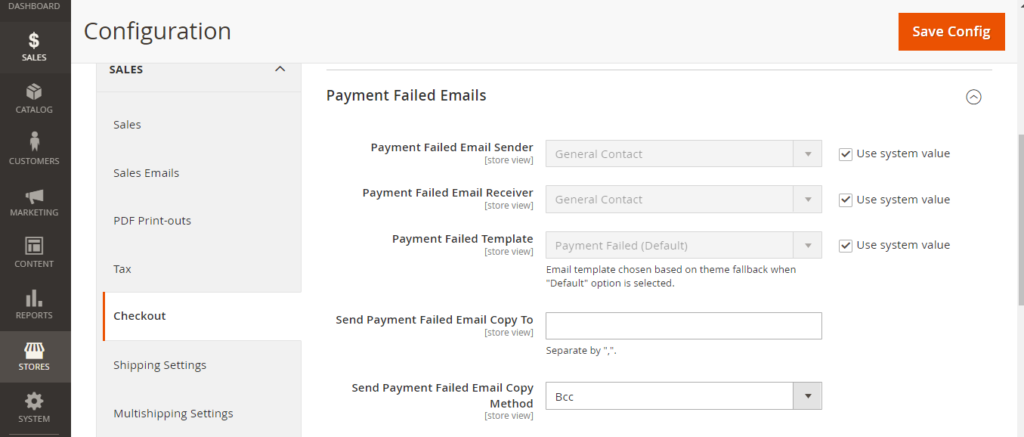
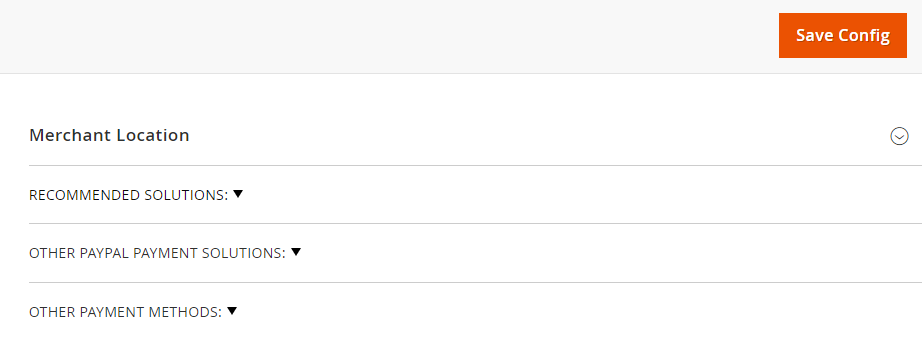
Step [2] – Go Sales > Checkout, redirects to right panel Payment Failed Emails section.
Each field of Payment Failed Emails section explained as below
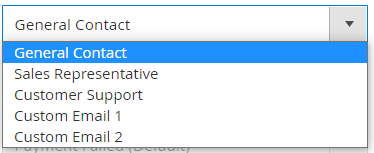
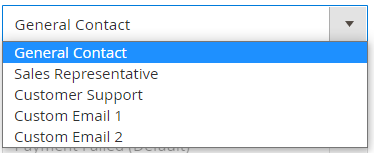
Payment Failed Email Sender: Represents Sender’s email, Once click drop down menu multiple contact displayed, choose any of them as per your Business need, by default General Contact selected
Payment Failed Email Receiver: Represents Receiver’s email, Once click drop down menu multiple contact displayed, choose any of them as per your Business need, by default General Contact selected
Payment Failed Template: Represents payment failed email template, choose any email template as per your Business need, by default Payment Failed Template selected
Send Payment Failed Email Copy: Enter multiple payment email, each email separated with each other by comma (,)
Send Payment Failed Email Copy Method: Method: Select either BCC or Separate Email
Step [3] – Click on Save Config button & run CLI command Flush
The Following below admin setting required to add FedEx shipping in Magento 2 Store.
Step [1] – Go STORES > Configuration, redirects Configuration section.
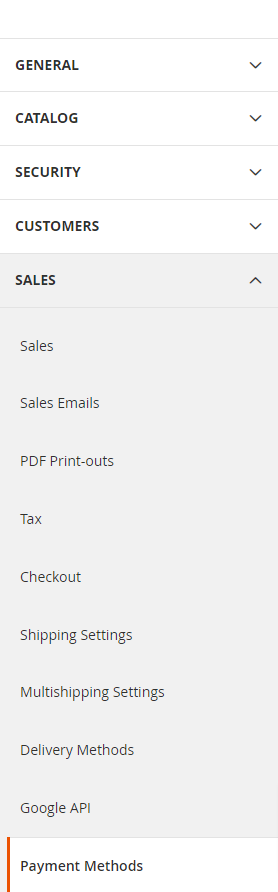
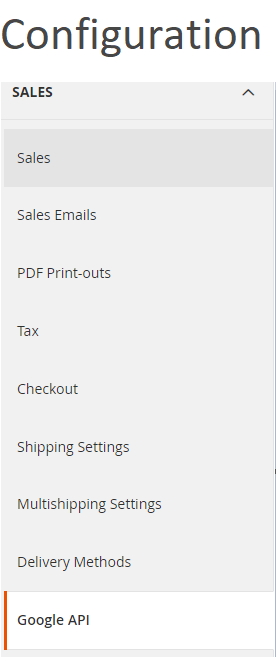
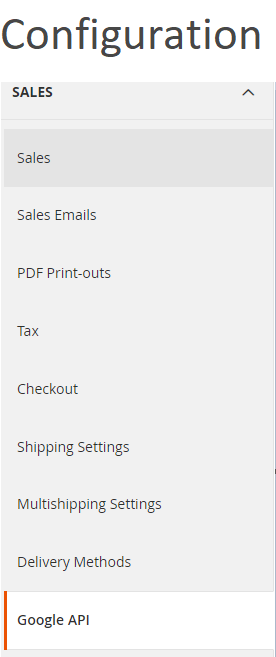
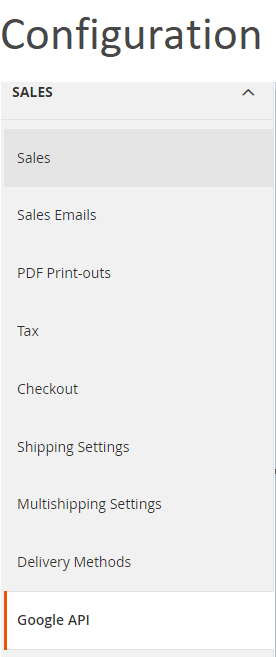
Step [2] – Left panel, choose SALES > Shipping Methods or Delivery Methods
Step [3] – Right panel, Expand the FedEx section.
The following below subsection explained briefly
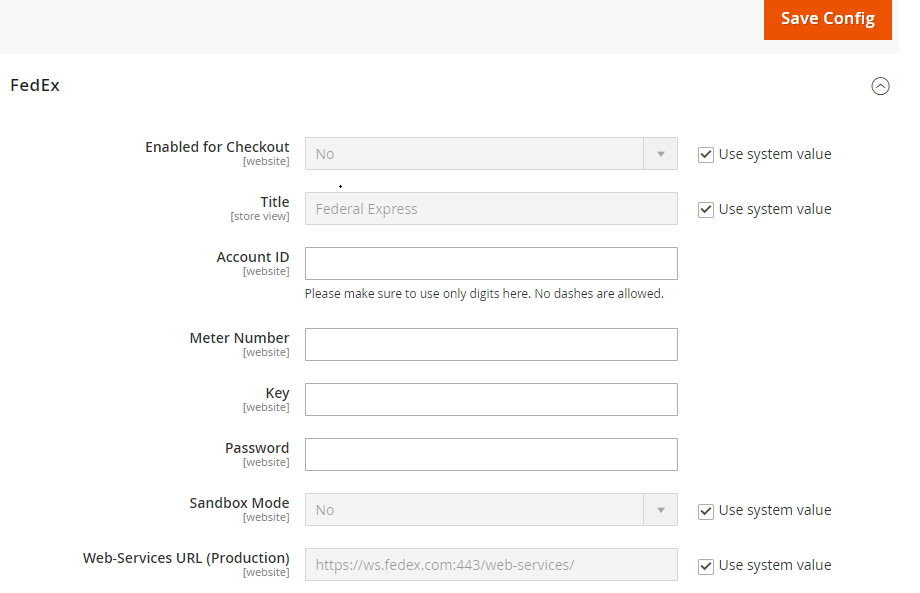
Step [3.1] – Apply FedEx Shipping
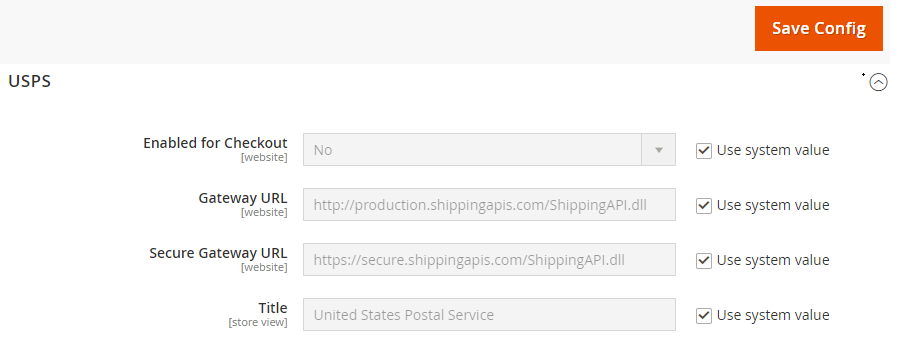
Enabled for Checkout::Select Yes from Select Drop down menu to enable, by default No selected
Title:: Enter Title Name. By default, Federal Express
Account ID:: Enter your FedEx Account ID.
Meter Number :: Enter your FedEx Meter Number.
Key:: Enter your FedEx Key.
Password:: Enter your FedEx Password
Sandbox Mode:: To calculate Select deployment mode either Testing Mode(Sandbox Mode) or Live (Production), for Testing Mode(SandboxMode) select Yes or for Live (Production)No, by default No selected
Web-Service URL:: Enter Web-Service URL based on Sandbox Mode selection(previous step), if Sandbox Mode Yes, Enter FedEx Testing Mode Web-Service URL, if Sandbox Mode No, Enter FedEx Production Mode Web-Service URL.
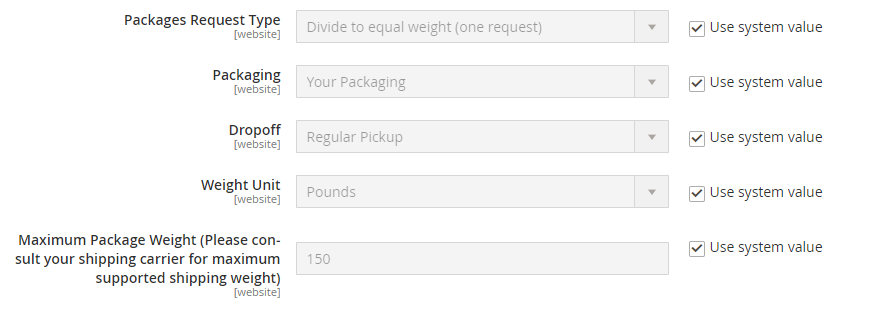
Step [3.2] – Apply FedEx Package Description
Package Request Type:: Select packages type as per your store need, two types “Use origin weight (few requests)” & Divide to equal weight (one requests)
Packaging::Select the Packaging to the typical packaging ,select any packaging from select drop down menu.
Dropoff::Select any pick up delivery method from select drop down menu, by default Regular Pickup selected.
Weight Unit::Define measurement unit, The following two types, “Pounds” or “Kilograms”
Maximum Package Weight::Enter Maximum Package Weight for your packaging.
Step [3.3] – Calculating Shipping Handling Fee
Dropoff::Select any pick up delivery
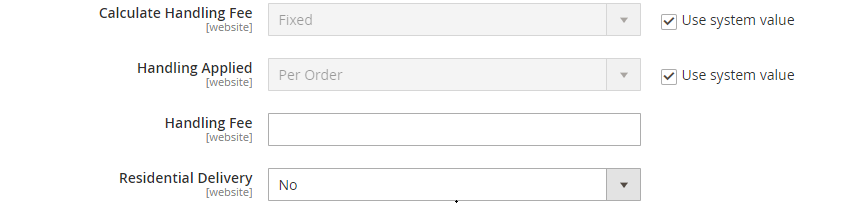
Calculate Handling Fee:: If you want to add some additional shipping handling charges select it either Percentage or Fixed, define these two options as below.
Calculate Handling Fee–Percentage:: Define Percentage option to add some additional shipping handling charges
Calculate Handling Fee–Fixed:: Define Fixed option to add some additional shipping handling charges
Handling Applied:: Specifying how to calculate the handling fee, The following two types, “Per Order” or “Per Package”, select as per your store need
Handling Fee:: Enter additional shipping handling charges, either Percentage or Fixed values, depends on Calculate Handling Fee
Residential Delivery:: Select “Yes” for B2C residential deliveries and “No” for B2B residential deliveries.
Step [3.4] – Specify Allowed Methods and Applicable Countries
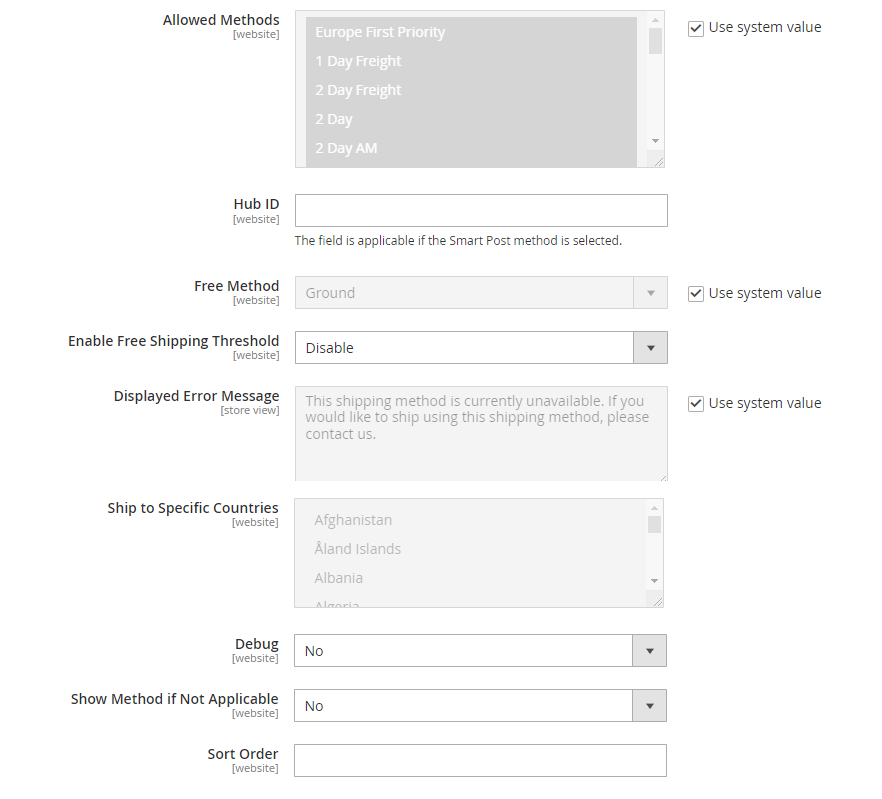
Allowed Methods:: Select one or all FedEx method that you would like to offer to your customers.
Free Method:: If you want to select any Free Shipping Method, by default Ground selected.
Enable Free Shipping Threshold:: Select Enable from the drop-down menu and set the minimum number of orders allowed for free shipping, by default Disable selected.
Displayed Error Message:: This display if Free shipping having any error, if you want to modify content, do it as per your store need.
Ship to Applicable Countries:: If you want to allow FedEx Shipping for all countries, select All Allowed Countries option, or else, select Specific Countries next option.
Ship to Specific Countries:: If you want to allow FedEx Shipping for specific countries, selectSpecific Countries from select drop down menu
Debug:: Select Yes if you want to create log files with all the details of FedEx Shipping method, by default No selected.
Show Method if Not Applicable:: Select Yes if you want to show FedEx Shipping method with the error message, by default Noselected.
Sort Order:: Set the Sort Order on the Shipping Method on the checkout page
Step [4] – Click on Save Config button & run CLI command Flush
Other Important Magento 2 Shipping / Delivery Methods
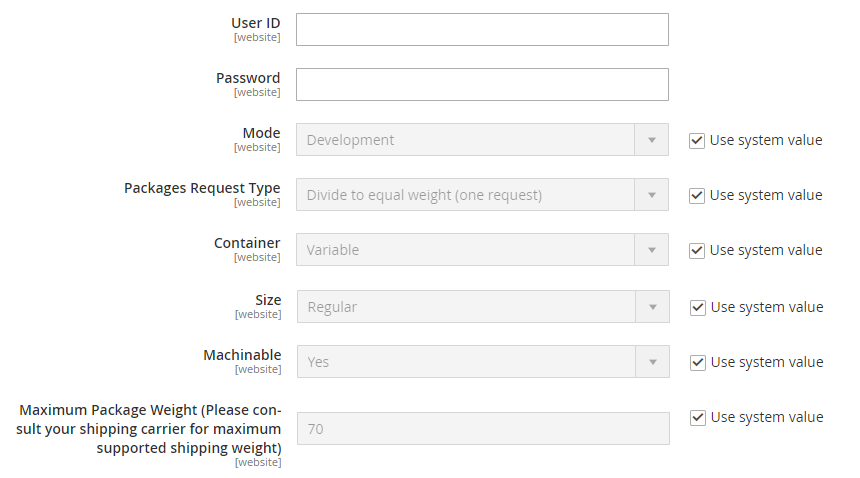
Mode:: Select either Live or Development as your store’s need
Packages Request Type:: Select packages type as per your store need, two types “Use origin weight (few requests)” & Divide to equal weight (one requests)
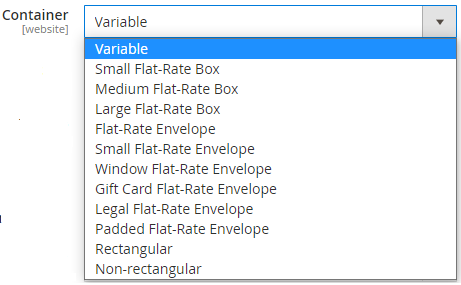
Container:: Select packaging type for the shipment from drop down menu, by default Variable selected
Size:: Set the size that is permitted for a package shipment, either Regular or Large.
Machinable::Select either Yes if your package can be processed by a machine, or Select NO if your package must be processed manually.
Maximum Package Weight:: Enter Maximum Package Weight for your packaging.
Step [3.3] – Calculating Shipping Handling Fee
Calculate Handling Fee:: If you want to add some additional shipping handling charges select it either Percentage or Fixed, define these two options as below.
Calculate Handling Fee–Percentage:: Define Percentage option to add some additional shipping handling charges
Calculate Handling Fee–Fixed:: Define Fixed option to add some additional shipping handling charges
Handling Applied:: Specifying how to calculate the handling fee, The following two types, “Per Order” or “Per Package”, select as per your store need
Handling Fee:: Enter additional shipping handling charges, either Percentage or Fixed values, depends on Calculate Handling Fee
Step [3.4] – Specify Allowed Methods and Applicable Countries
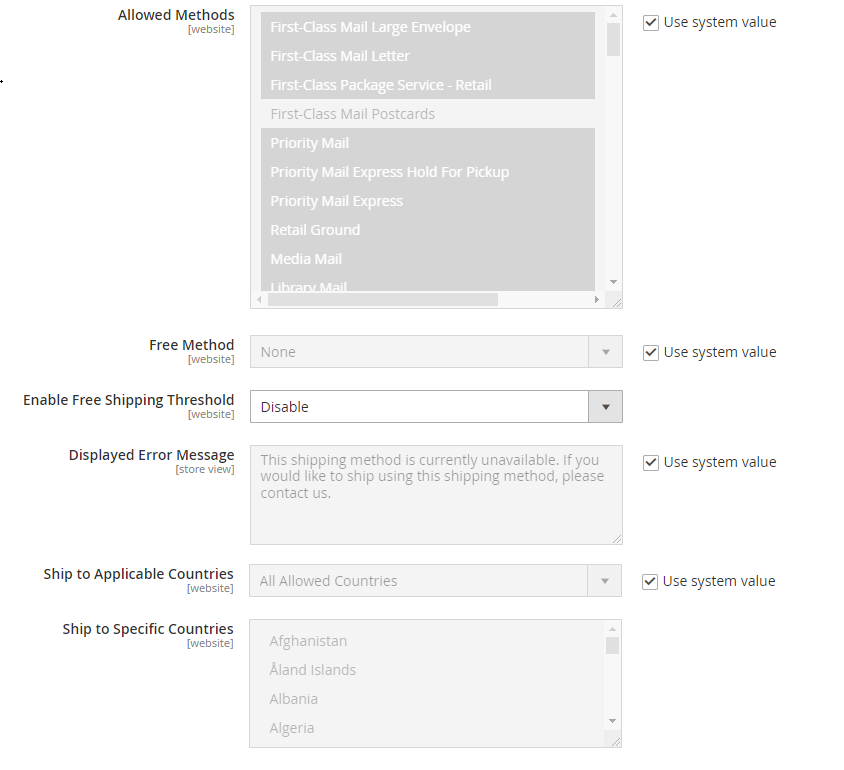
Allowed Methods:: Select one or all UPS method that you would like to offer to your customers.
Free Method:: If you want to select any Free Shipping Method, by default None selected.
Enable Free Shipping Threshold:: Select Enable from the drop-down menu and set the minimum number of orders allowed for free shipping, by default Disable selected.
Displayed Error Message:: This display if Free shipping having any error, if you want to modify content, do it as per your store need.
Ship to Applicable Countries:: If you want to allow UPS Shipping for all countries, select All Allowed Countries option, or else, select Specific Countries next option.
Ship to Specific Countries:: If you want to allow UPS Shipping for specific countries, selectSpecific Countries from drop down.
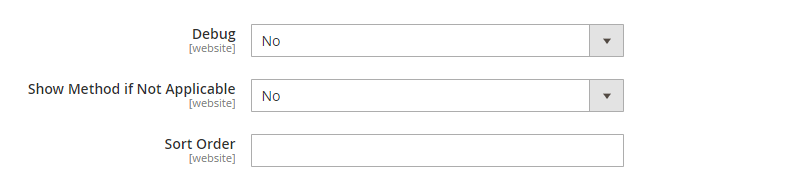
Debug:: Select Yes if you want to create log files with all the details of UPS Shipping method, by default No selected.
Show Method if Not Applicable:: Select Yes if you want to show UPS Shipping method with the error message, by default No selected.
Sort Order:: Set the Sort Order on the Shipping Method on the checkout page
Step [4] – Click on Save Config button & run CLI command Flush
Other Important Magento 2 Shipping / Delivery Methods
The Following below admin setting required to add UPS shipping in Magento 2 Store.
Step [1] – Go STORES > Configuration, redirects Configuration section.
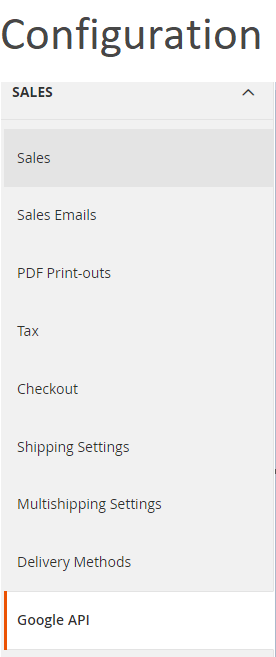
Step [2] – Left panel, choose SALES > Shipping Methods or Delivery Methods
Step [3] – Right panel, Expand the UPS section.
The following below subsection explained briefly
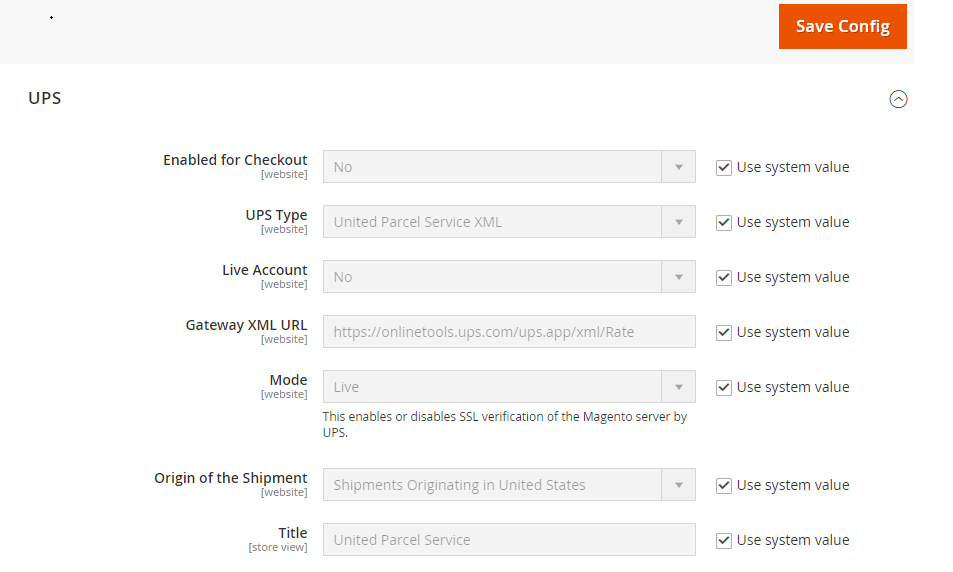
Step [3.1] – Apply UPS Shipping
Enabled for Checkout:: Select Yes from Select Drop down menu to enable, by default No selected
UPS Type:: Select UPS type from Select Drop down menu, by default United Parcel Service XML selected
Live Account:: Select either Yes for UPS live mode or No for UPS testing mode
Gateway XML URL:: Enter Gateway XML URL if you want to send store requests by XML file.
Mode:: Select either Live for UPS live mode or Test for UPS testing mode
Origin of the Shipment:: Select Shipment Origin location from Select Drop down menu, by default Shipment Originating in the United States selected
Title:: Enter Title Name. By default, United Parcel Service
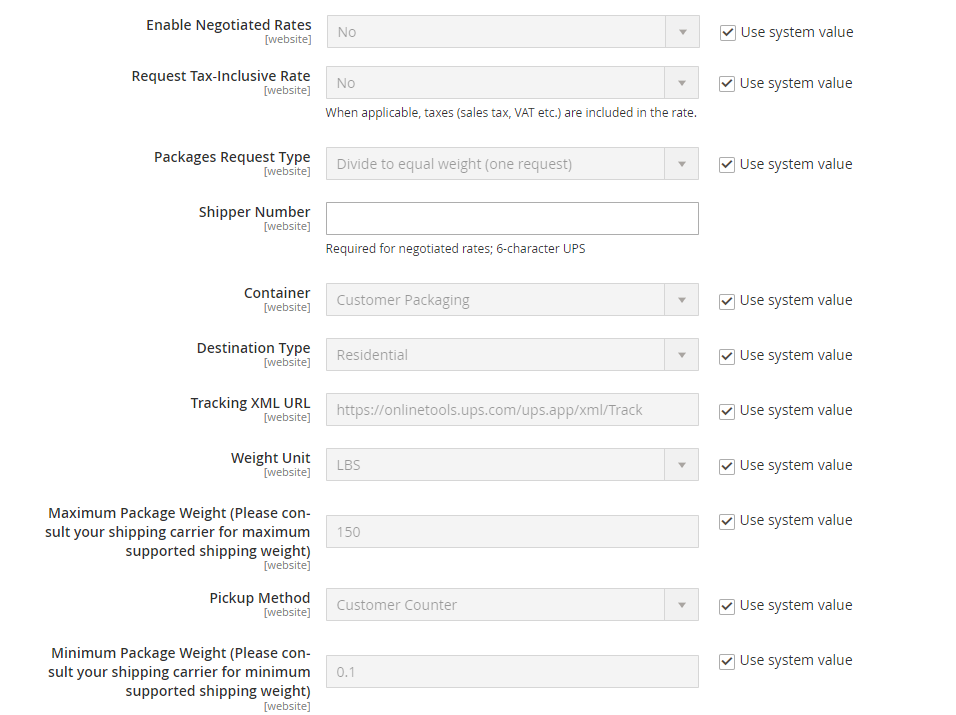
Step [3.2] – Setup Package Description
Enable Negotiated Rates:: Select as Yes, Enter six-digit Shipper Number assigned to you by UPS.
Request Tax Inclusive Rate:: Select as Yes, if you want to add Sales Tax, Vat Tax in UPS shipping rate.
Packages Request Type:: Select packages type as per your store need, two types “Use origin weight (few requests)” & Divide to equal weight (one requests)
Shipper Number:: Enter 6 Digit UPS shipping number.
Container:: Select packaging type for the shipment from drop down menu, by default Customer Packaging selected
Destination Type:: Select package destination type from drop down menu, there are two types as Residential or Commercial, where Residential for B2C & Commercial for B2B, by default Residential selected
Tracking XML URL:: Enter Tracking XML URL
Weight UNIT:: Enter Weight Unit either LBS or KGS from drop down menu, by default LBS selected
Maximum Package Weight:: Enter Maximum Package Weight for your packaging.
Pick Method:: Select Pickup Method, there are two types as below
Minimum Package Weight:: Enter Minimum Package Weight for your packaging.
Step [3.3] – Calculating Shipping Handling Fee
Calculate Handling Fee:: If you want to add some additional shipping handling charges select it either Percentage or Fixed, define these two options as below.
Calculate Handling Fee–Percentage:: Define Percentage option to add some additional shipping handling charges
Calculate Handling Fee–Fixed:: Define Fixed option to add some additional shipping handling charges
Handling Applied:: Specifying how to calculate the handling fee, The following two types, “Per Order” or “Per Package”, select as per your store need
Handling Fee:: Enter additional shipping handling charges, either Percentage or Fixed values, depends onCalculate Handling Fee
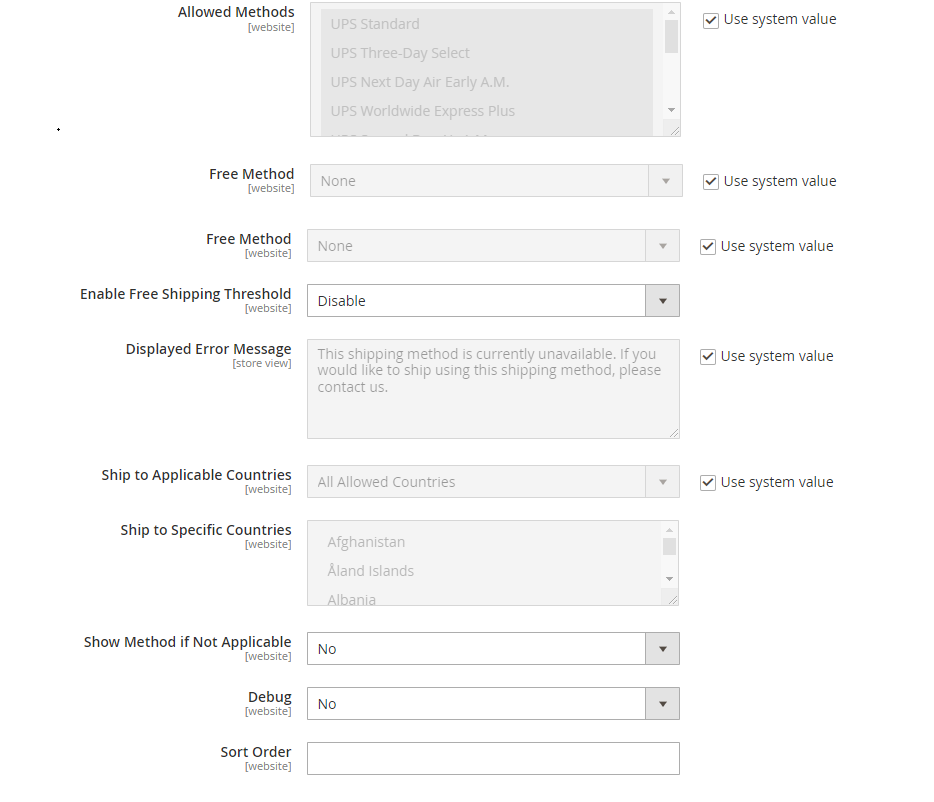
Step [3.4] – Specify Allowed Methods and Applicable Countries
Allowed Methods:: Select one or all UPS method that you would like to offer to your customers.
Free Method:: If you want to select any Free Shipping Method, by defaultNone selected.
Enable Free Shipping Threshold:: Select Enable from the drop-down menu and set the minimum number of orders allowed for free shipping, by default Disable selected.
Displayed Error Message:: This display if Free shipping having any error, if you want to modify content, do it as per your store need.
Ship to Applicable Countries:: If you want to allow UPS Shipping for all countries, select All Allowed Countries option, or else, select Specific Countries next option.
Ship to Specific Countries:: If you want to allow UPS Shipping for specific countries, selectSpecific Countries from drop down.
Show Method if Not Applicable:: Select Yes if you want to show UPS Shipping method with the error message, by default No selected.
Debug:: Select Yes if you want to create log files with all the details of UPS Shipping method, by default Noselected.
Sandbox Mode:: Select Yes, if you want to UPS in Testing Mode, by default No selected.
Sort Order:: Set the Sort Order on the Shipping Method on the checkout page
Step [4] – Click on Save Config button & run CLI command Flush
Other Important Magento 2 Shipping / Delivery Methods
The Following below admin setting required to add DHL shipping in Magento 2 Store.
Step [1] – Go STORES > Configuration, redirects Configuration section.
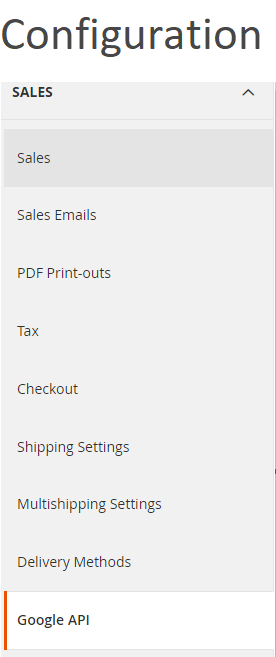
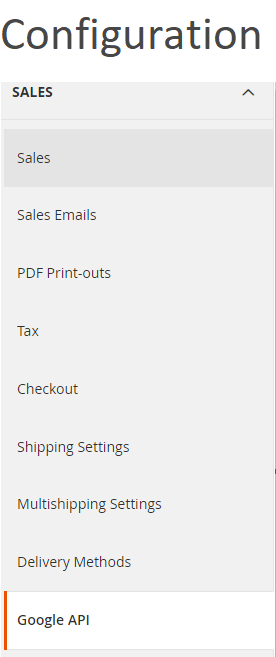
Step [2] – Left panel, choose SALES > Shipping Methods or Delivery Methods
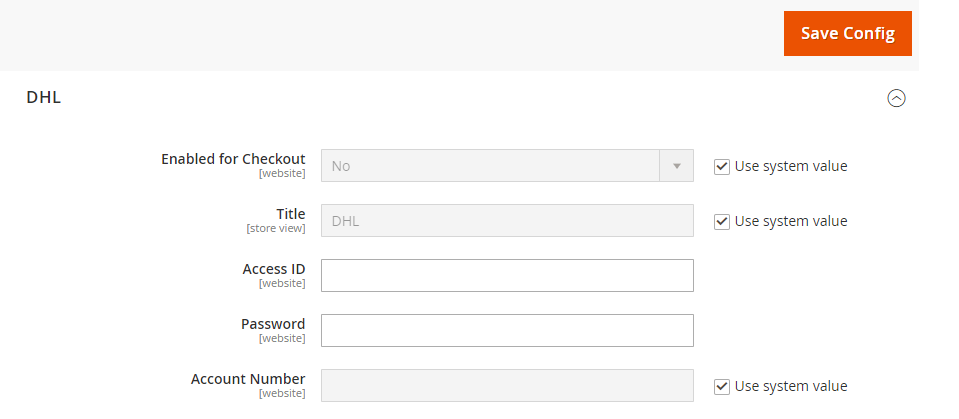
Step [3] – Right panel, Expand the DHL section.
The following below subsection explained briefly
Step [3.1] – Apply DHL Credentials
Enabled:: Select Yes from Select Drop Down box to enable, by default No selected
Title:: Enter Title Name. By default, DHL
Access ID:: Enter the Access ID of your Store DHL account
Password:: Enter the Password of your Store DHL account
Account Number :: Enter the DHLAccount Number [9-digit number starting with “9”]of your Store DHL account
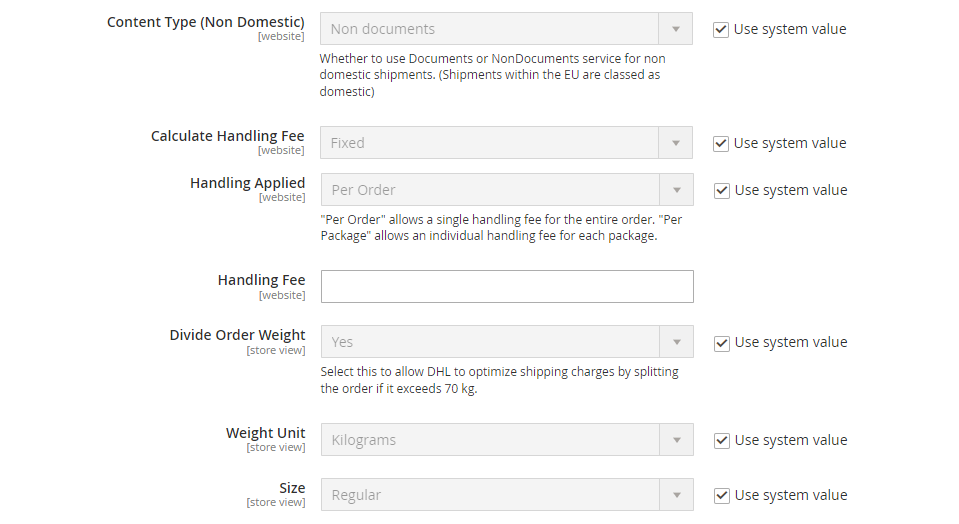
Step [3.2] – Setup Description and Handling Fees
Content Type:: Defines Type of package ship, The following two types, “Documents” or “Non documents”, select as per your store need
Calculate Handling Fee:: If you want to add some additional shipping handling charges select it either Percentage or Fixed, define these two options as below.
Calculate Handling Fee–Percentage:: Define Percentage option to add some additional shipping handling charges
Calculate Handling Fee–Fixed:: Define Fixed option to add some additional shipping handling charges
Handling Applied:: Specifying how to calculate the handling fee, The following two types, “Per Order” or “Per Package”, select as per your store need
Handling Fee:: Enter additional shipping handling charges, either Percentage or Fixed values, depends on Calculate Handling Fee
Divide Order Weight:: If you want to allow the total order weight to be broken up in order to ensure an accurate calculation of shipping charges, select the Yes option.
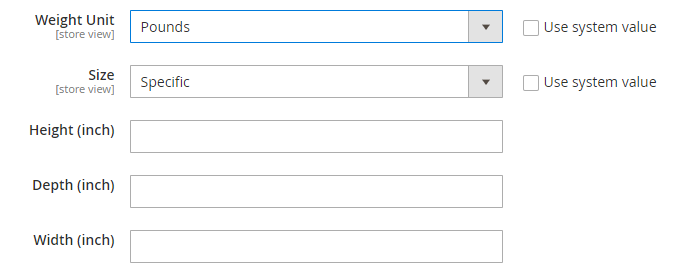
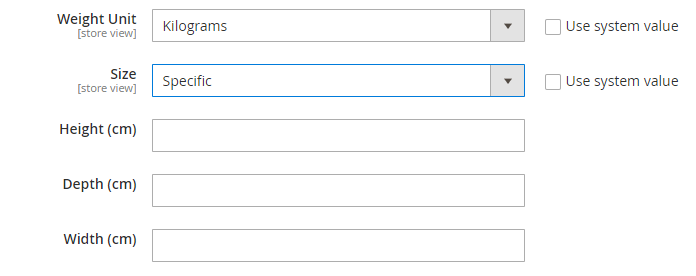
Weight Unit:: Defines measurement unit, The following two types, “Pounds” or “Kilograms”, select as per your store need
Size:: Defines Package size, The following two types, “Regular” or “Specific”, select as per your store need, by default Regular
Size-Regular:: No need to define any Height, Depth & Width, if Regular Option
Size-Specific:: DefinesSpecific Package size (Height, Depth & Width), if Weight Unit option Pounds
Size-Specific:: DefinesSpecific Package size (Height, Depth & Width), if Weight Unit option Kilograms
Step [3.2] – Specify Allowed Methods
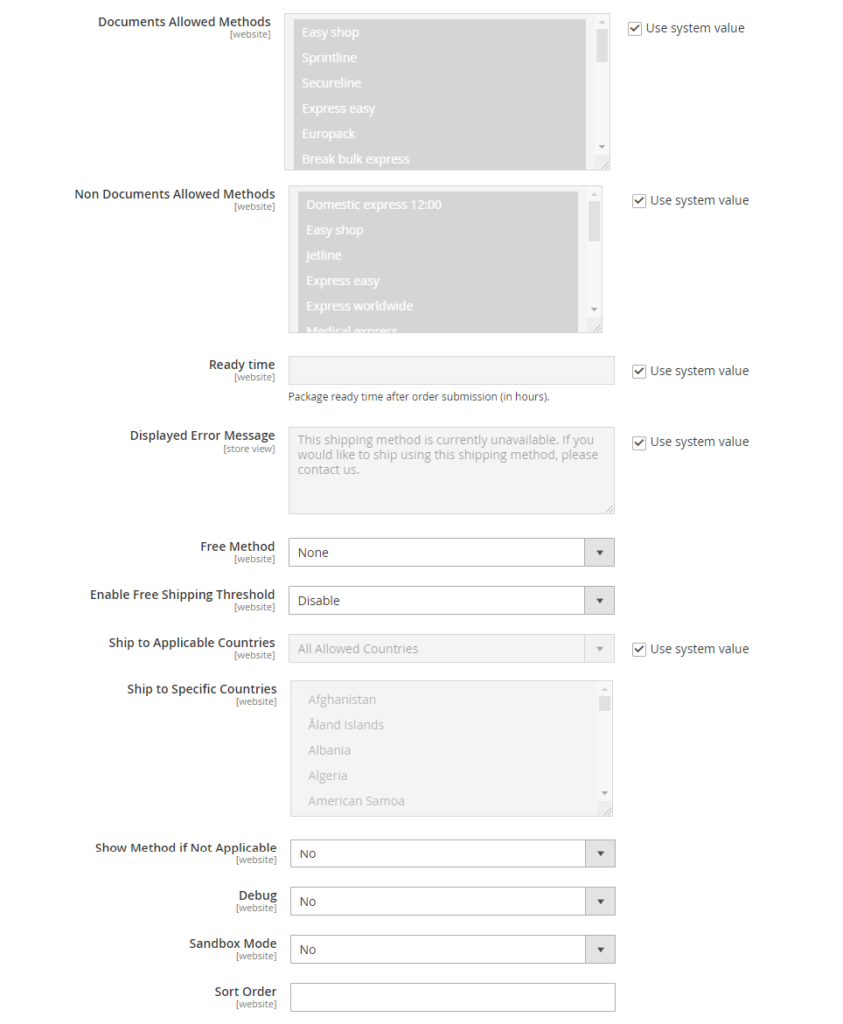
Documents Allowed Method:: Select shipping methods as per your store allow documents.
Non Documents Allowed Method:: Select shipping methods as per your store do not allow documents.
Ready Time:: Enter the Ready Time to ship the order after submission.
Displayed Error Message:: This display if Free shipping having any error, if you want to modify content, do it as per your store need.
Free Method:: If you want to select any Free Shipping Method, by default None selected.
Enable Free Shipping Threshold:: Select Enable from the drop-down menu and set the minimum number of orders allowed for free shipping, by default Disable selected.
Step [3.3] – Specify Allowed Countries
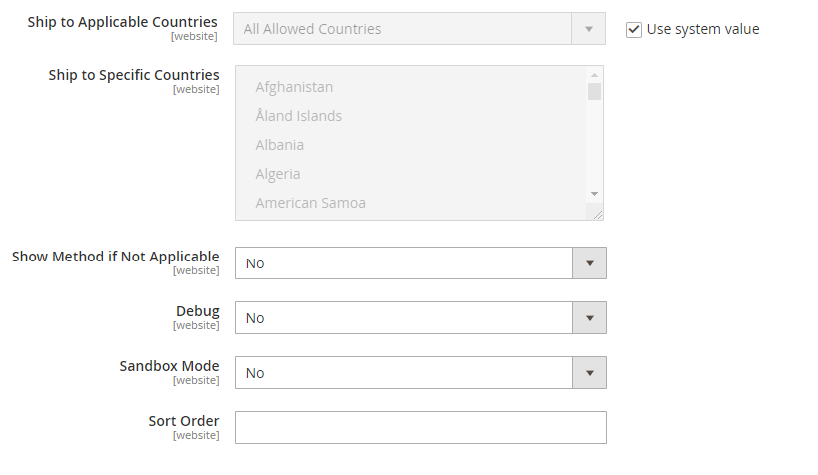
Ship to Applicable Countries:: If you want to allow DHL Shipping for all countries, select All Allowed Countries option, or else, select Specific Countries next option
Ship to Specific Countries:: If you want to allow DHL Shipping for specific countries, select Specific Countries from drop down.
Show Method if Not Applicable:: Select Yes if you want to show DHL Shipping method with the error message, by default No selected.
Debug:: Select Yes if you want to create log files with all the details of DHL Shipping method, by default No selected.
Sandbox Mode:: Select Yes, if you want to DHL in Testing Mode, by default No selected.
Sort Order:: Set the Sort Order on the Shipping Method on the checkout page
Step [4] – Click on Save Config button & run CLI command Flush
Other Important Magento 2 Shipping / Delivery Methods
The Following below admin setting required to add Table Rates method in Magento 2 Store.
Step [1] – Go STORES > Configuration, redirects Configuration section.
Step [2] – Left panel, choose SALES > Shipping Methods or Delivery Methods
Step [3] – Right panel, Expand the Table Rates section.
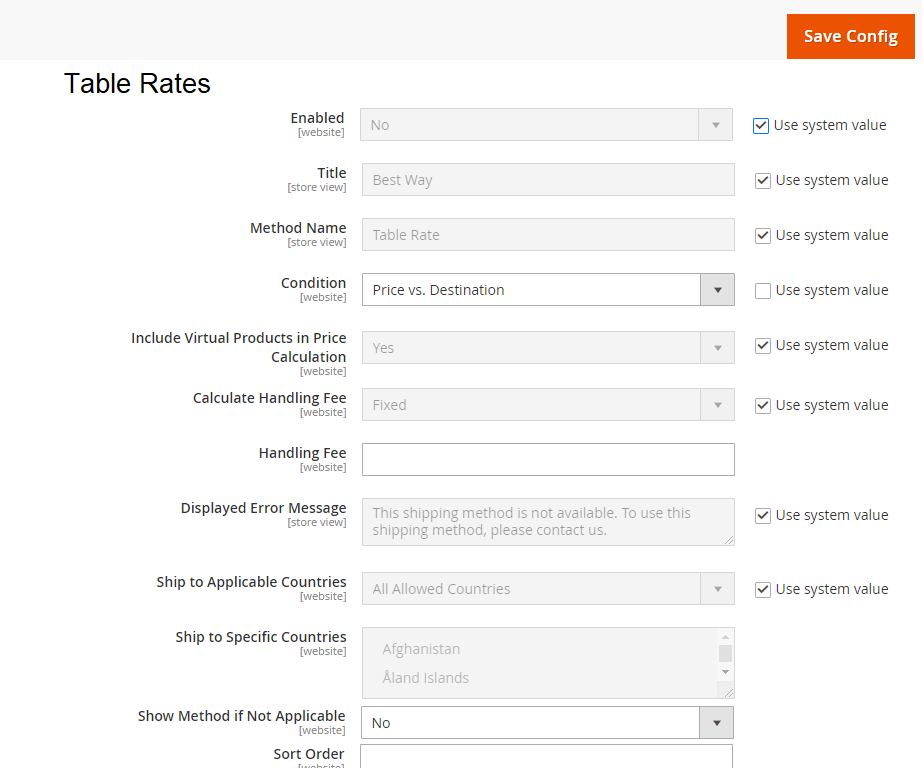
The Table Rates Shipping section having the following below fields
Enabled:: Select Yes from Select Drop Down box, to enable, by default No selected
Title:: Enter Title Name. By default, Flat Rate
Method Name:: Change Method Name, if required, by default Fixed
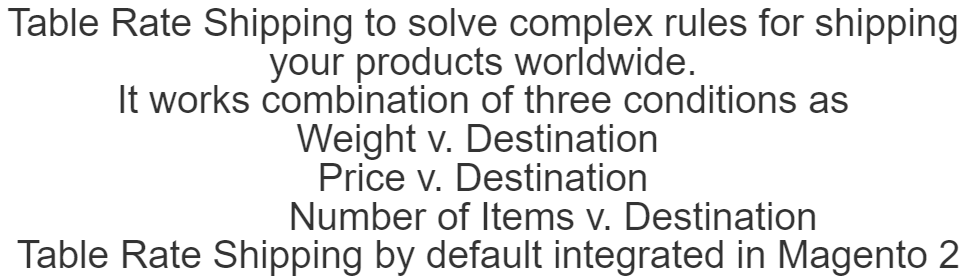
Conditions:: This having three options
Conditions–Weight v. Destination: This type means the shipping rate is zero, which is similar to free shipping method.
Conditions–Price v. Destination: It charges a flat shipping rate for the entire order.
Conditions–Number of Items v. Destination: It charges a flat shipping rate for each item. The final shipping cost is multiplied by the number of items in the cart.
Include Virtual Products in Price Calculation:: If you want to have a virtual product in the estimation then, select Yes, by default Yes selected
Price:: Enter shipping price, if you to charge for Flat Rate shipping
Calculate Handling Fee:: If you want to add some additional shipping handling charges select it either Percentage or Fixed, define these two options as below.
Calculate Handling Fee–Percentage:: Define Percentage option to add some additional shipping handling charges
Calculate Handling Fee–Fixed:: Define Fixed option to add some additional shipping handling charges
Calculate Handling:: Enter additional shipping handling charges, either Percentage or Fixed values, depends on Calculate Handling Fee
Displayed Error Message:: This display if Free shipping having any error, if you want to modify content, do it as per your store need.
Ship to Applicable Countries:: Free Shipping is supported for every country
Ship to Specific Countries:: Free Shipping is only supported for selected countries.
Show Method if Not Applicable:: Select Yes if you want to show Free Shipping all time, by default No selected
Sort Order:: Set the Sort Order on the Shipping Method on the checkout page
Step [4] – Click on Save Config button & run CLI command Flush
If you want to Estimate or Calculate Tables Shipping Rates Data, follow below steps.
Estimate or Calculate Tables Shipping Rates Data:: The following below steps define how to calculate Tables Shipping Rates Data
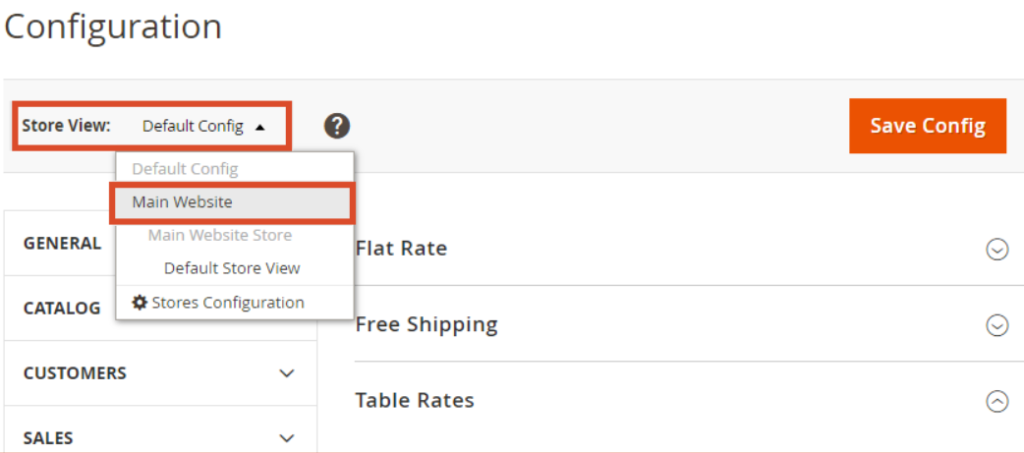
Step [1] – Click on Store View in the upper left corner and switch to Main Website or any other store where the configuration have to apply
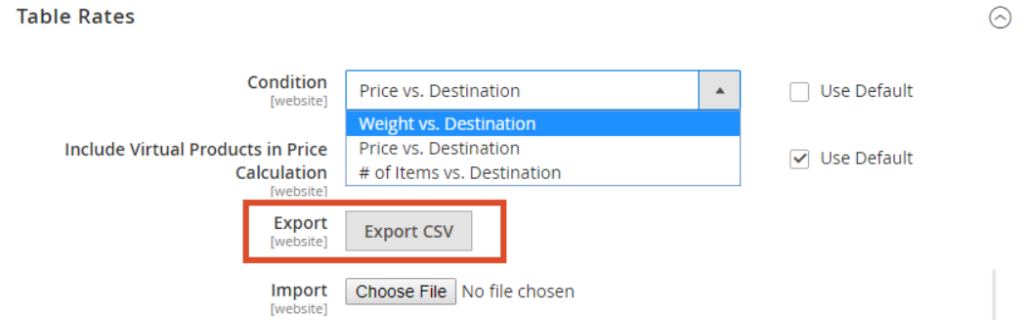
Step [2] – Once Step [1] setting done, You can see new Export and Import options available.
Step [2.1] – To change the Condition, clear Use Default Checkbox and select another.
Step [2.2] – Click Export CSV to download the tablerates.csv file.
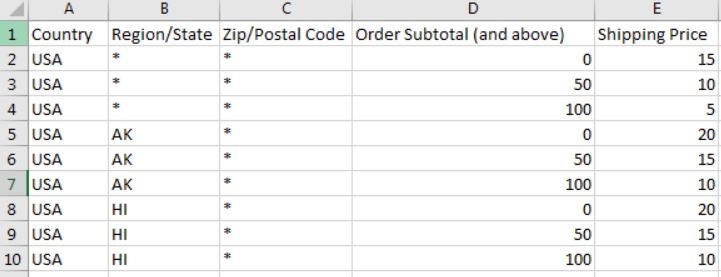
Step [2.3] – Open the file tablerates.csv file in a spreadsheet & modify as your store shipping need
Use an asterisk (*) as a wildcard to represent all possible values in any category.
In the Country column, provide the Three Digit Country Code or Alpha-3 code for every country.
Sort the data by Region / State, so the specific locations are at the top of the list, and the wildcard locations at the bottom. This will process the rules with the absolute values first, and the wildcard values later.
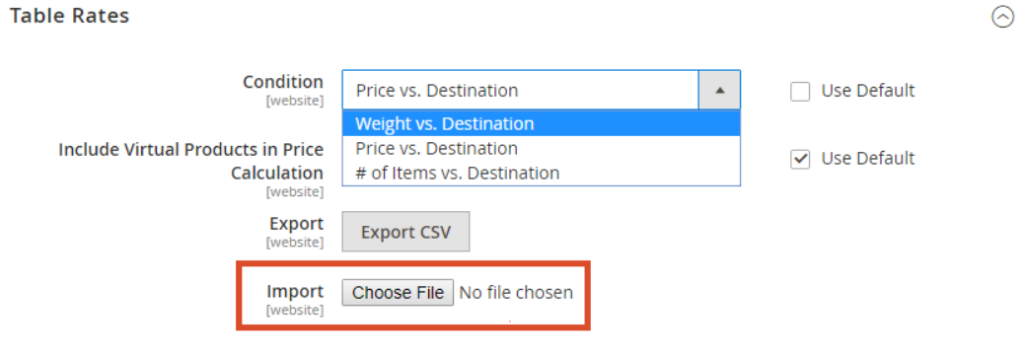
Step [3] –Import Tables Shipping Rates Data
Click Choose File next to import field. Select your completed tablerates.csv file, and import the rates.
Step [4] – Click on Save Config button & run CLI command Flush
To check Tables Shipping Rates Data working fine either yes or not, need to add products in the cart & conducting the payment process with different shipping addresses in the checkout. Finally, you can ensure that the calculation for the Tables Shipping Rates Data as well as handling rates are working fine as per your store.
Other Important Magento 2 Shipping / Delivery Methods