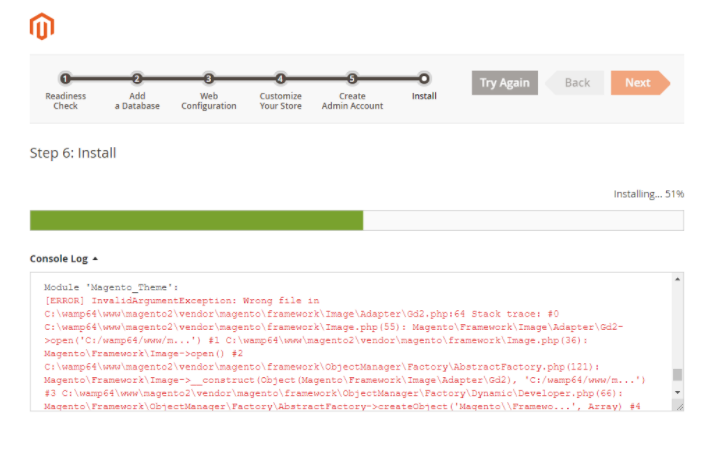
While Installing Magento 2 getting this issue Windows 10, XAMPP, WAMP

This issue with All Magento version as 2.2.X, Magento2.3.X, Magento 2.4.X
error message Module 'Magento_Theme': [ERROR] InvalidArgumentException: Wrong file in D:\xampp\htdocs\magento2\vendor\magento\framework\Image\Adapter\Gd2.php:64 Stack trace: #0 D:\xampp\htdocs\magento2\vendor\magento\framework\Image.php(55): Magento\Framework\Image\Adapter\Gd2->open('C:/wamp64/www/m...') #1 D:\xampp\htdocs\magento2\vendor\magento\framework\Image.php(36): Magento\Framework\Image->open() #2 D:\xampp\htdocs\magento2\vendor\magento\framework\ObjectManager\Factory\AbstractFactory.php(121): Magento\Framework\Image->__construct(Object(Magento\Framework\Image\Adapter\Gd2), 'C:/wamp64/www/m...') #3 D:\xampp\htdocs\magento2\vendor\magento\framework\ObjectManager\Factory\Dynamic\Developer.php(66): Magento\Framework\ObjectManager\Factory\AbstractFactory->createObject('Magento\Framewo...', Array) #4 D:\xampp\htdocs\magento2\vendor\magento\framework\ObjectManager\ObjectManager.php(56): Magento\Framework\ObjectManager\Factory\Dynamic\Developer->create('Magento\Framewo...', Array) #5 D:\xampp\htdocs\magento2\vendor\magento\framework\Image\Factory.php(47): Magento\Framework\ObjectManager\ObjectManager->create('Magento\Framewo...', Array) #6 D:\xampp\htdocs\magento2\vendor\magento\framework\View\Design\Theme\Image.php(127): Magento\Framework\Image\Factory->create('C:/wamp64/www/m...') #7 D:\xampp\htdocs\magento2\vendor\magento\module-theme\Model\Theme\Registration.php(135): Magento\Framework\View\Design\Theme\Image->createPreviewImage('C:/wamp64/www/m...') #8 D:\xampp\htdocs\magento2\vendor\magento\module-theme\Model\Theme\Registration.php(114): Magento\Theme\Model\Theme\Registration->_savePreviewImage(Object(Magento\Theme\Model\Theme\Data)) #9 D:\xampp\htdocs\magento2\vendor\magento\module-theme\Model\Theme\Registration.php(73): Magento\Theme\Model\Theme\Registration->_registerThemeRecursively(Object(Magento\Theme\Model\Theme\Data)) #10 D:\xampp\htdocs\magento2\vendor\magento\module-theme\Setup\Patch\Data\RegisterThemes.php(47): Magento\Theme\Model\Theme\Registration->register() #11 D:\xampp\htdocs\magento2\vendor\magento\framework\Setup\Patch\PatchApplier.php(162): Magento\Theme\Setup\Patch\Data\RegisterThemes->apply() #12 D:\xampp\htdocs\magento2\setup\src\Magento\Setup\Model\Installer.php(1023): Magento\Framework\Setup\Patch\PatchApplier->applyDataPatch('Magento_Theme') #13 D:\xampp\htdocs\magento2\setup\src\Magento\Setup\Model\Installer.php(890): Magento\Setup\Model\Installer->handleDBSchemaData(Object(Magento\Setup\Module\DataSetup), 'data', Array) #14 [internal function]: Magento\Setup\Model\Installer->installDataFixtures(Array) #15 D:\xampp\htdocs\magento2\setup\src\Magento\Setup\Model\Installer.php(371): call_user_func_array(Array, Array) #16 D:\xampp\htdocs\magento2\setup\src\Magento\Setup\Controller\Install.php(109): Magento\Setup\Model\Installer->install(Array) #17 D:\xampp\htdocs\magento2\vendor\laminas\laminas-mvc\src\Controller\AbstractActionController.php(83): Magento\Setup\Controller\Install->startAction() #18 D:\xampp\htdocs\magento2\vendor\laminas\laminas-eventmanager\src\EventManager.php(321): Laminas\Mvc\Controller\AbstractActionController->onDispatch(Object(Laminas\Mvc\MvcEvent)) #19 D:\xampp\htdocs\magento2\vendor\laminas\laminas-eventmanager\src\EventManager.php(178): Laminas\EventManager\EventManager->triggerListeners(Object(Laminas\Mvc\MvcEvent), Object(Closure)) #20 D:\xampp\htdocs\magento2\vendor\laminas\laminas-mvc\src\Controller\AbstractController.php(117): Laminas\EventManager\EventManager->triggerEventUntil(Object(Closure), Object(Laminas\Mvc\MvcEvent)) #21 D:\xampp\htdocs\magento2\vendor\laminas\laminas-mvc\src\DispatchListener.php(117): Laminas\Mvc\Controller\AbstractController->dispatch(Object(Laminas\Http\PhpEnvironment\Request), Object(Laminas\Http\PhpEnvironment\Response)) #22 D:\xampp\htdocs\magento2\vendor\laminas\laminas-eventmanager\src\EventManager.php(321): Laminas\Mvc\DispatchListener->onDispatch(Object(Laminas\Mvc\MvcEvent)) #23 D:\xampp\htdocs\magento2\vendor\laminas\laminas-eventmanager\src\EventManager.php(178): Laminas\EventManager\EventManager->triggerListeners(Object(Laminas\Mvc\MvcEvent), Object(Closure)) #24 D:\xampp\htdocs\magento2\vendor\laminas\laminas-mvc\src\Application.php(339): Laminas\EventManager\EventManager->triggerEventUntil(Object(Closure), Object(Laminas\Mvc\MvcEvent)) #25 D:\xampp\htdocs\magento2\setup\index.php(39): Laminas\Mvc\Application->run() #26 {main} Next Magento\Framework\Setup\Exception: Unable to apply data patch Magento\Theme\Setup\Patch\Data\RegisterThemes for module Magento_Theme. Original exception message: Wrong file in D:\xampp\htdocs\magento2\vendor\magento\framework\Setup\Patch\PatchApplier.php:170 Stack trace: #0 D:\xampp\htdocs\magento2\setup\src\Magento\Setup\Model\Installer.php(1023): Magento\Framework\Setup\Patch\PatchApplier->applyDataPatch('Magento_Theme') #1 D:\xampp\htdocs\magento2\setup\src\Magento\Setup\Model\Installer.php(890): Magento\Setup\Model\Installer->handleDBSchemaData(Object(Magento\Setup\Module\DataSetup), 'data', Array) #2 [internal function]: Magento\Setup\Model\Installer->installDataFixtures(Array) #3 D:\xampp\htdocs\magento2\setup\src\Magento\Setup\Model\Installer.php(371): call_user_func_array(Array, Array) #4 D:\xampp\htdocs\magento2\setup\src\Magento\Setup\Controller\Install.php(109): Magento\Setup\Model\Installer->install(Array) #5 D:\xampp\htdocs\magento2\vendor\laminas\laminas-mvc\src\Controller\AbstractActionController.php(83): Magento\Setup\Controller\Install->startAction() #6 D:\xampp\htdocs\magento2\vendor\laminas\laminas-eventmanager\src\EventManager.php(321): Laminas\Mvc\Controller\AbstractActionController->onDispatch(Object(Laminas\Mvc\MvcEvent)) #7 D:\xampp\htdocs\magento2\vendor\laminas\laminas-eventmanager\src\EventManager.php(178): Laminas\EventManager\EventManager->triggerListeners(Object(Laminas\Mvc\MvcEvent), Object(Closure)) #8 D:\xampp\htdocs\magento2\vendor\laminas\laminas-mvc\src\Controller\AbstractController.php(117): Laminas\EventManager\EventManager->triggerEventUntil(Object(Closure), Object(Laminas\Mvc\MvcEvent)) #9 D:\xampp\htdocs\magento2\vendor\laminas\laminas-mvc\src\DispatchListener.php(117): Laminas\Mvc\Controller\AbstractController->dispatch(Object(Laminas\Http\PhpEnvironment\Request), Object(Laminas\Http\PhpEnvironment\Response)) #10 D:\xampp\htdocs\magento2\vendor\laminas\laminas-eventmanager\src\EventManager.php(321): Laminas\Mvc\DispatchListener->onDispatch(Object(Laminas\Mvc\MvcEvent)) #11 D:\xampp\htdocs\magento2\vendor\laminas\laminas-eventmanager\src\EventManager.php(178): Laminas\EventManager\EventManager->triggerListeners(Object(Laminas\Mvc\MvcEvent), Object(Closure)) #12 D:\xampp\htdocs\magento2\vendor\laminas\laminas-mvc\src\Application.php(339): Laminas\EventManager\EventManager->triggerEventUntil(Object(Closure), Object(Laminas\Mvc\MvcEvent)) #13 D:\xampp\htdocs\magento2\setup\index.php(39): Laminas\Mvc\Application->run() #14 {main}Solution: Please replace below method
Find validateURLScheme function in vendor\magento\framework\Image\Adapter\Gd2.php file. at line 96. Replace function with this: !file_exists($filename)
Replace existing validateURLScheme function with modified validateURLScheme function as per below code
private function validateURLScheme(string $filename) : bool
  {
      $allowed_schemes = ['ftp', 'ftps', 'http', 'https'];
      $url = parse_url($filename);
      if ($url && isset($url['scheme']) && !in_array($url['scheme'], $allowed_schemes) && !file_exists($filename)) {
          return false;
      }

      return true;
  }
Finally, Magento 2 Installation will be completed 100% after above changes
Other Important Magento 2.X Link
Magento 2.3 To Magento 2.4.5 Comptibility For PHP, MYSQL, Composer, Apache etc
Magento 2.4.4 Installation Steps
Magento 2.4.3-p1 Installation Steps
Magento 2.4.3 Installation Steps
Magento 2.4 Two Factor Authentication
Magento 2.2, Magento 2.3, Magento2.4 Installation Issue on Windows 10, XAMPP
Magento 2 Installation at 51% Error: (Wrong file in Gd2.php:64) Module ‘Magento_Theme’